1
To change the duration of the password, complete the
following steps:
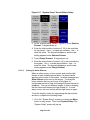
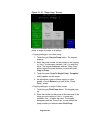
1. On the “System Setup” screen ( Figure 7), touch the
Operator Password Duration button or the Setup
Password Duration button, depending on which
password duration you want to change. A keypad pops
up, with an entry of 0.
2. Enter the number of minutes (between 1 and 99) that you
want to set as the password duration. Use ← to erase
any mistakes. Use ↵ to enter the value. The keypad
disappears, and the “System Setup” screen shows the
new setting.
5-2-5
Starting the System for the First Time
Once you have finished all the setup described above, you
are ready to start the system. To start your system, complete
the following steps.
1. At any screen, touch Menu on the right side of the
screen. The “Menu” screen appears (Figure 5).
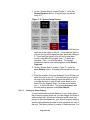
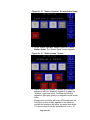
2. Touch Stations. The “Station Status” screen appears
(Figure 8).
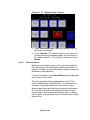
3. For each station that you want to use, briefly touch its
icon. The icon turns blue, indicating that the station is
ready, or the icon turns yellow, indicating that the station
needs material.
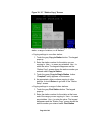
4. Touch Pumps. The “Pump Status “screen opens (Figure
12)
5. For each pump that you want to use, briefly touch its
icon. The icon turns blue, indicating that the pump is
ready.
6. Touch Push to Start System in the lower right-hand
corner of the screen.
7. The system starts. If any alarm messages appear on the
top of the screen, see p. 89.
5-3
5-3-1
General Operation
Overview
Your VTC 4/32 controller electrically controls valves and
solenoids to convey material from a central location to
individual stations as needed. The controller senses
Page 36 of 98