1
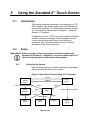
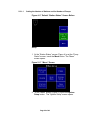
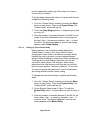
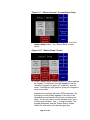
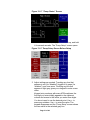
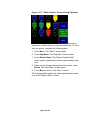
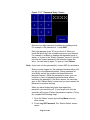
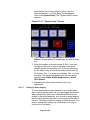
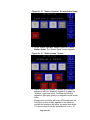
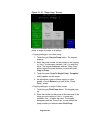
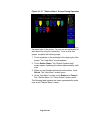
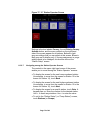
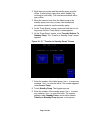
Figure 34: 10” “Station Status” Screen During Operation
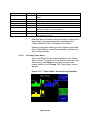
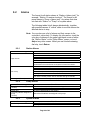
The status of each station is color-coded, as summarized in
the upper right of the screen. You can see an explanation of
each status by using the online help. To do so from this
screen, complete the following steps.
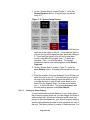
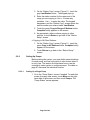
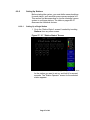
1. Touch anywhere in the rectangle in the upper right of the
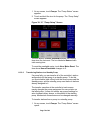
screen. The “Help Menu” screen appears.
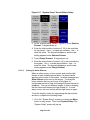
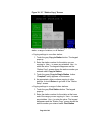
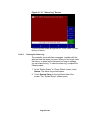
2. Touch Station States. The “Station Symbols Help”
screen opens, explaining the status represented by each
color.
3. When you are finished reviewing the information, touch
Return. The “Help Menu” screen opens.
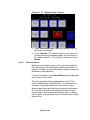
4. At the “Help Menu” screen, touch Stations (or Pumps).
The “Station Status” (or “Pump Status”) screen opens.
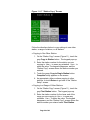
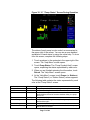
The following table explains the status represented by each
color at the “Station Status” screen.
Page 69 of 98