1
GETTING STARTED
Checking the WinPV Update Client
Checking the WinPV Update Client
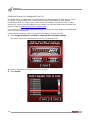
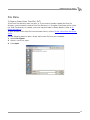
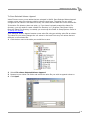
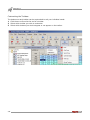
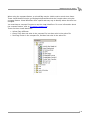
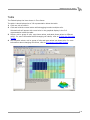
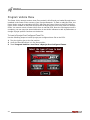
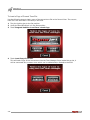
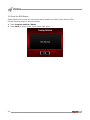
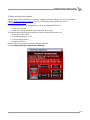
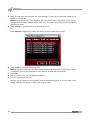
The PV Update Client automatically checks for any applicable updates. The latest versions of
the Firmware, Software, Tune Database, and any Critical Updates will be displayed in the
Latest Version column. Your currently installed versions will be displayed in the Installed
Version column.
Note:Please read the Update Messages on the top of the Update Client window for any
critical updates and follow any directions given there first.
1
2
3
4
5
6
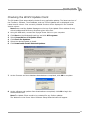
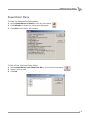
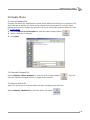
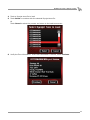
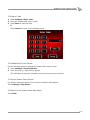
Using the USB cable, connect the Dynojet Power Vision to your computer.
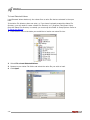
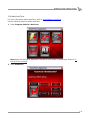
Click Start on the Windows® task bar, and click All Programs.
Select PowerVision >PV Update Client.
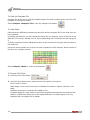
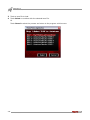
Click Check For Updates.
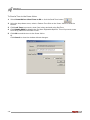
Select the desired update to install.
Click Download & Install Selected Updates.
7
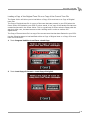
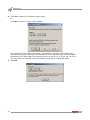
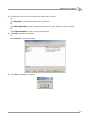
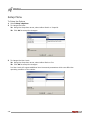
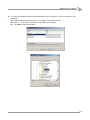
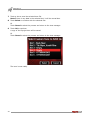
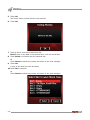
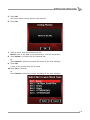
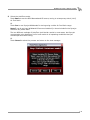
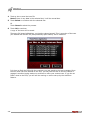
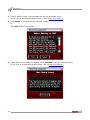
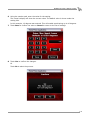
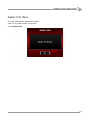
As the firmware and tune database downloads are completed, click OK to complete.
8
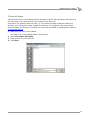
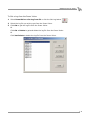
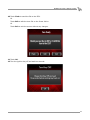
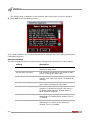
As the software and update client downloads are completed, click OK to begin the
software download.
Note:The Update Client needs to be restarted for any further updates.
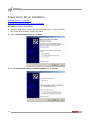
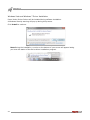
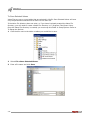
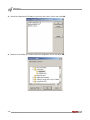
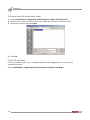
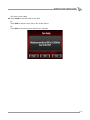
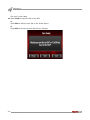
The Welcome to the Power Vision Software Setup Wizard window will appear.
Version 7
WinPV User Guide
2-5