1
EN
n
Installation
1. Insert the driver CD into your CD-ROM drive BEFORE you connect the device to your system. Start the
installation routine by double-clicking the icon of the “Nacon GM-400L mouse driver.exe”.
2. The Setup screen appears, asking for the desired language of your installation. Choose your language and click
OK.
3. Select the program folder where the driver software is supposed to be installed.Choose NEXT.
4. Select the location for the menu or leave “Nacon” as default. Click NEXT.
5. All install options will be listed in the next screen. Review carefully and approve by clicking INSTALL.
6. Once completed you will see a screen indicating that the installation is complete.
7. Restart your system for the driver to be loaded.
8. Now plug the NACON GM-400L into one of your free USB slots.
9. After a short time Windows should confirm that the device has been recognised and installed correctly.
Ceramic Feet
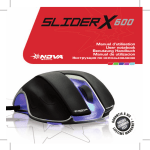
By default your NACON GM-400L is equipped with teflon pads underneath, which secure a good gliding
behaviour. To improve gliding, we´ve also included additional ceramic feet, which can be attached.
Changing the resolution
The NACON GM-400L uses a high precision laser sensor to track your mouse movements and transmit this
information to your PC. This sensor can operate at various resolutions. The higher the resolution, the more
precisely your movements will be tracked, but the harder you might feel it is to point the cursor at a specific
destination with your mouse. By pressing the “+” and “-“ buttons, located below the mouse wheel, you can
change to the desired resolution. The selected resolution will be displayed in the small LCD screen to the left.
Adjusting the weight
The NACON GM-400L weighs 150g. But every user prefers a different weight for his their mouse. That´s why the
NACON GM-400L comes with additional weights which can be added. Here´s how you do it:
1. Turn the device upside down.
2. Open the weight compartment by shifting the lock outwards.
3. The weight magazine ejects.
4. You can now add the included weight blocks until the mouse has the desired total weight.
5. Push the magazine back into compartment, until the lock snaps in.
Driver software
The driver software on the CD which came with your NACON GM-400L is the tool to unleash the full potential of
your new mouse! Your NACON GM-400L features an onboard 256kb memory, which stores all your settings. This
way your mouse will use these settings independent on which computer you use it.
To open the software simply press the macro button below the mouse wheel.
On each screen you find three buttons on the lower right side:
•[OK] Lets you save the settings and minimizes the driver again
•[Cancel] Minimizes the driver without saving the changes
•[Apply] Saves the settings and transmits it to your mouse without closing the Window
Warning: After clicking “OK” or “Apply” the driver writes the new settings to the onboard memory of your mouse.
Please do not use the device during this process.
Hint: For driver updates please regularly visit our homepage www.nacongaming.com. You can do so by simply
clicking on the link in the lower left corner of the driver window.
GM-400L