1
5. Getting Started
6. Operation
6.1 Scanning
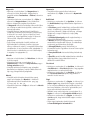
a
A
c
b
D
Scanner Mouse
Install
Link to manual
English
B
C
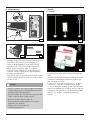
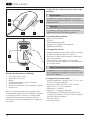
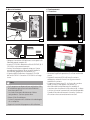
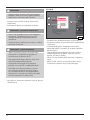
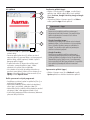
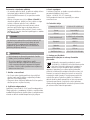
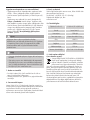
••Connect the mySCAN Mouse’s USB plug to a free USB
port on your computer (A).
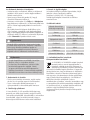
••Insert the included CD-ROM into your CD/DVD drive (B).
The CD-ROM will start automatically.
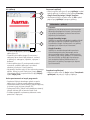
••Start the installation by running setup.exe. This process
may take a few seconds. Follow the instructions of the
installation program (C).
••After installation, remove the CD-ROM from the CD/DVD
drive. Keep the CD-ROM in a safe place.
Note
•• If your computer does not have an optical drive, you
can also download the installation file at www.hama.
de/52343.
•• The Drivers tab will take you straight to the
appropriate driver. Download the driver.
•• Save the installation file.
•• Double-click setup.exe to start the installation
program.
•• Follow the instructions of the installation program.
d
E
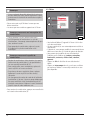
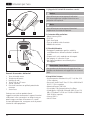
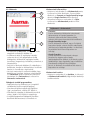
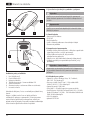
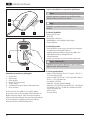
••Remove the protective film (6) from the bottom of the
mouse.
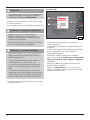
••Place your mySCAN Mouse on the area you want to scan
and press the scan button (4) to start scan mode.
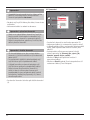
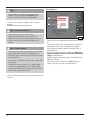
••A black screen will open (D). The green scanning window
(c) shows the area you just scanned. The description of
the scan mode functions is shown on the upper left (b).
The bar on the left (a) shows the amount of scan memory
available. As soon as the storage space is used up, the
scanning process is automatically ended.
3