1
Installing the battery
SPH-A420
QUICK GUIDE
Charging the battery
1. Remove the battery cover.
Phone layout and key functions
1. Plug the supplied travel adapter.
4-way navigation keys
In Menu mode, scroll
through menu options.
In Idle mode, quickly
access the following
menus or function:
,
,
,
.
Battery
cover
To AC wall outlet
2. When charging is finished, unplug the adapter.
2. Install the battery and replace the cover.
Volume keys
Adjusts the phone
volume.
Cancel/Back key
Deletes characters from
the display. In Menu
mode, returns to the
previous menu level.
Battery
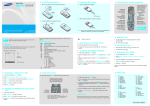
This guide explains how to set up your phone and
gives a quick overview of the main functions of
the phone.
Printed in Korea
Code No.: GH68-14666A
English. 09/2007. Rev.1.1.
Display
Your phone is in Idle mode when you are not on a call or using a menu.
You must be in Idle mode to dial a phone number.
Note: Do not remove the battery from the phone without unplugging the
adapter first. Otherwise, the phone may be damaged.
Your phone displays the following status indicators on the top of the
screen:
Icon
Out of service area; you can not make or receive calls
Roaming
to switch on the phone.
for more than two
Alarm set
Ringer
•
•
•
•
Soft key indicators
setting
: Level 1~8 or 1-Beep
: Level 1~8 or 1-Beep with vibration
: Ringer Off or Silence all
: Ringer Off with vibration.
.
Alphanumeric keys
Adjusting the volume
.
2. Select Settings → Sounds → Volume.
3. Select Messages, Voicemail or Alarms, and press
.
1. When the phone rings, press
5. Press the Navigation keys to adjust the volume level and select Done
soft key. (Select Vibrate to make the ringer vibrate at any volume
level.)
While a call is in progress, press the Volume keys to adjust the earpiece
volume.
Answering a call
2. To end the call, press
zwlhrly
4. Select Use Ringer Vol. to use the ringer settings or select Separate
Vol..
Making a call
2. To end the call, press
Location service active
Soft keys
Perform functions
indicated by the text
above the key.
Power/End key
Turns the phone on or
off when pressed and
held. Also ends a call.
Special function keys
1. In Idle mode, press
1. In Idle mode, enter the area code and phone number,
and press
.
New message
Text and
graphic area
Contacts
1. Press and hold
Call in progress
Icons
Voice Kit
Switching on or off the phone
2. To switch off the phone, press and hold
seconds.
Description
Received signal strength
The display has three areas.
Call key
Makes and answers a
call. In Idle mode,
retrieves the most
recent calls.
to answer a call.
.
Vibration all
Battery power level
Changing a Ringtype for Voice Calls
1. In Idle mode, press
.
Menu map
Using the menus
In Idle mode, press
To select and modify menu or feature:
to enter the main menu.
2. Select Settings → Sounds → Ringer Type → Voice Calls.
1. In Idle mode, press
Labels at the bottom corners of
the display show the current soft
key functions. Press the left soft
key (
) or right soft key ( ) to
perform the function indicated.
3. Select With Caller ID or No Caller ID
4. Select Ring Tones, Melodies, or Single Tones and press
.
5. Use your navigation key to scroll through the available ringers.
6. Press
.
.
2. Press Up or Down to scroll to a number or name.
3. Press
2. Press the Navigation keys to reach the desired menu and then press
.
3. If the menu contains any submenus, locate the one you want by
pressing the Navigation keys. Press
to enter the submenu.
If the selected menu contains additional submenus, repeat this step.
Viewing and dialling the most recent
calls
1. In Idle mode, press
.
to view details of the call or
to dial the number.
4. Press the Navigation keys to find the setting of your choice.
To return to
the previous
menu level,
press this key.
zwlhrly
To exit the
menu without
changing the
menu settings,
press this key.
Use the 4-way navigation keys (
)
to scroll up, down, left, or right through the menu
system, highlight menu items.
5. Press
, OK or Save soft key to confirm your chosen setting.
Shortcut numbers
You can quickly access the menu you want by using shortcut numbers.
1. Voice Kit
1.1 Voice Dial
1.2 Voice Memo
2. Messaging
2.1 Send Message
2.2 Inbox
2.3 Outbox
2.4 Drafts
2.5 Voicemail
2.6 Settings
3. Tools
3.1 Today
3.2 Scheduler
3.3 Task List
3.4 Countdown
3.5 Memo Pad
3.6 World Time
3.7 Alarm Clock
3.8 Calculator
4. Settings
4.1 Display
4.2 Sounds
4.3 Security*
4.4 Launch Pad
4.5 Others
4.6 Phone Info
5. Call
5.1
5.2
5.3
5.4
History
Outgoing Calls
Incoming Calls
Missed Calls
All Recent
6. Contacts
6.1 Find
6.2 Add New Entry
6.3 Speed Dial #s
6.4 Group
6.5 Services
6.6 My Phone #
* You need to enter the phone password. The password is preset to the
last 4-digit of your phone number.
Entering text
Press the keys labelled with the letter you want:
Changing the text input mode
Sending a text message
- once for the first letter
1. In the text input field, press the Options soft key.
1. In Idle mode, press
- twice for the second letter
.
1. Press keys 2 to 9 to start entering a word. Press each key only once for
one letter.
5. Review your message and press Send soft key.
Press the number keys corresponding to the symbols you want. You can
press Left or Right to display more symbols.
Number mode
Press the number keys corresponding to the digits you want.
Finish entering the word before editing or deleting any keystrokes.
Tips for entering text
Example To enter “Hello” in T9 mode, press 4, 3, 5, 5, and 6.
• To move the cursor, press
If the word is not correct, press 0 to display alternative word choices
for the keys that you have pressed.
2. When the word displays correctly, insert a space after it by pressing
or
.
• To delete letters one by one, press the Back key. To delete all of the
letters, press and hold the Back key.
.
• To insert a space between letters, press
.
• To change case in T9 English mode or Alpha mode, press
Description
Voicemail
Dial to the voicemail server and access
your voicemails.
MENU OK >
Messaging >
Voicemail
Settings
Set options for using the messaging
feature.
MENU OK >
Messaging >
Settings
Today
Schedule new events for the current
date.
MENU OK > Tools >
Today
Scheduler
Keep track of daily or monthly
schedule.
MENU OK > Tools >
Scheduler
Task List
Create a list of tasks and assign a
dealine to each task.
MENU OK > Tools >
Task List
Countdown
Measure the time how long it takes to
do something, or how many days
remain until a specific event occurs.
MENU OK > Tools >
Countdown
Description
Select
Programming
Voice Dial
Program up to 20 voice entering into
your phone.
MENU OK > Voice Kit
> Voice Dial > Record
Voice Dial
Make phone calls by saying one of
names you have saved in Contacts.
Press and hold TALK
Voice Dialling
Activate
Enable voice dialling.
MENU OK > Voice Kit
> Voice Dial > Set
Activate > Talk Only
Memo Pad
Make memos of important things you
need to remember.
MENU OK > Tools >
Memo Pad > Options
> Add new
Voice Memo
Record your important memos.
MENU OK > Voice Kit
> Voice Memo >
record
World Time
Find out what time it is in another part
of the world.
MENU OK > Tools >
World Time
Feature
Description
Select
Feature
Description
Select
MENU OK > Settings
> Sounds > Volume
> Ringer.
Erase Contacts
Erase all contacts entries.
MENU OK > Settings
> Security > Erase
Contacts
Phone
information
Check your phone number and view
icon information, software, hareware
version and network information.
MENU OK > Settings
> Phone Info
Alert
Notification
Your phone can alert you with audible
tone when you change service areas,
once a minute during a voice call,
when signal fades, when powering
your phone on or off, or when a call
has been connected.
MENU OK > Settings
> Sounds > Alerts
Reset the
phone
Reset the phone to return to the
factory default settings.
MENU OK > Settings
> Security > Reset
Phone
View recent
calls
View and dial the most recent calls
you have dialled, received, or missed.
Menu shortcuts
MENU OK > Settings
> Launch Pad
Change
keytone
settings
Select a tone which sounds when you
press a key or adjust the keytone
volume.
MENU OK > Settings
> Sounds > Key Tone
Set the Navigation keys as shortcuts
to access your favourite menus
directly.
MENU OK > Call
History > Missed,
Incoming, Outgoing,
All Recent
Program a five or six digit prefix for
commonly used phone numbers.
Security
The phones security settings are
available through this menu.(note:
lock codes will be defaulted to 0000 or
the last 4 digits of your mobile phone
number).
MENU OK > Settings
> Security
MENU OK > Settings
> Others > Call
Setup > Abbrev. Dial
Search for a Phonebook entry by
name, entry number, or group name,
or memory location.
MENU OK > Contacts
> Find
Abbreviated
Dial
Find
Phonebook
entry
Store phone
number
Store a phone number, an email
address, or a memo in Phonebook.
MENU OK > Contacts
> Add New Entry
Restriction
Restrict outgoing calls.
MENU OK > Settings
> Others > Call
Setup > Restriction
Speed Dial #s
MENU OK > Contacts
> Speed Dial #s
Lock the phone
Lock the phone manually or set the
phone to lock automatically. To unlock,
enter the lock code.
MENU OK > Settings
> Security > Lock
Phone
Call Answer
Set up how you answer incoming calls.
MENU OK > Settings
> Others > Call
Setup > Call Answer
Set up speed dial entries and then dial
them easily whenever you want,
simply by pressing and holding the
associated number key(s).
Group
Change the default group names and
ringer melodies.
MENU OK > Contacts
> Group > Options
Change lock
code
Change your current lock code.
MENU OK > Settings
> Security > Change
Lock
Emergency
numbers
Store emergency numbers. These
numbers can be dialled even when
your phone is locked.
MENU OK > Settings
> Security > Special
#
Screen Saver
Change the background image to be
displayed in Idle mode.
MENU OK > Settings
> Display > Screen
Saver
Select a menu style.
MENU OK > Settings
> Display > Menu
Style
Display numbers in colours when
entering a phone number for dialling.
MENU OK > Settings
> Display > Dialling
Font > Colour
Set a greeting message to be
displayed.
MENU OK > Settings
> Display > Greeting
> Custom
Set the length of time the display,
adjust the brightness of the LCD and
the keypad backlight stay on.
MENU OK > Settings
> Display > Backlight
Activate or deactivate the service
light.
MENU OK > Settings
> Display > Service
Light
Select a unique ringtone for voice
calls, messages , and scheduler ringer.
MENU OK >
Messaging >
Inbox,Outbox,Drafts
Select
MENU OK > Tools >
Calculator
Ringtone
melody
Read received, sent , or saved
message.
Adjust the ringtone volume for voice
calls, messages , and scheduler ringer.
Perform basic arithmetic functions.
Service Light
Read message
Description
Calculator
Backlight
MENU OK >
Messaging >
Send message
Ringtone
volume
MENU OK > Tools >
Alarm Clock
Greeting
Create an text message to send it to
other mobile phones.
Feature
Set an alarm to sound at a specific
time.
Dialling font
Send message
Select
Alarm Clock
Menu Style
Select
Feature
.
• To enter punctuation marks in T9 English mode or Alpha mode, press 1,
until the punctuation mark desired appears.
Feature
Quick feature reference
This section provides brief explanations of features on your phone.
The word you are entering appears on the display. It may change with
each key.
Description
4. Enter the message text and press the Next soft key.
Symbol mode
T9 English mode
.
3. Enter the mobile number, email address, or select the contact, press
and select Next soft key.
For example, you press 2 three times to enter the letter “C” and 5 two
times to enter the letter “K.”
Feature
and select Messaging → Send Message.
2. Select Mobile #, Email, or Contacts and press
- and so on.
2. Press the Navigation keys to scroll to the mode you want:
T9(English), Alpha, Symbol, Number, Preset Msg, Recent Msg,
and Emoticons.
3. Press
Sending a message
Alpha mode
MENU OK > Settings
> Sounds > Ringer
Type
Important safety precautions
Read these guidelines before using your wireless phone. Failure to comply
with them may be dangerous or illegal.
Drive safely at all times
Do not use a hand-held phone while driving; park the vehicle first.
Switching off when refueling
Do not use the phone at a refueling point (service station) or near fuels or
chemicals.
Switching off in an aircraft
Wireless phones can cause interference. Using them in an aircraft is both
illegal and dangerous.
Switching off near all medical equipment
Hospitals and health care facilities may be using equipment that could be
sensitive to external RF energy. Follow any regulations or rules in force.
Interference
All wireless phones may be subject to interference, which could affect their
performance.
Special regulations
Answer incoming calls automatically.
MENU OK > Settings
> Others > Call
Setup > Auto Answer
Services
Dial the service center preset by your
service provider and get a variety of
information.
MENU OK > Contacts
> Services
Airplane Mode.
Activate or deactivate Airplane mode.
MENU OK > Settings
> Others > Airplane
Mode
My Phone #
Check your phone number.
MENU OK > Contacts
> My Phone #
Audio Routing
Select ringer information for a speaker
or a headset.
MENU OK > Settings
> Others > Audio
Routing
Use only Samsung-approved batteries and recharge your battery only with
Samsung-approved chargers.
Follow any special regulations in force in any area and always switch off
your phone whenever it is forbidden to use it.
Qualified service
Only qualified service personnel may repair your phone.
Water resistance
Your phone is not water-resistant. Keep it dry.
CAUTION
Sensible use
Use only in the normal position (held to the ear). Avoid unnecessary
contact with the antenna when the phone is switched on.
Emergency calls
Key in the emergency number for your present location, then press
Do not end the call until given permission to do so.
Auto Answer
Risk of explosion if a battery is replaced by an incorrect type.
Dispose of used batteries according to the instructions.
.
Your wireless phone is a radio transmitter and receiver. It is designed and
manufactured not to exceed the emission limits for exposure to radio
frequency (RF) energy set by the Federal Communications Commission
(FCC) of the U.S. Government. These limits are part of comprehensive
guidelines and establish permitted levels of RF energy for the general
population. The guidelines are based on the safety standards that were
developed by independent scientific organizations through periodic and
through evaluation of scientific studies.
The standards include a substantial safety margin designed to assure the
safety of all persons, regardless of age and health.
Small children and your phone
Keep the phone and all its parts including accessories out of reach of small
children.
Accessories and batteries
Use only Samsung-approved accessories and battries. Use of any
unauthorized accessories could damage your phone and may be
dangerous.
SAR information
The exposure standard for wireless phones employs a unit of
measurement known as Specific Absorption Rate (SAR). The SAR limit set
by the FCC is 1.6W/kg*.
Licensed by QUALCOMM incorporated under
one or more of the following Patents.
U.S Patent No. 4,901,307 5,056,109 5,099,204 5,101,501
5,103,459 5,107,225 5,109,390
* In the U.S. and Canada, the SAR limit for mobile phones used by the public is 1.6
watts/kg (W/kg) averaged over one gram of tissue. The standard incorporates a
substantial margin of safety to give additional protection for the public and to account
for any variations in measurements.