1
CHAPTER 5
Properties for Extensions and Crops
Properties for Extensions and Crops
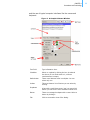
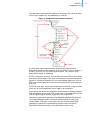
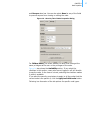
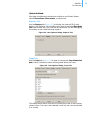
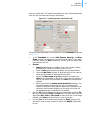
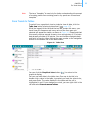
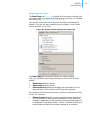
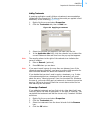
Some extensions and crops must be configured. To display the
properties (Figure 56), highlight the extension or crop in the Explorer
and click the Properties icon.
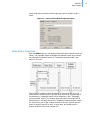
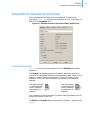
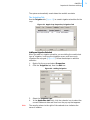
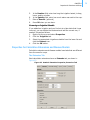
Figure 56. Statistics Extension Properties Dialog, General Tab
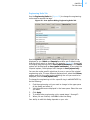
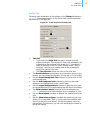
Common Properties
Figure 56 shows the properties specific to the Statistics calculation
extension.
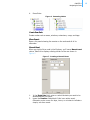
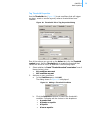
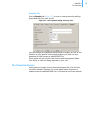
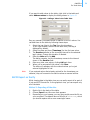
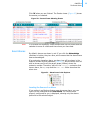
The General tab displays general information about the extension/
crop, and for calculation extensions and disease models, allows you to
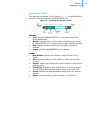
enable or disable individual extensions. If you look closely at the
extension’s icon, you can tell whether the extension is enabled or
disabled.
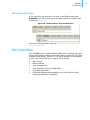
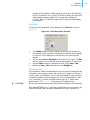
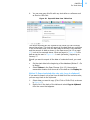
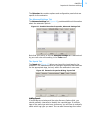
The green triangle
in the bottom left
corner indicates
the extension is
enabled.
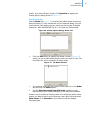
The gray square
in the bottom left
corner indicates
the extension is
disabled.
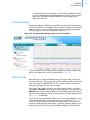
If an extension is being executed, the green triangle appears to move
across the bottom of the icon.
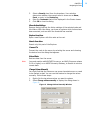
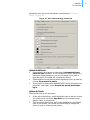
The Action and Security tabs are discussed in Chapter 3, beginning on
page 24
67