1
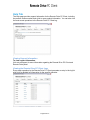
Network Utilization
You can control the network data transfer priority of the backup and restore processes
based on bandwidth. For example, a high resolution digital photograph (1 MB) takes
approximately 2 seconds to transfer at Highest Priority setting, and approximately 40
seconds to transfer at Lowest Priority setting. Note that higher priorities may noticeably
affect other programs on your computer that are using the network for web browsing file
transfers.
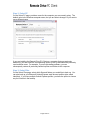
To specify the network utilization:
On the Settings page, select one of the following options in the Network Utilization box
and then click Finish:
• Highest priority: 800 Kb/s
• High priority:
450 Kb/s
• Medium priority: 100 Kb/s
• Low priority:
65 Kb/s
• Lowest priority: 25 Kb/s
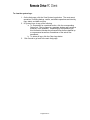
Modifying the Backup Mode
In the Backup Mode page, specify how often you want the Remote Drive PC Client to
operate.
To change the backup mode:
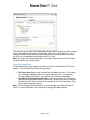
On the Settings page, select one of the following options and click Finish:
• Run Once Now- Backs up the selected files and folders just once. If you
want to run a backup operation again, you need to manually run it (see
Manually Running a Backup Operation). Click Finish to run the backup
immediately.
• Run When File Changes Are Detected- Continuously checks if any files
have changed and automatically backs up those files. Specify how often you
want the Remote Drive PC Client to check for file changes in the Time
Interval box. Click Finish to start the backup process. When it is finished, the
Remote Drive PC Client goes into a monitoring mode so that changed files
are backed up.
Note: You can change the Backup Mode on the Home page of the Remote Drive PC
Client. For more information, see Viewing and Changing the Backup Mode.
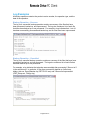
Using Password Protection
The Password Protection area lets you protect your Remote Drive PC Client with your
password. We recommend that you select this feature so that the Remote Drive PC
Client will prompt you for a password on startup. Use this feature to limit access to the
Remote Drive PC Client by other users.
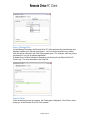
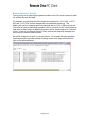
How to Activate the Password Protection feature:
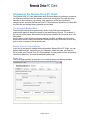
On the Settings page, select the Prompt Me For My Password option and then click
Finish. If you do not want to use password protection for the Remote Drive PC Client,
deselect this option.
-Page 21 of 27-