1
categories to enable the user to easily choose mappings for the functor. Select an object
in the “Domain” list (i.e. an object from the domain category) and its corresponding
object in the “Codomain” list. Continue until all domain objects are gone. Then you will
need to choose the arrow mappings; first select an arrow from the domain category, then
input a codomain path of composable arrows and click “Add Mapping”. Click “Done”
when finished, and the functor will be displayed.
The name of the functor can be a string of any length except for reserved words and may
contain any ASCII characters excluding “: - > * # . = ,”
Opening Functors
In order to open a stored functor file (.fun or .fgl)) select File | Open Functor. If there is
any error in the format of the selected file an error message is displayed and the open is
aborted.
Downloading Functors
In order to download a functor file (.fun or .fgl) select File | Download Functor. The
functors listed are located on the server specified in the frame's title bar. To select a
functor to download simply double click on the functor's name of click once on the
functor name and press the OK button. Either of these methods will display the
downloaded functor. If the program cannot locate the files on the server an error message
will be displayed. This could result from the user not being connected to the Internet or
as a result of a server error.
To change the settings for downloading functors, select Settings | Set Server. This
displays a dialog for changing the default server and directories from which categories
and functors can be loaded using the appropriate load command.
Saving Functors
In order to save a functor in memory select File | Save or File | Save As.
Diagram Display
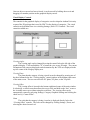
Functors can also be viewed as diagrams, with the graphical display taken from the
domain category and the object and arrow names taken from the codomain category. To
view a functor as a diagram, click the “Diagram Display” button in the top left corner
when a functor is open. To switch back to normal functor display mode, click the “Two
Category Display” button.
NOTE: When first opened, a functor's diagram display has a newly created graph with
object positions taken from the domain category. A diagram graph is NOT saved in
either functor file format.