1
Visual Display Controls
The controls for the graphical display of categories were developed at Auburn University as part of the a 3D
package that is used by GDCT in the display of categories. The visual controls can be hidden from view by
selecting Settings | Show VGJ Controls. The visual controls available are:
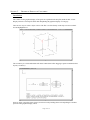
Viewing Angles
The viewing angle can be changed by using the control below the left side of the graphical display.
Click and hold the "X" to rotate the view to any 3D angle. The current orientation of the category
displayed can be determined by the XYZ axis displayed in the top left corner of the category display
area.
Viewing Plane
The plane that the category is being viewed in can be changed by pressing one of the three buttons
below the "Viewing Angles" control window in the bottom right corner of the main screen. The user
can select the XY plane, XZ plane, or the YZ plane.
Viewing Offset
The viewing offset is located in the bottom right hand corner of the main window. It is basically a
virtual screen that allows the user to click and hold on the "box" to move the viewable canvas area
without using the scroll bars. The viewing offset can be automatically centered by selecting Settings |
Category Graphical Settings and clicking the check box by "Center Offset".
Scale
The scale that the category is being
viewed at is displayed directly below
the "Viewing Offset" controls. The
scale can be changed by selecting
Settings | Category Graphical
Settings. The user can decrease the
scale by a factor of two, increase the
scale by a factor of two, set the scale
to one, or set a user defined scale.
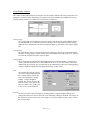
Set Font
The font size and face can be changed by selecting Settings | Category Graphical Settings and
clicking the check box in front of "Set Font". This will display a dialog in which the user can type in
the desired face and size for the font. Click "Apply" to save these changes or click "Cancel" to keep
the current settings.
Page 13 of 36



![LS5105 Document No 2 [PDF 1MB] - Australian Electoral Commission](http://vs1.manualzilla.com/store/data/005655823_1-2458abda02bbd8390d0ac9ba8bd86ac6-150x150.png)