1
IP/SIP Trunk Software User Guide
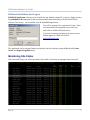
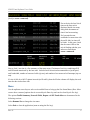
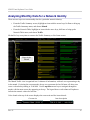
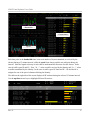
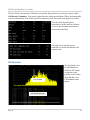
Check the status line at the top of the screen to verify that you are communicating with the traffic hub
(look for server: connected).
For each site, the local clock
time on the base unit is
displayed beside site name,
along with the amount of
time it has been running.
If a base unit has not
established a connection with
the traffic hub, its time will
be blank. In this case, check
that the status LED on the
unit is flashing and that your
software client shows
server: connected.
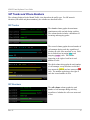
Next to local / run time is a live summary of the most recent 15 minutes of activity, combining all IP
and SIP trunks monitored by the base unit. Included are bi-directional measurements of peak speed,
total bandwidth, number of answered calls (sip ans), and number of not answered call attempts (sip not
ans).
If a site is idle for a full 15 minute interval (no IP traffic), then the IP alert column will display the total
time that the site has been idle.
Menu
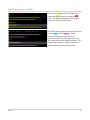
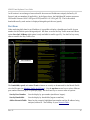
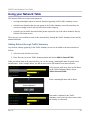
Use the up/down arrow keys to select a site and hit Enter to bring up the Site Status Menu (Note: Most
screens have a menu of options that is accessed by the Enter key and can be closed by the Esc key).
The options Traffic Summary, Network Table, Report and SIP Trunk Alert are documented in the
following sections.
Select Rename Site to change the site name.
Select Exit to close the application (same as using the Esc key).
Rev. 61
6