1
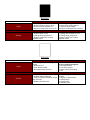
Blurred Print
Cause
Solution
Analog Copier
1. Drum/Developer Fatigue
2. Misaligned optic mirror(s)
3. Developer/Drum or scanner drive
hindered
4. Moisture on optics or drum
5. Paper path obstructed
Digital Copier/Laser Printer
1. Drum/Developer Fatigue
2. Erratic laser scanner
3. Developer/Drum or scanner drive
hindered
4. Defective controller board
5. Paper path obstructed
1. Replace drum/developer
2. Refer to service manual for proper
adjustment
3. Verify drum/developer including
drive gears is rotating freely.
4. Wipe moisture. Make certain
humidifier heaters are enabled in
copier if included
5. Examine all components are clean
and installed correctly
1. Replace drum/developer
2. Replace laser scanner unit
3. Replace/repair broken gears,
seized bearing and used belts
4. Replace controller board
5. Examine all components are clean
and installed correctly
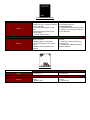
Drop outs
Cause
Solution
Analog Copier
1. Humid paper
2. Charger/Transfer unit are dirty or
worn
3. Paper type not porous enough
4. Developer material depleted
5. Fuser roller imperfection
6. Low density level
7. Bias voltage too high
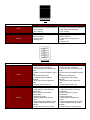
Digital Copier/Laser Printer
1. Humid paper
2. Charger/Transfer unit are dirty or
worn
3. Paper type not porous enough
4. Developer material depleted
5. Fuser roller imperfection
6. Low density level
7. Bias voltage to low
(monocomponent) too high for dual
8. Faulty laser scanner unit
1. Replace paper. Turn on damp
heaters if available
2. Clean or replace unit
3. Refer to manual and paper
packaging for proper application
4. Replace developer
5. Replace fuser roller
6. Adjust density level to spec.
7. Adjust to system specification
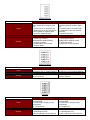
1. Replace paper. Turn on damp
heaters if available
2. Clean or replace unit
3. Refer to manual and paper
packaging for proper application
4. Replace developer
5. Replace fuser roller
6. Adjust density level to spec.
7. Adjust to system specification
8. Replace laser scanner unit