1
Disposition Spatial Processing Tool Public User Manual
3.9
Use Layers
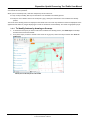
Layers contain all the data in a web map, so knowing how layers function is essential.
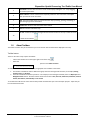
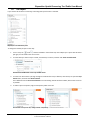
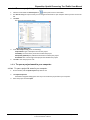
Map Layers in the information panel
To change the visibility of layers on the map:
1.
To turn a layer on
or off
, click the checkbox in front of that layer in the Map Layers. Layers with text that is
pale gray are not visible at the current scale.
2.
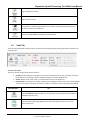
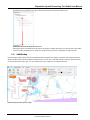
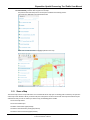
To zoom directly to where a layer is visible, click that layer in the list, and then click Zoom To Visible Scale.
Click Zoom To Visible Scale in the Layer Actions menu
3.
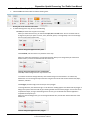
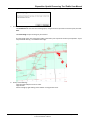
To zoom to an extent that is just large enough to include all of the layer's features, click the layer to open the Layer
Actions menu, and then click Zoom to Extent.
This is different from the Zoom to Full Extent tool in the Getting Around tab of the toolbar, which zooms out as far
as possible.
4.
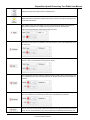
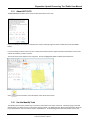
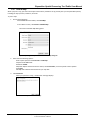
To make a layer transparent, drag the transparency slider to the left.
The Charlotte county border layer changed to 82% transparency
Apr 10, 2014
Disposition Spatial Processing Tool User Manual
© 2014 Government of Alberta
Page 21 of 33