1
Software reference manual
601
486
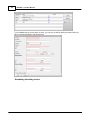
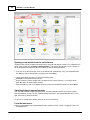
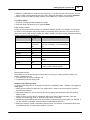
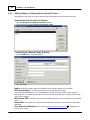
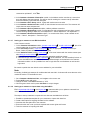
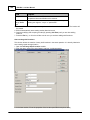
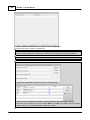
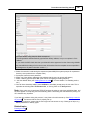
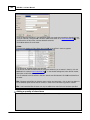
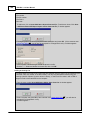
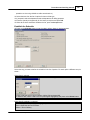
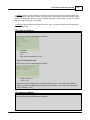
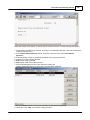
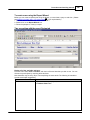
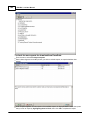
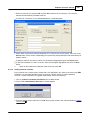
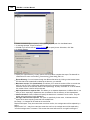
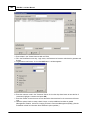
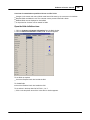
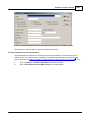
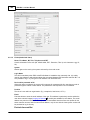
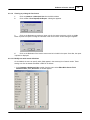
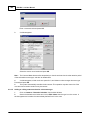
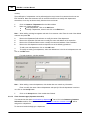
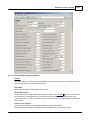
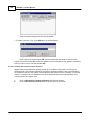
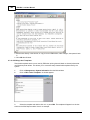
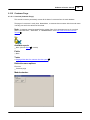
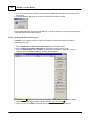
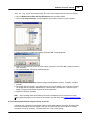
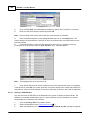
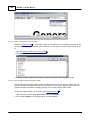
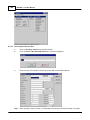
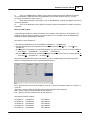
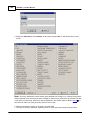
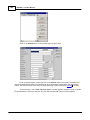
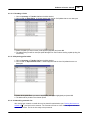
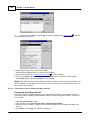
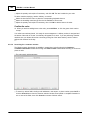
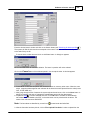
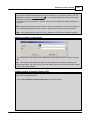
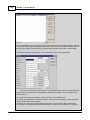
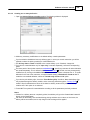
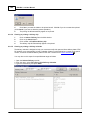
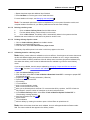
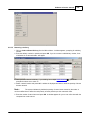
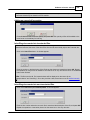
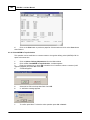
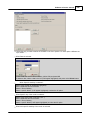
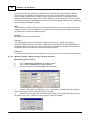
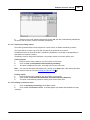
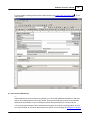
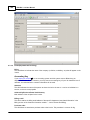
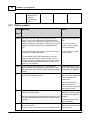
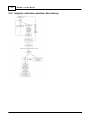
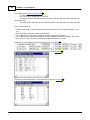
Enter the desired search criteria and click on the Search button (see "Searching for boxes and files
").
The system will find all the boxes that correspond to the search criteria and will automatically add them
to the order if they are IN.
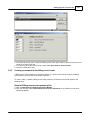
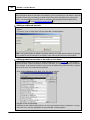
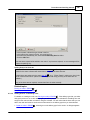
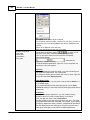
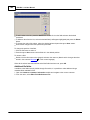
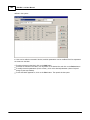
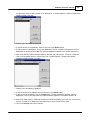
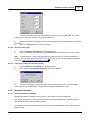
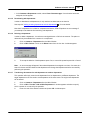
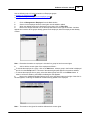
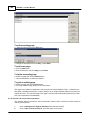
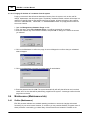
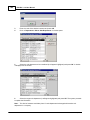
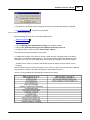
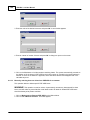
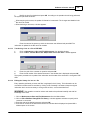
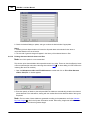
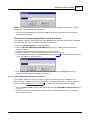
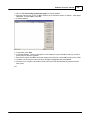
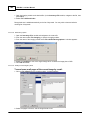
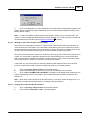
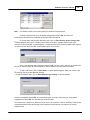
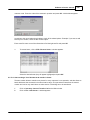
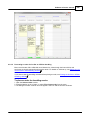
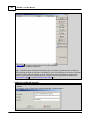
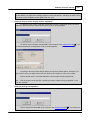
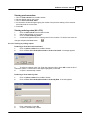
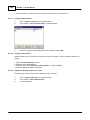
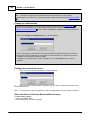
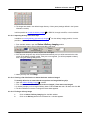
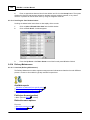
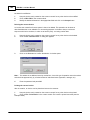
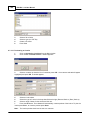
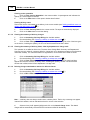
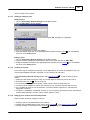
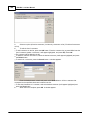
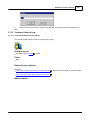
To remove items, select them and click on the Delete button. A dialog box appears.
Click on the Yes button to confirm the deletion. The items in question will not be ordered.
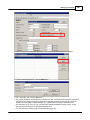
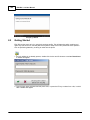
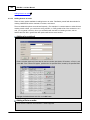
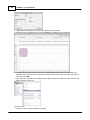
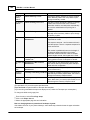
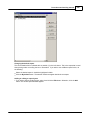
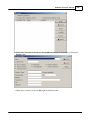
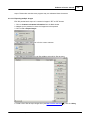
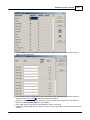
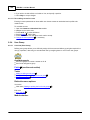
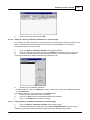
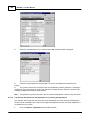
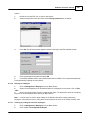
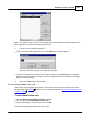
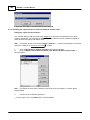
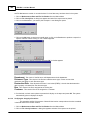
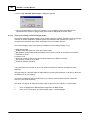
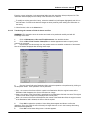
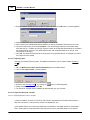
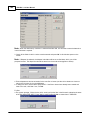
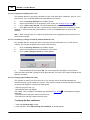
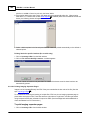
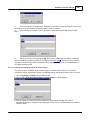
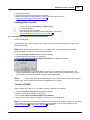
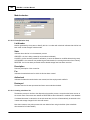
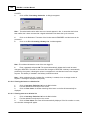
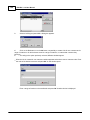
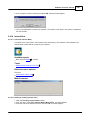
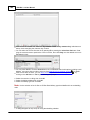
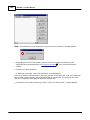
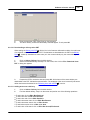
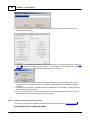
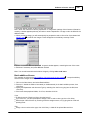
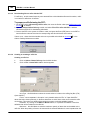
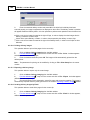
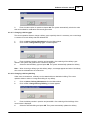
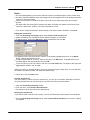
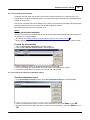
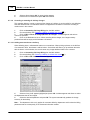
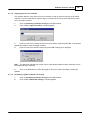
Click on the Cancel button of the window opened in 4 to accept the order. A window appears.
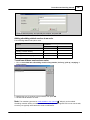
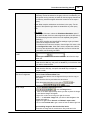
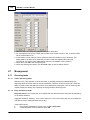
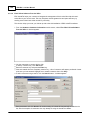
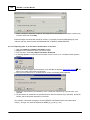
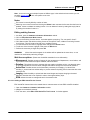
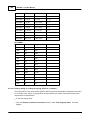
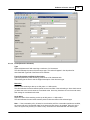
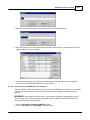
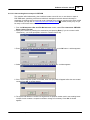
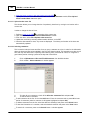
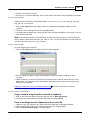
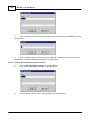
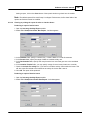
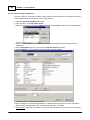
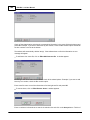
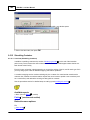
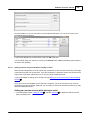
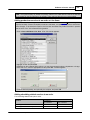
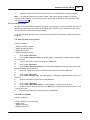
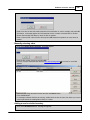
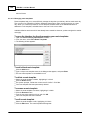
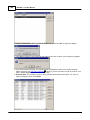
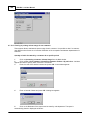
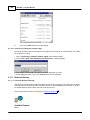
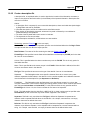
6. Press OK to confirm that this person will receive the boxes or enter any other name. When the case
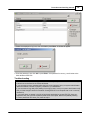
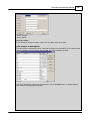
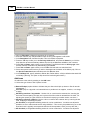
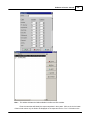
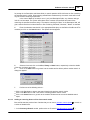
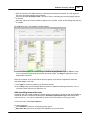
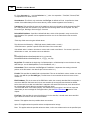
arises, a report's window appears and indicates all the boxes that were rejected from the order (boxes
OUT, in PRE ADD, etc).
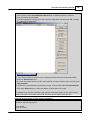
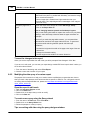
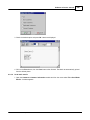
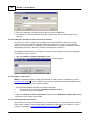
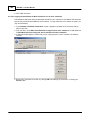
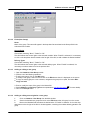
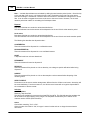
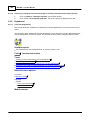
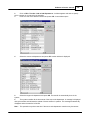
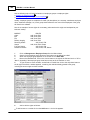
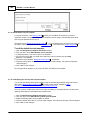
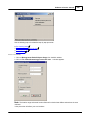
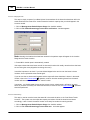
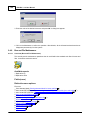
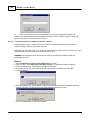
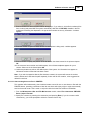
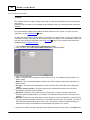
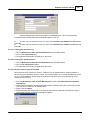
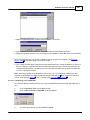
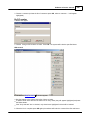
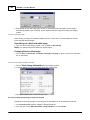
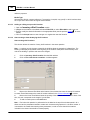
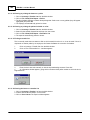
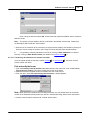
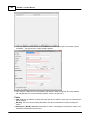
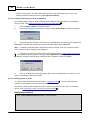
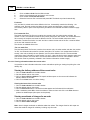
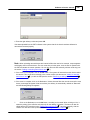
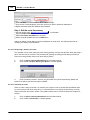
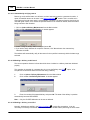
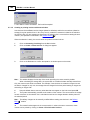
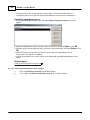
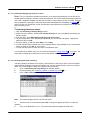
7. After going through the list of reasons the system rejected some boxes, click on the Close button. A
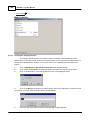
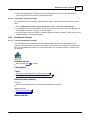
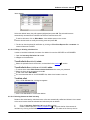
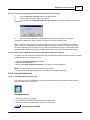
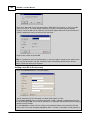
dialog box appears and asks to "prepare the portable data terminal for the data transfer".
871
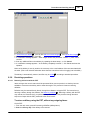
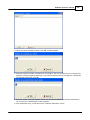
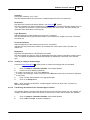
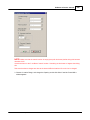
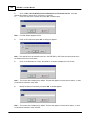
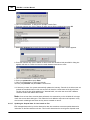
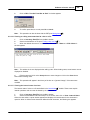
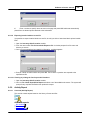
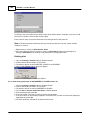
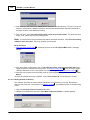
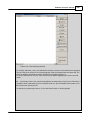
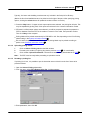
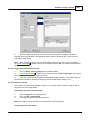
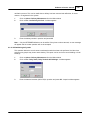
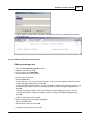
8. Prepare the PDT
to receive the data and click on the OK button. The data are automatically
transmitted and downloaded to the PDT, so that the boxes can be picked at their locations. The
status of the order becomes GROUPED.
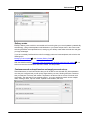
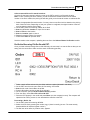
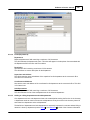
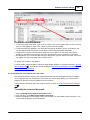
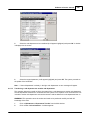
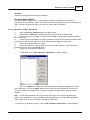
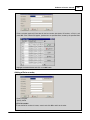
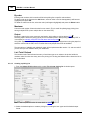
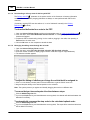
Note: The fast orders are identified by a small icon
located under the Caller field.
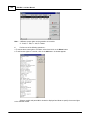
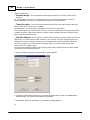
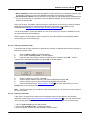
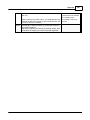
9. After the fast order has been picked, click on File->Upload Fast Order in order to upload from the
© 2015 DocuData Software Corporation