1
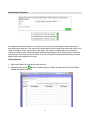
3. Enter the Administrative Username and Password as indicated on the Password information sheet
4. Select your school
5. Carefully type in the student’s 9-digit PEN, Legal First and Legal Last name
6. Click the green check mark
7. Log the student in using the instructions in the ‘Logging In’ section of this document
Administrative Reports (List of Students Registered and Confirmation Codes for Completed Exams)
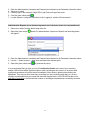
1. Select your district from the district drop-down list
2. Select the green arrow
will appear
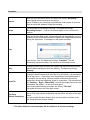
beside For Administrators: Supervisor Reports and the dialog below
3. Enter the Administrative Username and Password as indicated on the Password information sheet
4. Use the --- Select a report --- drop down and select the desired report
5. Select the green check mark
to generate the report.
It is recommended that you print your list of Confirmation Codes at the end of your recording
session. Willock Information Systems listens to each recording as they come in to ensure overall
quality and sound and will call the school immediately if they detect a problem that needs to be
addressed. They may not know how many recordings you are conducting each day, so it is also
strongly recommended that you contact the technical support line at 1-866-558-5339 at the end of
each day of recording to confirm that the number of recordings completed was successfully received.
12