1
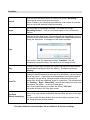
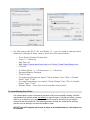
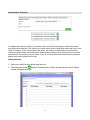
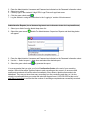
Sound Recorder and Microphone Boost Settings Sound Recorder (Java) The oral exam system utilizes a built-in Java-based recorder. The Sound Control Bundle is no longer required to be downloaded or installed. It also means that your Java must be installed and updated prior to exam administration. When you login to the FRAL12 or FRALP12 exam, the sound recorder control should say “Ready” under the “Record” button. If you are still having trouble, see the Troubleshooting section of this document, or contact the technical support line at 1-866-558-5339. Microphone Boost Settings These settings only need to be set once per computer, and these instructions should be used as a guideline only; settings will vary from one operating system to the next. Your local technician may also be able to assist you with this. Find the Volume or Sound icon (often in the lower right of your screen, or directly from the Control Panel) Locate the Recording Sound or Microphone settings You may need to adjust both the Levels and the Advanced setting menus Balance should be set near the mid-range Volume should be set near the mid-upper range (too high can cause feedback and distortion) Make sure that the checkbox called “Mic Boost” is checked on unless this conflicts with an external microphone Click on Close to exit the volume area Best rule of thumb is to adjust your settings, record and send a TEST sound file, call the support line to ensure your test was successful and then make further adjustments, if necessary, based on the feedback received. 3