1
Backup/restore View
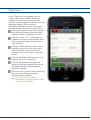
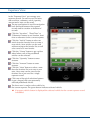
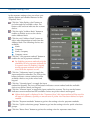
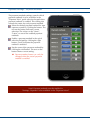
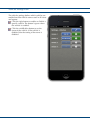
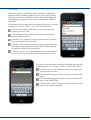
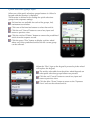
When backup/restore via Wi-Fi is selected a view
with information about how to connect to the
web server from your desktop computer is
presented.
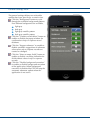
Click the ”Port 8080” button to change the
web server port between 8080 and a device
selected port number.
➡ Normally port 8080 should work good,
but in rare occasions this port might be
used by another application which
might lead to the web server not
starting properly.
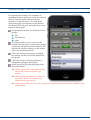
If you have Bonjour installed on your
desktop computer you can reach the web
server directly under the Bonjour name
”Drivers Log”.
If you are not using Bonjour you enter the
address listed at the bottom of the info
panel into the address field of your web
browser.
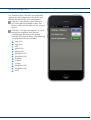
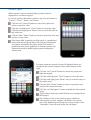
To make a backup of the database you click
the ”Download” button on the web page in
your browser.
To restore a previously saved backup you
select the backup file for restore by clicking
the ”Select file” button on the web page in
your browser.
➡ The ”Select file” might have other text
depending on your current web
browser.
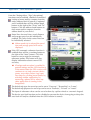
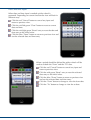
After selection of the restore file you click the
”Upload” button to initiate the upload of the file.
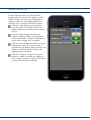
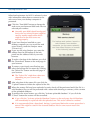
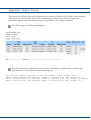
When the restore file have been uploaded a sanity check will be performed and if the file is a
valid database file you will be presented with a status table showing a summary of the content
of the uploaded database.
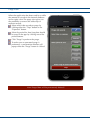
To perform the actual restore you click the ”Activate uploaded database”. If you click the
”Cancel” button the restore will be cancelled.
➡ If you click the ”Activate uploaded database” button on the web page the old database
will immediately be replaced with the uploaded one. This action cannot be undone!
➡ It is recommended that a download, backup, is performed before the restore procedure is
started. This might be useful if the restored database file for some reason wasn’t the
correct one.
© 2011 RandiRundi
21 (29)
ver. 1.4-a