1
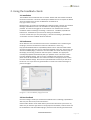
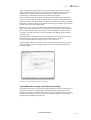
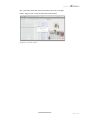
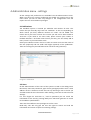
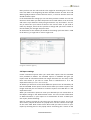
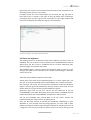
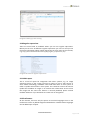
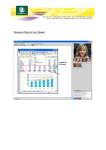
Feedback user guide, version 3.x right when you have the correct field selected. Do the same procedure for all the fields you like to have in the report. For XMP, choose the correct Namespace first and then the Tag you want to have and hit the + button to the right of the Tag popup menu. Selecting a namespace gives you the Tags for that namespace so you might need to find out which namespace that holds the tags you are looking for. Image 4.4 Report settings and edit reports 4.5 Filters and duplicates The filtering process is to determine what kind of objects you want to have in Feedback. You can set parts of search paths here to exclude different kinds of objects that you don´t want in Feedback, like for instance advertising files, portrait images of journalists and similar. The Feedback plugin / xtension reads this information when it starts up so the settings you make here are actually for the locally installed plugin / xtension, not for the server. There are several different options to filter files: Search path: If you have all your advertising files on a server called "ads", just put :ads: as string and exclude as filter and Feedback won´t handle these files. File extension: The string .eps and the filter exclude will make the Feedback-‐ plugin / xtension ignore all the EPS-‐files, they will simply not be read. You can do the same for any type of files you like Feedback to ignore. Document name: You can set up a rule for the file name too. If you set %YYYYMMDD% in the field "Document name must contain" Feedback will only handle documents with %YYYYMMDD% somewhere in the file name. You can use metadata, IPTC or/and XMP, to set up a filter. Choose the metadata fields you want to use in the popupmenus. Here you also find settings to handle your duplicates. Depending on your workflow or your contract with the image agencies, you may need to have different settings to handle images being used double or maybe even more in a magazine. You can just activate the option you like to use by clicking in the www.laidbacksolutions.se Page 14 of 14