1
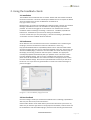
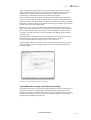
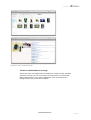
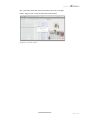
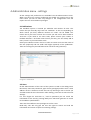
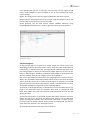
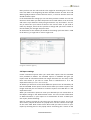
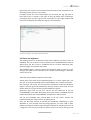
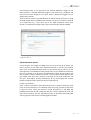
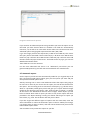
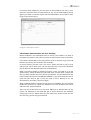
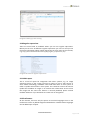
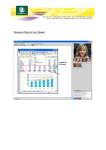
Feedback user guide, version 3.x name of the title you are going to run using this hotfolder. Then choose if this hot folder setting should be "Active" or not. This feature is to give the option to make settings you can switch on and off depending on your workflow. The feature "Autorouting" are described separetely at the bottom of this page. Select an "Input folder". This is where Feedback Client will look for new PDF-‐files to process. You don´t have to set up an "Output folder", the files are being uploaded to the server anyway. The Output folder is only there to help you if you want to pass the PDF-‐files on to another process (or any kind of folder) in your workflow. If you want to do that, please select and Output folder. By setting a "Time" you can set a schedule for when Feedback will check the input folder. You can also make the server to create automatic reports for these files if you have set up Automatic reports on the server. Choose "publisher" and "title" for this hot folder. If the title you want to use isn´t available, press Refresh to get the latest from the server. The page wherethe image where used can be retrieved by using regular expressions. Read more about regular expressions in the table in chapter 4 or go to http://www.webcheatsheet.com/php/regular_expressions.php By pressing Add folder the settings are saved. If you need to edit a setting, select the premade setting, make your changes and then use the "Commit folder settings" to save your changes. Image 2.5 The Feedback Client hot folders 2.6 Feedback Client settings -‐ Hot folders autorouting By activating "Autoroute" you dim the settings for Publisher and Title. Instead you use the names of the files to decide which title the PDF belongs to. More about these setting in the chapter 4, Administration Menu. In order to make this work, you need to have done the settings on the server first, otherwise Feedback will not know which page and title that belongs to each other. www.laidbacksolutions.se Page 4 of 4