1
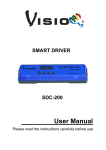
SMART DRIVER
SDV-480
User Manual
Please read the instructions carefully before use
1B
1. Safety Introductions
Please read the User Manual carefully as it includes important information
regarding details of operation, maintenance and technical data. Keep this
manual with unit for future consultation.
WARNING!
● Avoiding any flammable liquids, water or metal objects enter into the unit.
● If any liquid spill on the unit, disconnect the power supply immediately.
● When serious operation problem happen, stop using the unit immediately
and contact your local dealer for service.
● Do not open the unit because there are no user serviceable parts inside.
● Never try to repair the unit yourself. Repairs by unqualified people could
cause damage or faulty operation. Please contact your nearest dealer for
any service.
CAUTION!
● After removed the package, make sure the unit is not damaged in any way.
Don’t use it with doubt and contact an authorized dealer.
● Never use the unit under the excessive humidity and a temperature over
40℃.
● Do not try to dismantle or modify the unit.
2. Features:
SDV-480 is an ideal solution for dimming constant voltage LED fixtures,
especially LED strips. Multiple strips can be connected on SDV-480 and be
dimmed individually (single color) or simultaneously.
2B
•
•
•
•
4 independent constant voltage output. Each output can be dimmed
individually.
Various input controlling protocol: 0-10v, DMX, DALI.
User can setup SDV-480 to Manual Mode, various channel
modes(RGB/RGBD,RGBW/RGBWD,D(4CH),WWWW,CW+WW,CT+D)
Can adjust the white balance.
3. Specifications:
Input Voltage: DC12V-48V
Power consumption: 480W
Dimension: 210.5X51.6X33.2mm
Weight: 0.250kg
3. Main Functions
3B
(Control Mode: Under this menu you can choose four
operation mode: MANUAL MODE, DMX MODE, DALI CONTROL
MODE, 0/1-10V )
Press the MENU button up to when the
4B
is showing on the display.
Pressing “
to
”button and the display will blink. Use “▲”and“▼” button
(manual
select
mode),
control
(0-10V control mode),
mode),
(DMX
control
(Dali control mode).
(Manual control mode: In this mode you can adjust the
brightness for the four groups of the luminaries.)
Pressing “
”button enter, use“▲”and“▼” button to select
(group 2),
1),
(group 3),
has been selected, Pressing “
( group
(group 4), Once the mode
”button enter, use “▲”and“▼” button
to adjust the valve 0-255. Press the “”button to setup. Or automatically exit
menu mode without any change after 60 seconds. To go back to the functions
without any change press the MENU button.
(DMX control mode: In this mode you can set address and
channel mode)
Pressing “
”button enter, use “▲”and“▼” button to select
address) or
, once the
(DMX
has been selected, Pressing “
”
button enter, use “▲”and“▼” button to adjust the valve 0-509. once the
has been selected ,Press the “
“ ▼ ”
button
to
”button to enter, Use “▲”and
(RGBW),
select
5B
(WWWW),
(CWWW),
(CCWW),
(RGB),
(RGGB), once select , Press the “
(RRGB)
” button to setup. Or
automatically exit menu mode without any change after 60 seconds. To go
back to the functions without any change press the MENU button.
OUTPUT MODE
CHANNEL MODE
RGB(
)
RGB/RRGB/RGGB
RGBD(
)
RGBW(
)
RGBW
4C+D(
C+W(
)
CT+D(
)
CWWW/CCWW
Dimmer(
)
WWWW
4D(
)
(Default: In this function you can factory reset the driver.)
6B
Press the MENU button up to when the
Pressing “
is showing on the display.
” to enter, Use “▲”and“▼” button to select the
. Once you selected, press the “
…or
” button to setup. Or
automatically exit menu mode without any change after 60 seconds. To go
back to the functions without any change press the MENU button.
(White balance: In this mode you can adjust the
brightness )
is shown on the display.
Press the MENU button up to when the
Pressing
select
”
“
…or
button,
and
, press “
Use
”
“▲”and“▼”
button
to
button to confirm and use
“▲”and“▼” button to adjust the value between 125 and 255, once select ,
” button to setup or automatically exit menu mode without any
press “
change after 60 seconds. To go back to the last function without any change
press the MENU button.
( ON/OFF the LED display according to your real requirement)
Press the MENU button up to when the
Pressing “
is shown on the display.
” button, and Use“▲”and“▼” button to select
7B
…or
,
press “
” button to confirm. When
up all the time, when
is select, the Led display will light
is selected, the Led display will be off after 60
seconds.To go back to the last function press the MENU button.
( Version: show you the firmware version of the driver)
Press the MENU button up to when the
is shown on the display.
Pressing “ ” button, the firmware version will be showed on the Led display.
E.g. V00,means version 00.
4. Update Software
Download update file from our website; follow the user manual of VD-01 to
update the fixture via VD-01(not included).
Note: When you open the unit, the display will show
update the software, the
, when you
will show on the display, and the LED
indicate will blink.
8B
You can refer to the steps as below:
1 Connection:
○
9B
In the diagram, connect DMX IN:
DA+,DA-, GND
Note: 1) The upgrading wires should be connected without error!
2) Please connect VD-01 to your PC and smart drive properly!
2 Operation:All the related operation is executed on your PC.
○
A、Power up the smart drive at your hand, the led display will show “load”.
B、Then click Firmware Upgrade on the upgrade window , then you will see a new
upgrade window on your PC. At this step, please check the Green LED indicator on
VD-01, the LED indicator should be blinking at the moment, if it is not blinking then
the upgrade will be failed. PLEASE NOTE THIS.
C、Then single click Upgrade order, you will see the speed engine is running. At
this step, please check the Blue LED display on smart drive and Green LED indicator
on VD-01, when upgrading is going, both LED indicators and display are blinking, if
each of them is not blinking then the upgrade will be failed. PLEASE NOTE THIS.
D、After finishing the upgrade process, you will see the firmware upgrade finish
window,
E. Exit the upgrade window, please reboot your smart drive to check out whether
they are upgraded successfully.
10B
11B