1
EX9486-2L-DIO User Guide
Introduction:
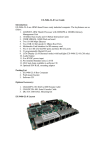
EX9486-2L-DIO is ARM9-based Linux ready industrial Programmable
Automation Controller. The key features are as follow:
1.
2.
3.
4.
5.
6.
7.
8.
9.
10.
11.
12.
13.
ARM920T ARM Thumb Processor with 200MIPS at 180MHz,
Memory Management Unit
16-KByte Data Cache and 16-KByte Instruction Cache
64MB SDRAM, 16MB Flash on board
Two 10/100 Mbps Ethernet
Two USB 2.0 full speed (12 Mbps) Host Ports
Multimedia Card Interface for SD memory card
One RS-485, One RS-232 and One serial console port
16 opto-isolated digital inputs
8 Darlington-pair digital outputs
9 to 40VDC power input
Pre-installed Standard Linux 2.6 OS
GNU tool chain available in TopsCCC CD
DIN RAIL mounting
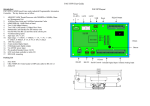
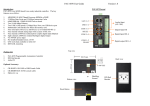
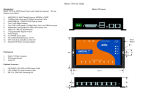
EX9486-2L-DIO Layout
Power
(9~40V)
+
-
LAN1
LAN2
182mm
USB
Reset
Digital Output
118mm
Buzzer
Packing List
1.
2.
3.
EX9486-2L-DIO
CBL-F10M9-20: 10-pin header to DB9 male cable for RS-232 x1
TopsCCC CD
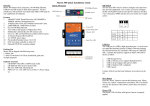
RS-485
RS-232 Serial Console
Isolated Digital Input
Pin Assignment and Definition
Reset Button
Press the “Reset” button to activate the hardware reset.
You should only use this function if the software does
not function properly.
COM1: RS-485
Data+ Data-
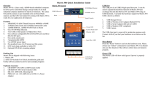
Power LED (D4)
The Power LED will show solid green if power is
properly applied
Ready LED (D5)
The Ready LED will show solid green if EX9486-2LDIO complete system boot up. If Ready LED is off
during system boot up, please check if power input is
correct. Turn off the power and restart EX9486-2LDIO again. If Ready LED is still off, please contact the
manufacture for technical support.
LAN1/LAN2 LED (D6/D7)
When Ethernet port are connected to the network, Link/
Act will show solid green and if there is traffic in the
Ethernet, this LED will flash
Serial Port LED (LD3/LD4/LD5)
These three dual color LEDs indicate the data traffic at
the serial ports. When RXD line is high then RED
light is ON and when TXD line is high, GREEN light
is ON.
User LED (LD1/LD2)
LD1 and LD2 are dual color LED for user application.
Please refer to example program for the usage.
Ethernet Port (LAN1/LAN2)
Serial Ports:
COM1: RS-485 (Data+, Data-)
COM2: RS-232 with full modem control
COM3: RS-232 with RxD TxD (Console)
COM2: RS232
COM3: Console
2 4
1 3
6
8 10
5 7
9
Data+ is pull up to 3.3VDC
with 10K Ohm resistor
Data– is pull low to ground
Termination resistor is not
included. User can add a 120
Ohm resistor shunt with D+ to
D– if necessary
Pin COM2 COM3
1
DCD
N/C
2
DSR
N/C
3
RXD
RXD
4
RTS
N/C
5
TXD
TXD
6
CTS
N/C
7
DTR
N/C
8
N/C
N/C
9
GND
GND
10
N/C
N/C
Serial console port (COM3) is very helpful to perform
system configuration and debug. When you forgot
password or network IP address, serial console provide
an easy way to access EX9486-2L-DIO. To access
serial console port, you can use CBL-F10M9-20 to
convert 10-pin header to RS-232 DB9 male connector
and use a null modem adaptor for PC RS-232 interface.
Use any terminal software such as hyper terminal and
setting as follow:
Baud Rate: 115200
Data bits: 8
Parity: N
Stop bit: 1
Terminal type: ANSI
Once you power up EX9486-2L-DIO, you will see the
console message appears.
RS-232 DB9 Male Connector
Pin RS-232
1
DCD
2
RXD
3
TXD
4
DTR
5
GND
6
DSR
7
RTS
8
CTS
9
N/C
Pin
USB
1
Vcc1
2
Vcc2
3
Data1+
4
Data2+
5
Data1-
6
Data2-
7
GND
8
GND
9
N/C
10
N/C
USB Port:
2 4
1 3
6
8 10
5 7
9
Vcc1,Vcc2: +5Vdc
GND: Ground
Power Input Connector (J3)
Digital Input Connector (J4)
The 16 channel isolated input are equipped with 2500 Vrms
photo coupler isolator. Four of the channels form a group
and share the same common ground. The specification of the
isolated input channels are:
EX9486-2L-DIO uses +9VDC to 40VDC power and input
from J3 connector. Auto-polarity and surge protection are
included in power input circuitry of EX9486-2L-DIO to
provide power protection to EX9486-2L-DIO.
Logical High: 5~24Vdc
Logical Low: 0~1.5Vdc
Input resistance: 1.2KOhms @0.5W
Response time: 20us
Isolation: 2500Vrms
+ -
Digital Output Connector (J5)
The digital output are equipped with 8 darlington pair
transistors (Allegro UDN2981A) to switch the external relay
or solenoid. The internal transient-suppression diodes permit
the drive to be used with inductive load. The source voltage
of the drive is from 5Vdc to 50 Vdc and the maximum
driving current is 500 mA.
DI1~4
COM1
VS
Power
5~50Vdc
DO1~8
Relay
GND
J4
J5
1
DI1
11
DI9
1
DO1
2
3
4
DI2
DI3
DI4
12
13
14
DI10
DI11
DI12
2
3
4
DO2
DO3
DO4
5
6
7
8
9
COM1
DI5
DI6
DI7
DI8
15
16
17
18
19
COM3
DI13
DI14
DI15
DI16
5
6
7
8
9
DO5
DO6
DO7
DO8
GND
10
COM2
20
COM4
10
VS
DIx: Isolated digital input channels
COMx: common ground of four DIx
DOx: Voltage output channels
GND: Ground
VS: Voltage source input
Factory Default Settings
LAN 1 IP Address: 192.168.2.127
LAN 2 IP Address: DHCP
Login: guest
Password: guest
Supervisor: root (ssh only)
Password: root
Login
After power on, wait about 30 seconds for system boot up.
Using Telnet and guest or ssh and root to login in EX9486-2LDIO
To configure the IP address, Netmask and Gateway setting, please
modify /disk/etc/rc as following:
ifconfig eth0 192.168.2.127 netmask 255.255.255.0
For DHCP setting:
dhcpcd eth1 &
Wireless LAN Configuration
EX9486-2L-DIO supports wireless LAN by using USB WLAN
adaptor which uses Ralink RT2571 (rt73) controller. Please refer
to the website http://ralink.rapla.net for the supporting list of the
USB WLAN adaptor.
To configure the wireless LAN setting, please use command:
ifconfig wlan0 up
iwconfig wlan0 essid XXXX key YYYYYYYY mode MMMM
For infrastructure mode XXXX is the access point name and
YYYYYYYY is the encryption key and MMMM should be
managed
For Ad-Hoc mode mode XXXX is the EX9486-2L-DIO device
name and YYYYYYYY is the encryption key MMMM should be
ad-hoc.
To configure the IP address use command
dhcpcd wlan0 & or ifconfig wlan0 192.168.2.127 netmask
255.255.255.0
Devices list
The supported devices are shown at /dev directory. Following
list are most popular ones:
1.
ttyS0: port 3 serial console port
2.
ttyS1 :port 1 RS-485
3.
ttyS2: port 2 RS-232
4.
mmc to mmc2: SD memory card
5.
sda to sde: USB flash disk
6.
ttyUSB0 to ttyUSB1: USB RS-232 adaptor (fdti_sio.ko)
7.
rtc: Real Time Clock
8.
gpio: digital I/O
9.
ttyACM0 and ttyACM1: USB Modem (CDC compliant)
File System
Network Settings
EX9486-2L-DIO configures the root file system as RAMDISK
and the user disk (/disk) which includes /home and /etc directory
are configured as Flash Disk. To find out the file system
information, please use command /mount as show as above. In
addition, use command /df to find out the disk space of the disk.
The RAMDISK uses 8MB memory space to store the root file
system and the user disk is about 11MB for user’s program
storage.
Therefore, user’s program and utility software must be saved
in the user disk space (/disk). Files saved to other directory
Utility Software:
EX9486-2L-DIO includes busybox utility collection and
TopsCCC utility software as follow:
TopsCCC Utility Software:
The introduction of TopsCCC utility software as follow:
1. update : update loader, kernel or root file system image.
Also use update —FORMAT to format user disk. Type
update—help to find the command usage
3. gpioctl: gpioctl can use to control the digital input and
output of EX9486-2L-DIO. Use
>gpioctl --help
To find out the usage of this command.
How to make more utility software
You might also find utility software available on TopsCCC CD
under /EX9486/utility such as ntpclient, ssh, scp, bluez and sshkeygen. If you want, you can ftp or copy the utility software to
EX9486-2L-DIO user disk (/disk). Also you can use find the
source code and use the GNU Tool Chain to make the utility by
yourself.
Restore to default setting
The factory default setting is available at /default directory
Copy files in this folder to /disk will restore EX9486-2L-DIO to
factory default setting.
Update can only operated under supervisor mode (password :
root)
2. setuart: configure serial port setting. An example show as
followed to configure port 1 as RS-485 interface with baud rate
921600. Please note only port 1 support 9-bit data at RS-485
GPIO0~GPIO7 map to digital output DO1~DO8
GPIO8~GPIO23 map to digital input DI1 ~DI16
GPIO24~GPIO27 are used to control dual color LED LD1 and
LD2.
Mounting External Storage Memory
To find out the device name of the external memory device
which plug into EX9486-2L-DIO, you can use the command
/dmesg | grep sd
or
/dmesg | grep mmc
Type
mount /dev/sda1 to mount the USB disk and
mount /dev/mmc0 to mount SD card
SSH Console
EX9486-2L-DIO support SSH. If you use Linux computer,
you can use SSH command to login EX9486-2L-DIO. The
configuration of SSH and key are located at
/etc/config/ssh
The key generation program is available at TopsCCC CD
/EX9486/utility/ssh_keygen
User can copy this program to EX9486-2L-DIO to generate the
key
Welcome Message
To modify the welcome message, user can use text edit to
modify the /etc/motd.
Web Page Directory
The web pages are placed at /home/httpd and the boa.conf
contains the boa web server settings. The home page name
should be index.html
Adjust the system time
To adjust the RTC time, you can follow the command
/date MMDDhhmmYYYY
where
MM=Month (01~12)
DD=Date (01~31)
hh=Hour
mm=minutes
YYYY= Year
/hwclock –w
To write the date information to RTC
User can also use NTP client utility in TopsCCC CD to adjust
the RTC time.
/ntpclient [time server ip]
Manager Utility Software
The Manager Utility software, manager.jar is a java program
and is used to discovered the EX9486-2L-DIO in the network
if the IP address is forgotten. It can be run at any OS where
java run time is available. To install the java run time
platform at your computer, please visit http://java.sun.com
and download the Java 2 Standard Edition (J2SE). Once the
EX9486-2L-DIO is found, you can click the Telnet Console
to configure the EX9486-2L-DIO
Install GNU Tool Chain
Find a PC with Linux 2.6.X Kernel installed and login as a root
user then copy the arm-linux-3.3.2.tar.gz to root directory of
PC. Under root directory, type following command to install the
Gnu Tool Chain
#tar zxvf arm-linux-3.3.2.tar.gz
Getting started the Hello program
There are many example programs in TopsCCC CD. To
compile the sample you can use the Make file to and type
make
To compile and link the library. Once done, use ftp command
ftp 192.168.2.127
And bin command to set transfer mode to binary
ftp>bin
to transfer the execution file to EX9486-2L-DIO user disk (/
disk) and use
chmod +x file.o
Change it to execution mode and
./file.o
to run the file