1
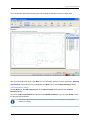
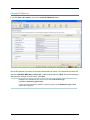
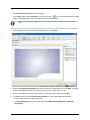
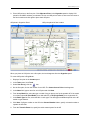
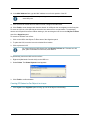
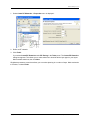
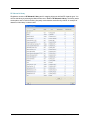
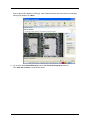
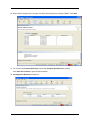
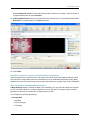
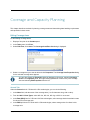
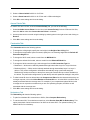
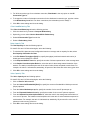
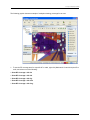
Optimizing an RF Plan The Total number of objects that will be corrected line indicates the number of measurements that did attenuate. For existing RF objects, RingMaster corrects the attenuation to match the results. If the floor plan does not have an RF obstacle where the attenuation library indicates one exists, RingMaster creates an RF obstacle. For RF obstacles created by RingMaster, the description is auto-generated and the obstacle type is Other. You can edit these values by selecting the obstacle, clicking the Edit properties icon to open the Modify RF Obstacle dialog and modify values. Click Finish to close the dialog and save changes. 4. Click Finish. You have optimized your RF coverage model with new RF obstacle information. Now you can locate and fix coverage holes, or if necessary, replan your network. Locating and Fixing Coverage Holes After importing RF measurements and rebuilding an attenuation library, look for coverage holes by displaying coverage. Perform the following steps to locate coverage holes: 1. Display the optimized RF coverage area to view corrected attenuation data. 2. Lock down deployed APs in a coverage area to prevent RingMaster from moving aps in a network plan during the compute and place process. 3. Compute and place APs. 4. Replan your network based on compute and place results. Displaying an RF Coverage Area To display an RF coverage area: 5. Select the RF Planning option in the main RingMaster Navigation Bar. 6. Display a floor plan in the Content panel. 7. In the Tasks panel, click RF Planning. 8. In the Coverage Areas section of the Organizer panel, select the scope for which you want to display coverage. You can display coverage for an individual radio, a specific coverage area, or all coverage areas on the floor or in an area. To select multiple contiguous objects, click Shift while selecting. To select multiple non-contiguous objects, click Ctrl (Macintosh: Command) while selecting. 9. On the toolbar, click the radio type (A, B, or G) to display coverage. Coverage for selected scope(s) is displayed. Locking Down aps To prevent RingMaster from moving an AP on a network plan, lock it down as follows: 1. Display an RF coverage area. 2. Right-click (Macintosh: Control+click) on an AP in the RF coverage area, and select Lock Position. Copyright © 2011, Juniper Networks, Inc. UsingRFMeasurementsfromAPs