1
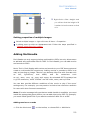
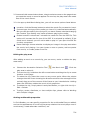
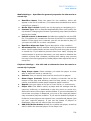
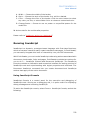
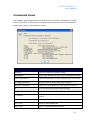
FOXIT READER 4.2 User Manual function with Text Markup Tools. When you select text with the Select Text Tool, a menu of text editing options will appear on the right click context menu. Also, you can also use the Select Text Tool to add bookmarks for PDF files. Marking up text with edits Choose Tools > Select Text, or click the Select Text Tool on the toolbar. Select the text you want to mark up > right-click the selected text, and then refer to ―Using the Text Markup Tools‖. Using the Drawing Markup Tools Drawing Markup tools help you to make annotations with drawings, shapes, and text messages. You can use the Drawing Markup tools to mark up a document with arrows, lines, squares, rectangles, circles, ellipses, polygons, polygon lines, clouds, etc. Drawing Markup tools provide another kind of comment. It is quite useful when you have to make some shapes to mark the text or image. The table below describes exactly what Drawing Markup tools do. Drawing Markup Tools Button Tool Name Description Arrow Tool To draw something, such as a directional symbol, that is similar to an arrow in form or function. Line Tool To mark with a line. Rectangle Tool To draw a four-sided plane figure with four right angles. Oval Tool To draw an oval shape. Polygon Tool To draw a closed plane figure bounded by three or more line segments. Polyline Tool To draw an open plan figure with three or more line segments. Pencil Tool To draw free-form shapes. Rubber Tool An implement, acts as a piece of rubber, used for erasing the pencil markups. Cloudy Tool To draw cloudy shapes. Adding drawing markup 79