1
FOXIT READER 4.2
User Manual
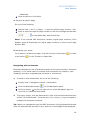
Changing the status of a comment:
With the Hand tool, Annotation Selection tool or the corresponding tool
selected, right-click a comment you want to change the status of, choose
Set Status > Review or Migration from the pop-up Context menu, and then
select an option.
To view a markup’s history of changes:
A. Right-click the markup, and then choose Open Properties.
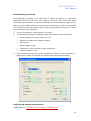
B. In the Properties dialog box, click the Review History tab to view the
history of status changes people have made to a markup.
Replying to comments
Replying to comments is useful in shared reviews, when participants can read
each other’s comments. They can also be used by review initiators to let
reviewers know how their suggestions are being implemented. All replies
appear in the popup note and are listed below the original comment. You can
view the respective reply with the reply title and mark.
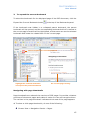
1. Replying to original comments in the pop-up note
Using the Hand tool, Annotation Selection tool, or the corresponding
comment tool > open the pop-up note for the comment.
Right-click the original comment and select Reply this topic, or right-click
the comment icon and select Reply.
Type your reply in the text box that appears in the pop-up window.
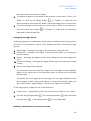
2. Responding to other reviewers’ comments
Using the Hand tool, Annotation Selection tool, or the corresponding
comment tool > open the pop-up note for the comment.
Right-click other reviewer’s comment and select Reply this topic.
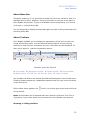
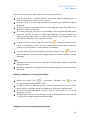
You will see a mark 曰 at the top left corner of other reviewer’s comment,
and type your comments in the text box that appears next to the
reviewer’s comment.
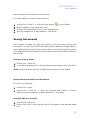
3. Deleting the reply message
In the note pop-up window, right-click the Text message window and click
Delete this topic.
Note: Right-click the comment icon and select Delete will remove this markup
but not the reply message.
93