1
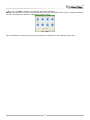
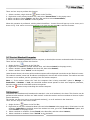
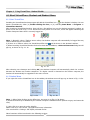
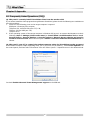
Fig. 2-2b
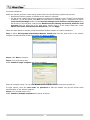
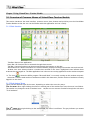
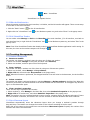
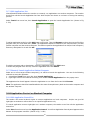
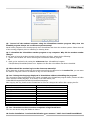
Step 4 Enter your required information, as Fig. 2-2a shows.
Fig. 2-2a
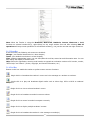
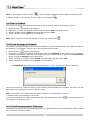
Step 5 Enter a location for VirtualClass to load its program files.
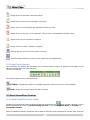
Step 6 Click Next to confirm the selections and to start installing VirtualClass on your computer.
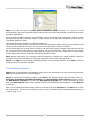
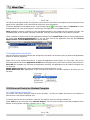
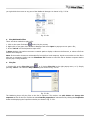
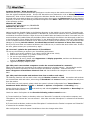
Step 7 Click Finish to end the installation of the VirtualClass program files. After the installation is complete,
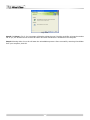
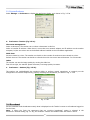
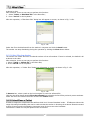
you can launch VirtualClass and/or show the Readme file by selecting the appropriate checkboxes, as Fig. 2-2c
shows.
Fig. 2-2c
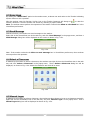
2-2.2 Silent Setup
With the silent installation feature, the network administrator can install this software onto all of the systems
through a command line. VirtualClass will install on its own, without any end-user intervention.
The default installation path is: %WindowsDir%(Windows system location, e.g. C: )\Program
Files\FarStone\VirtualClass.
If you would like to install the teacher portion silently, please insert the VirtualClass CD into your CD drive (e.g.
E: ) first. Then select Start->Run and type ”E:\setup.exe /s /t” and press enter to start the installation.
If you wish to install the student portion silently, please insert the VirtualClass CD into your CD drive (e.g. E:),
then select Start->Run and type “E:\setup.exe /s /s” and press enter to start the installation.
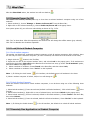
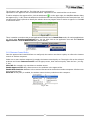
2-2.3 Remote Setup
VirtaulClass Remote Setup feature provides a continuing easy way for the teacher to deploy the client program
11