1
Graphic
Interface
2.5.2.5. The Parallel Coordinates View popup menu
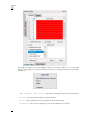
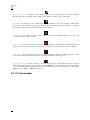
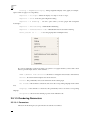
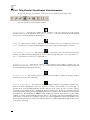
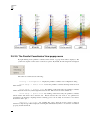
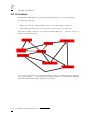
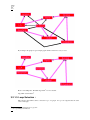
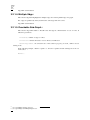
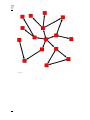
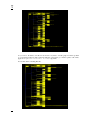
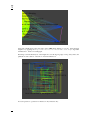
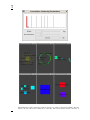
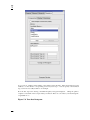
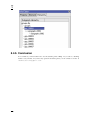
By right-clicking in the parallel coordinates main window, a popup menu will be displayed. The
content of it depends on the location of the mouse pointer. By default, the following menu is displayed
:
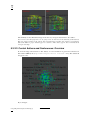
The entries it contained are the following :
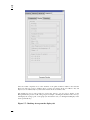
• Dialog -> Configuration : Display the parallel coordinates view configuration dialog
• View Setup -> Center View : Center the parallel coordinates drawing inside the view
main window
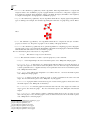
• View Setup -> Classic View : By clicking on this menu entry, the parallel coordinates
will be drawn the classic way with straight lines between axis. This view mode is the default one.
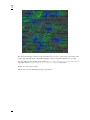
• View Setup -> Spline View : By clicking on this menu entry, the parallel coordinates
will be drawn with bezier curves between axis. Beware because this view mode is not optimized for
performance, the drawing computing and the rendering process can be really slow if there’s more than a
thousand of data to plot.
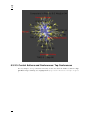
• Options -> Tooltips : By enabling this option, when the mouse pointer is under an
element a tooltip message will be displayed containing the element label (if there is one set in the "viewLabel"
property) and the element id.
27