1
Disk Array Controller
Configuration Utilities
Installation Guide and
User Manual
Part Number 771953-04
© Copyright 1998 Mylex Corporation.
All Rights Reserved.
All contents of this manual are copyrighted by Mylex
Corporation. The information contained herein is the
exclusive property of Mylex Corporation and shall not be
copied, transferred, photocopied, translated on paper, film,
electronic media, or computer-readable form; or otherwise
reproduced in any way, without the express written
permission of Mylex Corporation.
Greetings
This manual describes the Mylex Disk Array Controller Configuration Utilities.
Requests for technical information about this and other Mylex Corporation products
should be made to your Mylex authorized reseller or Mylex marketing representative.
Please Notice
Mylex and DAC960 are registered trademarks of Mylex Corporation. Global Array
Manager and GAM are trademarks of Mylex Corporation. MS-DOS, Windows 95, and
Windows NT are trademarks of Microsoft Corporation.
Other names that are trademarks may be used herein for the purpose of identifying the
products or services of their respective owners.
Unless otherwise noted, companies, names and data used in examples herein are fictitious.
Our Policy
Although reasonable efforts have been made to assure the accuracy of the information
contained herein, this publication could include technical inaccuracies or typographical
errors. Mylex Corporation expressly disclaims liability for any error in this information,
and for damages, whether direct, indirect, special, exemplary, consequential or otherwise,
that may result from such error, including but not limited to loss of profits resulting from
the use or misuse of the manual or information contained therein (even if Mylex
Corporation has been advised of the possibility of such damages). Any questions or
comments regarding this document or its contents should be addressed to Mylex
Corporation at the address shown on the cover.
The following paragraph does not apply to the United Kingdom or any country where such
provisions are inconsistent with local law:
MYLEX CORPORATION PROVIDES THIS PUBLICATION “AS IS” WITHOUT
WARRANTY OF ANY KIND, EITHER EXPRESS OR IMPLIED, INCLUDING, BUT
NOT LIMITED TO, THE IMPLIED WARRANTIES OF MERCHANTABILITY OR
FITNESS FOR A PARTICULAR PURPOSE.
Some states do not allow disclaimer of express or implied warranties or the limitation or
exclusion of liability for indirect, special, exemplary, incidental or consequential damages
in certain transactions; therefore, this statement may not apply to you. Also, you may have
other rights which vary from jurisdiction to jurisdiction.
Information in this publication is subject to change without notice and does not represent a
commitment on the part of Mylex Corporation. Changes may be made periodically to the
information herein; these changes will be incorporated in new editions of the publication.
Mylex Corporation reserves the right to make improvements and/or changes at any time in
the product(s) and/or program(s) described in this publication.
It is possible that this publication may contain reference to, or information about, Mylex
Corporation products (machines and programs), programming or services that are not
announced in your country. Such references or information must not be construed to mean
that Mylex Corporation intends to announce, provide, or make available such Mylex
products, programming, or services in your jurisdiction.
About This Manual
This manual covers the steps involved to install and use the Mylex Disk
Array Controller Configuration Utilities (DACCF) software.
This manual is divided into a number of sections, presented in the order in
which they are needed over the life of your disk array:
• DACCF Quick Start provides a brief introduction to the Disk Array
Controller Configuration Utilities, describes how to install and start
DACCF, and provides a core list of DACCF functions.
• Preparing the Array covers array hardware preparation,
configuration, and initialization. After completing the steps in this
section, you can install the operating system for your specific
environment.
• Administering the Array describes the tasks that can be done to the
array after it has been placed in service. This includes array tuning,
capacity expansion, recovery after a power failure, management of the
array after a hardware malfunction, tools, and diagnostics.
For information on setting the controller’s SCSI termination jumpers and
connecting the disk drives, consult the appropriate Mylex Disk Array
Controller hardware installation guide.
Conventions
Throughout the manual, the following conventions are used to describe user
interaction with the product:
bold
The user must enter the bold text exactly as shown
↵
Press the Enter key
Enter
Press the key labeled “Enter” (or “Delete”, etc.)
☛ Note
Supplementary information that can have an effect on
system performance
m Caution
Notification that a proscribed action has the potential
to adversely affect equipment operation, system
performance, or data integrity
, WARNING
Notification that a proscribed action will definitely
result in equipment damage, data loss, or personal
injury
Contents
Chapter 1
DACCF Quick Start
What is DACCF? ............................................................................... 1-1
Starting DACCF ................................................................................. 1-1
Installing and Starting the DOS Version of DACCF ................... 1-2
Starting the BIOS Version of DACCF ......................................... 1-2
When to Use DACCF ........................................................................ 1-4
Chapter 2
Preparing the Array
Overview ........................................................................................... 2-1
Selecting a Controller ........................................................................ 2-2
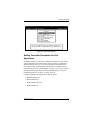
Setting Controller Parameters for Your Application ........................... 2-3
Hardware Parameters ................................................................ 2-6
Physical Parameters .................................................................. 2-8
SCSI Transfer Parameters ....................................................... 2-11
Startup Parameters .................................................................. 2-12
Low-Level Formatting the Drives ..................................................... 2-14
Automatic Configuration .................................................................. 2-17
Manual Configuration ...................................................................... 2-21
Defining and Creating Drive Groups ........................................ 2-21
Defining and Creating a System Drive ..................................... 2-26
Saving the New Configuration .................................................. 2-29
Initializing the System Drives ........................................................... 2-30
Exiting DACCF ................................................................................ 2-33
Navigating within DACCF ................................................................ 2-33
DACCF Screen Regions and Objects ...................................... 2-33
Getting Around Within DACCF ................................................. 2-34
Chapter 3
Administering the Array
Overview ........................................................................................... 3-1
Viewing and Updating the Existing Configuration .............................. 3-1
Changing the Existing Write Policy ............................................ 3-2
Creating New Standby Drives .................................................... 3-3
Creating New Drive Groups and System Drives ........................ 3-4
Expanding the Capacity of a Drive Group .................................. 3-4
Saving the Updated Configuration to Memory ........................... 3-6
Manual No. 771953
v
Rebuilding Drives .............................................................................. 3-7
Running a Consistency Check ........................................................... 3-9
Using Options on the Tools Menu ................................................... 3-11
Viewing the Bad Block Table .................................................... 3-11
Viewing Device Error Counts .................................................... 3-13
Backup/Restore Configuration ................................................. 3-14
Clearing the Configuration ........................................................ 3-17
Printing the Configuration ......................................................... 3-17
Appendix A
DACCF File List
PCI RAID DAC Products ............................................................A-1
Appendix B
Frequently-Asked Questions
Appendix C
Command Line Arguments
Appendix D
DACCF Error Conditions
NVRAM/Flash Configuration Mismatch ............................................ D-1
Installation Abort ............................................................................... D-1
Configuration Checksum Error ......................................................... D-2
Errors Which Cause a Drive to be Killed .......................................... D-2
SCSI Sequence Error ................................................................ D-3
SCSI Busy Status ...................................................................... D-3
Timeout on a Command ............................................................ D-3
Media Error Recovery Flow ....................................................... D-3
Interrogation Sequence - Start Drive ......................................... D-4
Operator Command ................................................................... D-4
Glossary
BBU .................................................................................................. G-1
Bad Block Table (or Bad Data Table) ............................................... G-1
Battery Backup Unit .......................................................................... G-1
Cache ............................................................................................... G-1
Cache Flush ..................................................................................... G-1
Cache Line Size ............................................................................... G-1
Channel ............................................................................................ G-2
Consistency Check ........................................................................... G-2
Disk Failure Detection ....................................................................... G-2
vi
DACCF User’s Manual
Disk Media Error Management ......................................................... G-2
Drive Groups (or Drive Packs) .......................................................... G-3
Hot Replacement of Disks (“Hot Swap”) ........................................... G-3
IBBU ................................................................................................. G-3
Intelligent Battery Backup Unit ......................................................... G-3
Logical Drive States ......................................................................... G-4
Online: A Logical Drive is in an “online” state if... ..................... G-4
Critical: A Logical Drive is in a “critical” state if... ...................... G-4
Offline: A Logical Drive is in an “offline” state if... ..................... G-4
Logical Drives ................................................................................... G-5
Mirroring ........................................................................................... G-5
Pack ................................................................................................. G-5
Parity ................................................................................................ G-5
RAID ................................................................................................. G-5
RAID Levels .............................................................................. G-5
Replacement Table .......................................................................... G-6
Rotated XOR Redundancy ............................................................... G-6
SCSI Drive ........................................................................................ G-7
SCSI Drive States ............................................................................ G-7
Ready: A SCSI disk drive is in a “ready” state if it... ................. G-7
Online: A SCSI disk drive is in an “online” state if it... .............. G-7
Standby: A SCSI disk drive is in a “standby” state if it... .......... G-7
Dead: A SCSI disk drive is in a “dead” state if it... .................... G-7
Rebuild: A SCSI disk drive is in a “rebuild” state... ................... G-8
Segment Size ................................................................................... G-8
Session ............................................................................................. G-8
Standard Disk Drive ......................................................................... G-8
Standby Replacement of Disks (“Hot Spare”) .................................. G-8
Stripe Order .................................................................................... G-10
Stripe Size ...................................................................................... G-10
Stripe Width .................................................................................... G-10
Striping ........................................................................................... G-10
System Drives ................................................................................ G-10
Target ID ........................................................................................ G-10
Write Back Cache ........................................................................... G-11
Write Through Cache ..................................................................... G-11
Manual No. 771953
vii
viii
DACCF User’s Manual
Chapter 1
DACCF Quick Start
What is DACCF?
DACCF is an acronym for the Mylex Disk Array Controller ConFiguration
utility. It is a set of programs used primarily for first-time setup of a RAID
subsystem connected to a newly-installed Mylex Disk Array Controller.
DACCF utilities provide the necessary software tools needed to get the disk
array up and running, as well as advanced functions for monitoring,
controlling, and managing controllers and their connected disk array
subsystems.
DACCF software tools are available in one of two formats, depending on the
Mylex controller product you purchased and the firmware version residing
on the controller:
1. As an installable, DOS-based software utility located on a DACCF
Configuration & Utilities diskette supplied with the Mylex Disk Array
Controller, OR
2. As a BIOS-resident utility on the Mylex Disk Array Controller.
Starting DACCF
☛ Note
Controller and storage device hardware must already
be properly installed and connected before running
the DACCF utilities.
How you start DACCF depends on whether you will be running the DOSbased or BIOS-resident version.
Manual No. 771953
1-1
Starting DACCF
Installing and Starting the DOS Version of DACCF
You will run DACCF from a floppy diskette. We recommend you make a
DOS bootable copy of the DACCF Configuration & Utilities diskette and
run the program from this diskette.
1. Create a DOS-bootable floppy diskette.
2. Copy DACCF.EXE and DACD.EXE from the \DACCFG directory on
the original DACCF Configuration & Utilities diskette to the bootable
floppy diskette.
3. Start the system using the bootable floppy diskette you just created.
4. At the DOS prompt, type: A:\DACCF [ -<arg> ]
↵
where <arg> is an optional command line argument. Appendix C
contains an explanation of the most useful command line arguments
which can be supplied.
DACCF will locate the Mylex Disk Array Controllers and scan the
SCSI device chains attached to it. If the utility finds more than one
controller, you will be prompted to select a controller.
When the DACCF Main menu appears, the utility software is up and
running. Next you will either set controller parameters in the utility or
move directly to preparing your array (Chapter 2).
Starting the BIOS Version of DACCF
During system power up, the BIOS displays a sign-on message with its
version number and date. The sign-on message looks similar to the
following:
DAC[nnnn] BIOS Version n.nn-Mylex Corporation
This will be followed by:
Spinning up drives....
DAC[nnnn] Firmware Version n.nn-n-n
DAC[nnnn] Memory = xMbytes (DRAM)
Press Alt-M for BIOS options
where [nnnn] identifies the specific Mylex Disk Array Controller.
1-2
DACCF User’s Manual
DACCF Quick Start
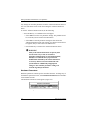
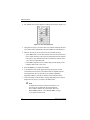
1. Enter the BIOS options menu by pressing ALT + M. (If you type
nothing, the boot sequence continues.)
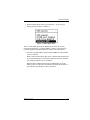
Figure 1-1. BIOS Options Menu
There are four BIOS options on the BIOS Options menu. We are only
concerned with Option 4: “Configure MDAC.” Refer to your Disk Array
Controller hardware installation guide for details on the other options.
2. Select the Configure MDAC option and press Enter to start the BIOS
version of DACCF.
DACCF will locate the Mylex Disk Array Controller and scan the SCSI
device chains attached to it. If the utility finds more than one controller,
you will be prompted to select a controller.
When the DACCF Main menu appears, the BIOS utility is up and
running. Next you will either set controller parameters in the utility or
move directly to preparing your array (Chapter 2).
Manual No. 771953
1-3
When to Use DACCF
When to Use DACCF
DACCF is meant to be used only by persons with managerial rights or
supervisory authority. These are powerful utilities that must be used
properly, or data loss can result. It is a good idea to have a written plan that
identifies the system resources (e.g., devices, capacities, locations by SCSI
channel, target ID, etc.) and the desired logical drive configurations (LUN
sizes, RAID types, etc.) before you begin setting up or changing an array
configuration.
You should use DACCF utilities:
• To change default controller parameters before an array is set up
• To configure and initialize an array during initial system setup, before
loading the operating system
• To save the array configuration information to a disk file
• To perform diagnostics on an array controller.
DACCF can be used to perform functions beyond those listed above.
However, for most functions involving array or controller configuration,
monitoring, or managing, we recommend that you use the Mylex Global
Array Manager software.
1-4
DACCF User’s Manual
Chapter 2
Preparing the Array
Overview
The following is an overview of the steps necessary to prepare an array. Each
step is described in greater detail later in this chapter.
1. Start DACCF (Chapter 1, “DACCF Quick Start”)
Invoke DACCF from the MS-DOS prompt or controller’s BIOS.
2. Optimize the controller parameters for your application
Although the Mylex Disk Array Controller ships from the factory
optimized to work in a variety of environments, certain changes can be
made to the controller’s settings. This is the best time to make these
optional changes.
3. Low-level format the array’s SCSI drives
Most drives are shipped low-level formatted, but if a SCSI drive
appears in DACCF with the status UNF, you should low-level format
the drive with the Format option so that any media defects can be
discovered and catalogued.
4. Define and configure one or more physical drive groups or packs
Either use the automatic configuration option or define your own drive
groups (also known as packs.) A drive group is a collection of one or
more physical disk drives.
5. Create and configure one or more system drives
A system drive has a defined capacity, RAID level, and write policy. Up
to eight (or 32) system drives can be created for the entire array,
depending on the firmware version. Maximum system drive size is
32GB (or 2 terabytes), also depending on the firmware version.
6. Save the configured information
After configuring the array, save the configuration to the controller.
7. Initialize the system drives
Initialize all of the system drives that have been configured above.
Once this process is complete, the host operating system may be
installed and the file system may be created on the array.
Manual No. 771953
2-1
Selecting a Controller
☛ Note
If you are unfamiliar with look and feel and
navigation within a DOS-based user interface, refer to
the section “Navigating within DACCF” on page 2-33
near the end of this chapter for assistance.
Selecting a Controller
In Chapter 1 you started the DACCF utilities.
DACCF operates upon a single Mylex Disk Array Controller at a time. If
you have a single controller in your system, DACCF will automatically
detect and select it. You can ignore this section and proceed to “Setting
Controller Parameters for Your Application” on page 2-3.
If more than one controller is detected in your system, DACCF will ask you
which controller to perform operations upon (Figure 2-1).
Figure 2-1. Select Which Controller to Operate Upon
Select the desired controller, and after a brief interrogation of the devices
attached to that controller, the Main menu (Figure 2-2) will appear.
☛ Note
You can select a different controller at any time by
using the Select DAC960 option on the Main menu.
2-2
DACCF User’s Manual
Preparing the Array
Figure 2-2. DACCF Main Menu
Setting Controller Parameters for Your
Application
Each Mylex Disk Array Controller is shipped from the factory with default
settings which have been found to work well in a majority of applications
and environments. However, no two environments are the same, and you
may want to modify certain hardware settings before continuing with the
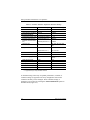
preparation of your array. Consult Table 2-1 on page 2-4. If you are satisfied
with the default settings, skip this section and jump ahead to “Low-Level
Formatting the Drives” on page 2-14. If not, proceed.
Controller parameters are organized into four categories:
• Hardware Parameters
• Physical Parameters
• SCSI Transfer Parameters
• Startup Parameters
Manual No. 771953
2-3
Setting Controller Parameters for Your Application
Table 2-1. Controller Parameter Default and Alternative Settings
Controller Parameter
Default Setting
Alternative Settings
Hardware Parameters:
Automatic Rebuild Mgmt.
Enabled
Disabled
StorageWorks Fault Mgmt. Disabled
Enabled
Physical Parameters:
Rebuild/Add Capacity rate
50 (rebuild-high priority)
0 - 49
Controller read ahead (is
automatic above firmware
2.6)
Enabled (firmware 2.x)
Disabled
Segment Size
8K
(2K, 4K)a, 8K, 16K, 32K,
64K
Stripe Size
8K (firmware below 2.6)
16K, 32K, 64K
64K (firmware 2.6 + )
8K, 16K, 32K
Disabled (firmware 3.x + ) Enabled
SCSI Transfer Parameters:
Data transfer rate (MHz)
20MHz
Asynch, 5MHz, 10MHz
Command tagging
Enabled
Disabled (only for old
drives)
SCSI data bus width
16-bit
8-bit
Automatic
On Power
Startup Parameters:
Spin up option
Number of devices per spin 2
1, 3, 4, 5, 6, 7, 8
Delay (seconds)
12, 18, 24, 30
6
a. supported only in early firmware versions
To facilitate tuning of the array for optimal performance, a number of
controller settings (as opposed to the array configuration stored in the
controller’s memory) can be changed. These controller settings, or
parameters, are accessed by selecting the Advanced Functions option on
the Main menu (Figure 2-3).
2-4
DACCF User’s Manual
Preparing the Array
Figure 2-3. Advanced Functions Option
When selected, the Edit/View Parameters menu appears (Figure 2-4).
Figure 2-4. Edit/View Parameters Menu
☛ Note
Different Mylex adapters support different Advanced
functions. Not every function listed below may be
available to your controller.
Manual No. 771953
2-5
Setting Controller Parameters for Your Application
Any changes to controller parameters from the Advanced Functions menu or
one of its sub-menus can be saved when exiting the Advanced Functions
menu.
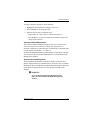
To exit the Advanced Functions menu, do the following:
• Press the Esc key. A confirmation box will appear.
• Select YES to save the new parameter settings. The parameters will
be saved and you will return to the Main menu.
• Select NO to retain the parameter settings in effect before the
Advanced Functions menu was entered. Any changes made will not
be applied, and you will return to the Main menu.
• Press the Esc key to return to the Advanced Functions menu.
, WARNING
Many of the advanced functions can put any data
stored on the array at risk, if not delete it
altogether. Such functions are noted in the manual,
but Mylex recommends that you perform the
modifications afforded by the advanced functions
on an array that has not been loaded with a file
system and data. Additionally, inappropriate
changes to the controller parameter settings can
result in degraded performance.
Hardware Parameters
Hardware parameters control specific controller functions. To change any of
the hardware parameters below, select Hardware Parameters from the Edit/
View Parameters menu.
The Hardware Parameters menu appears (Figure 2-5).
Figure 2-5. Hardware Parameters Menu
2-6
DACCF User’s Manual
Preparing the Array
To change a hardware parameter, do the following:
1. Highlight the desired parameter using the cursor keys.
2. Press the Enter key to change the value.
3. When the correct value is displayed, either:
• Repeat steps 1 & 2 above, but for a different parameter, or
• Press the Esc key to return to the Edit/View Parameters menu. The
change will be retained.
Automatic Rebuild Management
The Automatic Rebuild Management option refers to the function of the
same name. It detects the removal of a failed drive and performs an
automatic rebuild after a replacement drive is installed into a redundant (fault
tolerant) logical array (RAID 1, 3, 5, and 0+1).
Automatic Rebuild Management requires hardware compatibility with disk
array enclosures that are certified AEMI, SAF-TE, or StorageWorks FaultManagement compliant.
Operational Fault Management
The StorageWorks Fault Mgmt. (TM) option monitors and reports drive
failures, background activity completion status, enclosure events, etc. Enable
this function only when Digital StorageWorks Fault Management equipment
(disk cabinet) is installed. In all other cases this option should remain
disabled.
, WARNING
If you enable StorageWorks Fault Management,
make sure that Automatic Rebuild Management is
disabled.
Manual No. 771953
2-7
Setting Controller Parameters for Your Application
Physical Parameters
Physical parameters define the interaction between the controller and the
disk drives. To change any physical parameter select Physical Parameters
from the Edit/View Parameters menu.
The Physical Parameters menu appears (Figure 2-6).
Figure 2-6. Physical Parameters Menu
To change a physical parameter, do the following:
1. Highlight the desired parameter using the cursor keys.
2. Press the Enter key to change the value.
3. When the correct value is displayed, either:
• Repeat steps 1 & 2 above, but for a different parameter, or
• Press the Esc key to return to the Edit/View Parameters menu. The
change will be retained.
Rebuild/Add Capacity Rate
The rebuild/add capacity rate is a relative indication of how much time the
controller devotes to a rebuild or add capacity operation. Integer values from
0-50 can be defined. For low rebuild/add capacity priority and high array
performance, specify a value of 0. For high rebuild/add capacity
performance (and reduced array performance during rebuild), select 50.
Controller Read Ahead
In DAC firmware below version 2.6, the Controller Read Ahead function
improves data retrieval performance of sequential loads by allowing the
controller to read into cache a full stripe of data at a time. This greatly
improves the percentage of cache hits.
2-8
DACCF User’s Manual
Preparing the Array
For example, if the stripe size is set to 8K and the host requests 1K of data,
when this function is enabled the controller will read ahead the full 8k. When
the host requests the next 1K block, that data will already be in the
controller’s cache.
☛ Note
Users of DAC firmware version 2.6 and above should
be sure that this option is disabled so that the
controller will use its adaptive read-ahead caching.
Firmware below version 2.6 does not possess adaptive
read-ahead caching, so this function should remain
enabled during normal controller operation.
Segment Size
The Segment Size function, available in DAC firmware version 2.6 and
above, is set in conjunction with stripe size and represents the size of the data
“chunk” in controller memory that will be read or written at one time. The
segment size (also known as “cache line size”) should be based on the stripe
size. The default segment size for Mylex Disk Array Controllers is 8K.
Table 2-2. Segment Sizes for Each Stripe Size
Stripe Size
Select Segment Size...
8Ka
8K
16K
16K
32K
32K
64Kb
(2K, 4K)c
8Kb
64K
a. Default - Firmware version below 2.6
b. Default - Firmware version at or above 2.6
c. supported only in early firmware versions
A large segment size (64K) is useful with a 64K stripe size for applications
requiring large sequential reads or writes (e.g. video playback from disk). It
can hinder system performance if files are smaller or if data access is more
random than sequential. An 8K segment size is best for most applications.
Manual No. 771953
2-9
Setting Controller Parameters for Your Application
Stripe Size
The Stripe Size function is used to tune the controller performance for a
specific environment or application. Generally, stripe size optimization is as
follows:
• Smaller stripe sizes provide better performance for random I/O
(e.g., RAID 3, RAID 5, network file service, or OLTP processing)
• Larger stripe sizes provide better performance for sequential transfers
(e.g., RAID 0, RAID 1+0; digital video, etc.).
Available stripe sizes are 8K, 16K, 32K, and 64K. For firmware versions
below 2.6, the default stripe size for Mylex Disk Array Controllers is 8K. For
firmware versions at or above 2.6, the default stripe size is 64K.
, WARNING
DATA LOSS will occur after changing the stripe
size on a controller with existing logical arrays.
Always back up all of the drives before making a
stripe size change, and always reconfigure and
initialize the logical array after a new stripe size is
saved.
Once set, the stripe size cannot be changed without first copying all of the
data off of the array, changing the stripe size, reinitializing the drives, and
copying the saved data back onto the array. In a large capacity array, this
operation could take hours and inconvenience many people. You should
evaluate your needs now and make any changes necessary before the array is
placed in service.
2-10
DACCF User’s Manual
Preparing the Array
SCSI Transfer Parameters
SCSI transfer parameters control the interaction between SCSI devices and
the host adapter. To change any SCSI transfer parameter below, select SCSI
Xfr Parameters from the Edit/View Parameters menu. A dialog box appears
requesting that you select the channel whose SCSI transfer parameters you
would like to change.
☛ Note
Channels are numbered from 0. For example, on a 3channel board, the channel numbers are 0, 1, and 2.
• Type the channel number and press Enter, or press Enter for the
default.
The SCSI Transfer Parameters menu appears, specifying the appropriate
channel (Figure 2-7).
Figure 2-7. SCSI Transfer Parameters Menu
To change a SCSI transfer parameter, do the following:
1. Highlight the desired parameter using the cursor keys.
2. Press the Enter key to change the value.
3. When the correct value is displayed, either:
• Repeat steps 1 & 2 above, but for a different parameter, or
• Press the Esc key to return to the Edit/View Parameters menu. The
change will be retained.
Data Transfer Rate, MHz
The SCSI Transfer function sets the maximum transfer rate for each drive
channel. The default setting is 20MHz. This setting produces 20 MB/sec
transfers for Fast SCSI and 40 MB/sec transfers for Wide and Ultra SCSI. In
general it is not necessary to change this parameter since the controller
“negotiates” the supported transfer rate with all of the drives.
Manual No. 771953
2-11
Setting Controller Parameters for Your Application
☛ Note
Problems communicating with a drive can be caused
by several conditions; e.g., improper termination,
wrong drive ID setting, SCSI cable is too long, faulty
equipment, etc.
Command Tagging
Command tagging controls SCSI command tag queuing support for each
drive channel. This allows drives to work on multiple commands at the same
time. This function normally remains enabled. Disable only when using
older SCSI drives not supporting command tag queuing.
SCSI Data Bus Width
The Force 8-bit (Drive Channel) function allows the controller to
communicate with Wide SCSI (16 bit) devices connected to it through a
Narrow SCSI (8 bit) data cable on the specified drive channel. In general it is
not necessary to change this parameter since the controller “negotiates” the
supported data bus width.
Startup Parameters
Device startup parameters affect the power consumption of the disk devices
within the array. A running drive consumes a fraction of the power necessary
to start the drive. To minimize the strain on the power supply of the array, the
drives can be started in sequence, spreading the consumption of power out
over a defined period of time. To change any device startup parameter below,
select Startup Parameters from the Edit/View Parameters menu.
The Start up Parameters menu appears (Figure 2-8).
Figure 2-8. Start Up Parameters Menu
To change a parameter, do the following:
1. Highlight the desired parameter using the cursor keys.
2-12
DACCF User’s Manual
Preparing the Array
2. Press the Enter key to change the value.
3. When the correct value is displayed, either:
• Repeat steps 1 & 2 above, but for a different parameter, or
• Press the Esc key to return to the Advanced Functions menu. The
change will be retained.
Spin Up Option
The Spin-up function controls how the SCSI drives in the array are started
(spun-up). There are three different Spin-up modes that may be selected by
the user. The default mode setting is Automatic.
Automatic This spin-up mode causes the controller to spin-up all
connected drives until every drive in the array is spinning. The controller
then interrogates each drive and confirms that the drive is ready for use. The
interrogation process repeats until all drives have been verified. The default
is set to the “Number of Devices per Spin” value at an interval indicated by
the “Delay” value (see below).
On Power This spin-up mode assumes that all drives are already spinning
and proceeds to interrogate the drives in the same manner as described for
Automatic mode.
On Command This spin-up mode causes the controller to wait for a spinup command from the host. It then proceeds to spin-up the drives in the same
manner as described for Automatic mode.
Number of Devices Per Spin
Specify the number of drives to spin up. Values range from 1 to 6.
Delay
After the controller completes its initialization process, the delay value
defines the number of seconds before the first disk interrogation request is
issued to the array. Delay values range from 0 to 30 in six second increments.
Manual No. 771953
2-13
Low-Level Formatting the Drives
Low-Level Formatting the Drives
This step is usually optional. Most drives ship with low-level formatting
already performed by the manufacturer. However, Mylex recommends that
you view the status of each device before starting the configuration for the
first time. If any device carries a status of UNF rather than RDY, it should be
low-level formatted with DACCF before use. Low-level formatting will
completely erase all existing data on the drives and perform a media surface
check. The procedure for viewing the status of the devices AND performing
a low-level format is described below.
, WARNING
Low-level formatting will destroy all existing data
on the disk drive.
1. Select Tools from the Main menu (Figure 2-9).
Figure 2-9. Tools Option on Main Menu
The Tools menu will appear after a short interval (Figure 2-10).
2-14
DACCF User’s Manual
Preparing the Array
A representation of the physical devices in the array will be displayed on the
left side of the screen, and the Tools menu appears on the right side of the
screen.
Figure 2-10. Tools menu
2. Determine your next step by viewing the status of all devices on the left
side of the screen:
If all devices show RDY (ready status), you don’t need to low-level
format. Press Esc to return to the Main menu and skip the rest of this
section.
If any device shows UNF (unformatted status), go on to the next step.
3. Select Format Drive from the Tools menu. The highlight bar will be
positioned on the first device on the first channel of the array.
4. Select the drive to format by moving the highlight cursor to the desired
drive and pressing the Enter key.
5. A dialog box confirming the format operation will appear.
• Select YES to include the drive in a format operation, and press the
Enter key. The confirmation box will clear, and the drive state will
change to FMT .
• Select NO to exclude a drive which has been selected for formatting.
Manual No. 771953
2-15
Low-Level Formatting the Drives
6. At this point, steps (4) and (5) can be repeated for other disk devices in
the array that should be included in the low-level format.
7. After all devices have been selected for formatting, press the Esc key.
A confirmation box will appear.
• Select YES to format the drives, and press the Enter key. The drive
low-level format process will commence.
• Select NO to abort the format process, and press the Enter key. The
selected drives will not be formatted, and you will return to the Tools
menu.
8. If a device cannot be low-level formatted, a message will appear
(Figure 2-11) indicating the channel and ID of the device. The device
should be replaced and the low-level format process repeated for that
device.
Figure 2-11. Device Error During Format
9. To return to the Main menu from the Tools menu, press the Esc key.
2-16
DACCF User’s Manual
Preparing the Array
Automatic Configuration
After the devices have been formatted (if necessary), the first step in
configuration is deciding whether to configure drive groups automatically or
manually. Automatic configuration has certain limitations, but is the easiest
and quickest way to prepare an array for operation. Manual configuration
gives you complete control of the array’s design, but will take longer to
complete and requires more user knowledge than an automatic
configuration. Mylex recommends that you read both sections before
proceeding to determine which method is more suitable for your installation.
☛ Note
Mylex Disk Array Controllers ship from the factory
with no configuration information stored in memory.
The Automatic Configuration option configures the array with just a few
keystrokes, and can only be used when the array consists of between 3 and 8
drives. Although drives of different sizes may be used in the array, Automatic
Configuration will only operate upon drives of the same physical size. The
Automatic Configuration option creates an array with the following
properties:
• All of the physical drives are contained in a single drive group;
• The drive group is defined as a single RAID level 5 system drive;
• Standby (hot spare) drive status (present or absent), and the write
policy (write back or write through caching) is selected during the
configuration process;
• The system drive number is 0.
1. Select Automatic Configuration from the Main menu (Figure 2-12).
Manual No. 771953
2-17
Automatic Configuration
Figure 2-12. Automatic Configuration Option
2. An error message will be displayed if fewer than 3 or more than 8
drives are detected, or if drives of differing capacities are found. The
Automatic Configuration will then abort.
If no errors are encountered, but a valid array configuration already
exists, DACCF will warn you that you are about to replace the
configuration with the structure created by the Automatic
Configuration. A confirmation is required to proceed.
m Caution
If you overwrite an existing configuration by selecting
“Yes,” all data will be lost!
• Select YES to proceed, overwriting the existing configuration with
the automatically generated configuration.
• Select NO in the confirmation box to return to the Main menu, with
no changes to the array configuration.
2-18
DACCF User’s Manual
Preparing the Array
3. Next, select whether you wish to reserve one available, unconfigured
drive to be used as a standby (hot spare) drive (Figure 2-13).
Figure 2-13. Deciding Whether to Reserve a Standby Drive
• Select YES to set aside one available drive to be used as a standby
before all other drives are configured.
• Select NO to choose not to set aside a standby drive. Automatic
Configuration will use all available drives to create the current
configuration.
4. Next, select the write policy for the system drive that is to be
automatically created (Figure 2-14).
Figure 2-14. Selecting the Write Policy
• Select NO to set the write policy of the system drive to write
through.
• Select YES to set the write policy to write back.
☛ Note
A write back policy (which stores data in the cache
temporarily during writes) will result in better
performance under light to medium loads (such as file
servers) at the expense of potential fault tolerance. In
a power failure/system crash, any data in the cache
will be lost, unless the cache has a battery backup. A
write through policy (which writes data to the disk
AND cache) will result in lower performance, but no
Manual No. 771953
2-19
Automatic Configuration
data can be lost in a power failure/system crash. For
more information about write policies, refer to the
Glossary. Mylex strongly recommends the use of a
battery backup option or an uninterruptable power
supply (UPS) with any disk array configured with the
write back policy.
5. Once the appropriate option is selected, the configuration is saved and a
summary screen (Figure 2-15) is displayed. This summary screen
displays the operating parameters for the configuration.
Figure 2-15. Automatic Configuration Summary Screen
6. Press any key to return to the Main menu, and proceed directly to
“Initializing the System Drives” on page 2-30.
2-20
DACCF User’s Manual
Preparing the Array
Manual Configuration
Select this option to manually configure the disk array for the first time or to
reconfigure the array. This option will create a new configuration,
overwriting any existing array configuration. To change the write policy of
an existing configuration, add additional drive packs, or add capacity to the
last configured drive pack, use the View/Update Configuration item on the
Main menu (see Chapter 3, “Administering the Array”).
, WARNING
Overwriting an existing configuration will result in
the complete and irreversible loss of all data stored
on disk drives in the array. Use this option with
caution.
Defining and Creating Drive Groups
To define drive groups, follow the procedure below:
1. Select New Configuration from the Main menu (Figure 2-16).
Figure 2-16. New Configuration Option
Manual No. 771953
2-21
Manual Configuration
Figure 2-17. New Configuration - Define Pack
2. Select Define Pack from the New Configuration menu (Figure 2-17).
This option is used to define drive groups (also called packs).
The Pack Definition menu will be displayed (Figure 2-18).
Figure 2-18. Pack Definition Menu
3. Select Create Pack to begin grouping the drives into a pack. The
highlighted bar is positioned on the first device found by the controller
on the first channel.
4. Use the arrow keys to position the highlighted bar on a disk device
identified as RDY. (Device identification is shown in Table 2-3)
Table 2-3. Device identification and status
Device Display
2-22
Device Status
RDY
Disk is operational, but not currently included
in a drive group
DED
Disk is dead or has been manually taken offline
SBY
Disk is a hot spare (standby) drive
ONL
Disk is operational and is included in a group
FMT
Disk is being low-level formatted
DACCF User’s Manual
Preparing the Array
Table 2-3. Device identification and status
Device Display
Device Status
WOL
Disk is part of a redundant drive group, and is
in the process of being rebuilt from data and/or
parity on other drives in the drive group.
UNF
Disk needs to be low-level formatted.
TAP
Device is a tape drive and will not be included
in any DACCF operations.
CDR
Device is a CD-ROM drive and will not be
included in any DACCF operations.
5. Press the Enter key to include the highlighted disk device as part of the
drive group. When a disk is selected for inclusion in a drive group, a
pack identifier (A, B, C...) and disk index (0, 1, 2...) are assigned, and
the disk status changes to ONL.
6. Repeat the previous two steps for as many drives as you want to include
in a single drive group.
☛ Note
Drive groups can include disks on different channels,
if the array has multiple channels and disks are
connected to each channel. The number of drives in a
drive group will determine the allowable RAID levels
for all of the system drives created in that drive group.
No more than eight physical drives can be included in
a drive group. To use more than eight drives, create
two groups that have an equal number of physical
drives. Then arrange the drive groups (“Arranging the
Drive Groups” on page 2-25) to use both drive groups
in a single system drive.
7. To finish creating a drive group, press the Esc key. The device
highlights disappear, but the pack identifier and disk index for each
selected device remain.
8. Repeat steps 4-7 for as many drive groups as you wish to define.
• To reserve a disk as a standby, do not include it in any packs.
Manual No. 771953
2-23
Manual Configuration
• Select Cancel Pack from the Pack Definition menu to release the
drives in a pack, highlight any drive in the pack to be released, and
press the Enter key.
9. When you have finished defining drive packs, press the Esc key to
return to the Pack Definition menu.
☛ Note
If you have included all of the physical drives into a
single drive group, the drive group will be
automatically arranged and the System Drive
Definition menu will appear, as shown in Figure 2-21.
If this is the case, proceed to “Defining and Creating a
System Drive” on page 2-26.
Changing or Cancelling a Drive Group
To change a drive group, you must first delete the drive group, and then recreate the group. To delete a drive group, select Cancel Pack from the Pack
Definition menu.
☛ Note
You can only cancel the most recently-created drive
group. This means that if you’ve defined three drive
groups, and then decide that you want to change the
contents of the first drive group, you’ll have to delete
all three groups - the current, or third group, then the
second group, and finally the first group. Before
deleting any drive groups, though, you may want to
write down the contents of the drive groups that you
do not want to change. When you’ve changed the first
group, you can then quickly recreate the second and
third groups from your notes.
Creating a Standby or Hot Spare Disk
To create a standby, or hot spare drive, do not include the device as a part of
any drive group. The device status will change from RDY to SBY when the
configuration is saved to memory. Saving the configuration is explained later
in this chapter.
2-24
DACCF User’s Manual
Preparing the Array
Arranging the Drive Groups
Next, arrange the drive groups that you have created by selecting Arrange
Pack from the Pack Definition menu. The pack arrangement screen will be
displayed
• Move the highlighted bar to any drive of the desired group and press
the Enter key to arrange it. The drive group will be added to the table
on the lower right side of the screen, which lists the drive group’s pack
identifier, the number of drives in the group, and the capacity of the
drive group. This table is called the pack arrangement table.
☛ Note
The drives belonging to unarranged packs, drives that
are not part of any pack, or drives of arranged packs
that have not been configured into any system drive
will be automatically configured as standby drives.
If all of the packs are arranged, you will return to the New Configuration
menu automatically.
Viewing Device Information
To obtain information about any physical disk drive connected to the Mylex
Disk Array Controller:
1. Select Device Information from the Pack Definition menu.
2. Using the cursor keys, select the device and press Enter. The selected
drive's information is displayed in its own window (Figure 2-19).
Figure 2-19. Getting Device Information
The device information window displays the device manufacturer, model
number, firmware revision, and size as reported by the SCSI inquiry and read
capacity commands. The channel to which the device is attached, as well as
Manual No. 771953
2-25
Manual Configuration
the SCSI ID of the device are also displayed.
3. To select another device, press any key to return to the drive matrix
box, and repeat step (2) to select and display the properties of a
different device.
4. To return to the pack definition menu, press the Esc key.
Defining and Creating a System Drive
After drive groups have been defined and arranged, they are used to create
system drives. System drives have the following properties:
• Each system drive has a defined capacity which is less than or equal to
the total capacity of the drive group on which it resides.
• Maximum size of a system drive is 32GB when using DAC
Firmware versions below 2.6, or 2TB (terabytes) when using firmware
versions 2.6 and above.
• Up to eight (8) system drives can be created per controller with DAC
Firmware versions below 2.6, up to 32 system drives for firmware 2.6
and above.
• Each system drive has a RAID level which is selectable (subject to the
number of disks in the system drive’s drive group).
• A system drive has selectable write policy: write-back or writethrough.
To create a System drive, follow these steps:
1. Select Define System Drive from the New Configuration menu
(Figure 2-20).
Figure 2-20. New Configuration - Define System Drive
2-26
DACCF User’s Manual
Preparing the Array
The System Drive Definition menu (Figure 2-21) will appear. This screen
displays the existing arranged drive groups, System Drive Definition menu,
and System Drive Table, which should be empty as there are no defined
system drives. As system drives are defined, entries are added to this table.
Figure 2-21. System Drive Definition Menu
2. Select Create System Drive from the System Drive Definition menu.
The first arranged pack is selected.
Figure 2-22. Selecting the RAID Level
3. The RAID Level selection menu pops up (Figure 2-22). Use the cursor
keys to select a RAID level appropriate for the drive group. The cursor
will only move to a valid RAID level allowed by the number of drives
in the selected group. The number of drives in a drive group is also
known as the stripe width of the drive group. Press the Enter key to
select the RAID level for this system drive. Table 2-4 presents the
minimum number of drives necessary to support each RAID level:
Table 2-4. Drives per drive group and supported RAID levels
Number of Drives
RAID Levels Available
1
Mylex RAID Level 7, also known as JBOD
2
0, 1
3 or more
0, 3, 5, 0+1 (also known as Mylex RAID Level 6)
Manual No. 771953
2-27
Manual Configuration
☛ Note
If you are using DAC firmware 4.x or above, the RAID
Level selection menu will contain an additional menu
option called “RAID 3.”
4. Define the size of this system drive in the Enter Size (MB) popup. By
default, the maximum possible size for the system drive you’re defining
is displayed.
• To accept the default capacity, press the Enter key.
• To enter a value less than or equal to the default size, type the value
and press the Enter key.
5. A window with a summary of this system drive’s settings and a
confirmation dialog box is presented (Figure 2-23).
Figure 2-23. System Drive Summary
• Select YES to create the system drive and add it to the System Drive
Table. The drive is added to the table and control is returned to the
System Drive Definition menu.
• Select NO to cancel the creation of the system drive and return to the
System Drive Definition menu,.
6. Repeat steps (2) through (6) to create additional system drives.
2-28
DACCF User’s Manual
Preparing the Array
☛ Note
Several arranged groups (packs) can be included in a
single system drive if each of the arranged groups has
the same number of drives. This is known as spanning
a system drive across drive groups and is automatically
configured when the size of the system drive is entered.
Note that you will not be able to use the “Add Drive to
Last Pack” function on a pack which contains a
spanned system drive.
Toggle Write Policy
To change write policy of any system drive, use the following procedure:
1. Select Toggle Write Policy from the System Drive Definition menu.
The cursor will move to the System Drive Table.
2. Use the cursor keys to highlight the desired system drive.
3. Press the Enter key to toggle, or change the write policy for that
system drive. The allowed policies are WRITE THRU and WRITE
BACK.
4. Repeat steps (2) and (3) above to select and change write policies for
other system drives (if any).
5. When the write policies are set correctly on all desired system drives,
press the Esc key to return to the System Drive Definition menu.
Saving the New Configuration
Once all of the system drives are defined, the configuration should be saved
to the controller’s memory. To save the configuration:
1. From the System Drive Definition menu, press the Esc key twice.
2. A Save Configuration confirmation dialog box will be displayed.
• Select YES to save the configuration. You will return to the Main
menu.
• Select NO to discard all changes made to drive groups, group
arrangements, system drives and write policies. You will return to
the Main menu.
Manual No. 771953
2-29
Initializing the System Drives
• Press the Esc key to return to the New Configuration menu. Any
changes are retained, and additional modifications can be made.
However, the configuration will need to be saved before proceeding
to the last step of array preparation.
This completes the configuration process. To finish preparing the array,
initialize the system drives as described in the following section.
Initializing the System Drives
The last step in the preparation of the array is the initialization of the system
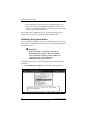
drives. Mylex recommends that all system drives be initialized immediately
after they are created.
, WARNING
Failure to initialize a system drive will result in
unpredictable drive behavior, such as an inability
to boot or load the operating system, or failure of a
consistency check. Any data placed on
uninitialized system drives is at risk.
To initialize one, several, or all (recommended) system drives, follow the
steps below:
1. Select Initialize System Drive from the Main menu (Figure 2-24).
Figure 2-24. Initialize System Drive Option
2-30
DACCF User’s Manual
Preparing the Array
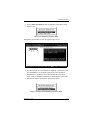
2. Choose Select System Drive from the Initialize System Drive menu
(Figure 2-25).
Figure 2-25. Initialize System Drive Menu
The Initialize System Drive screen will appear (Figure 2-26).
Figure 2-26. Initialize System Drives
3. To mark a system drive for initialization, highlight a system drive and
press the Enter key. As multiple system drives can be initialized
simultaneously, repeat this process until the desired system drives
(again, all drives should be initialized) are marked with a check mark.
4. Press Esc to return to the Initialize System Drive menu.
Figure 2-27. Return to the Initialize System Drive Menu
Manual No. 771953
2-31
Initializing the System Drives
5. Select Start Initialize from the Initialize System Drive menu. A
confirmation box will appear.
☛ Note
Once the system drive initialization is started, it
should not be aborted.
• Select YES to start the initialization of the selected system drives.
• Select NO to abort the process and return to the Initialize System
Drive screen.
An initialization status screen will be displayed, with the initialization
progress of each drive included in the operation.
☛ Note
The initialization rate for a given system drive is
dependent upon the size of the drive and the RAID
level specified for the drive. Therefore, some system
drives will initialize more quickly than others.
m Caution
Do not interrupt the initialization process or you will
have to restart and complete a full initialization before
using the drive.
6. At the conclusion of the initialization, a completion message is
displayed. Press any key to return to the Main menu.
Preparation of the array is complete at this point. You can exit DACCF at this
time and proceed to load the operating system onto the array.
2-32
DACCF User’s Manual
Preparing the Array
Exiting DACCF
To exit DACCF, follow these steps:
1. Get to the Main menu.
2. Press the Esc key. The Exit confirmation box will appear.
• Select YES to exit DACCF and return to the MS-DOS command
prompt (DOS-based version), or reboot the system (BIOS-version).
• Select NO to remain in DACCF.
Navigating within DACCF
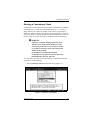
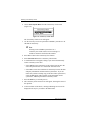
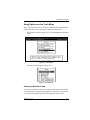
DACCF Screen Regions and Objects
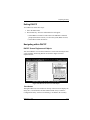
You control DACCF via a text-based interface. Screen areas and objects that
you’ll encounter while using DACCF are shown in Figure 2-28 and
explained below.
Figure 2-28. DACCF Screen Areas and Objects
Title Window
Throughout DACCF, a title window on the top of the screen will display the
utility title, version number, and date (MYLEX Disk Array Controller Configuration Utility, Version n.nn mm/dd/yy). In addition, the currently
Manual No. 771953
2-33
Navigating within DACCF
selected controller's name, slot number, and firmware version/turn number
are displayed (n Channel - nn Target DACnnnXX #n Firmware: n.nn-n-n).
Actions Bar
Each screen uses the bottom row of the display to indicate allowed operator
actions.
Menus and Dialog Boxes
Each screen has either a menu of items that can be selected, or a dialog box
requiring a specific action.
Device Representations
At certain points in DACCF, a representation of a particular device (a disk
array, for example) will be displayed along with a menu and/or dialog box.
Often, DACCF permits you to navigate within the device to select specific
objects (a disk drive, for example) upon which to perform specific
operations. Navigation is normally performed via cursor keys or via a
mouse, as outlined below.
Help Box
At key points throughout DACCF, a help box is displayed when a specific
menu choice is highlighted. The Help box usually contains a textual
description of the functions of the menu item.
Getting Around Within DACCF
Cursor Keys and Jump Keys
DACCF makes extensive use of the cursor movement keys on your keyboard
(these are sometimes called arrow keys, and are labeled as ←↑↓→ on the
keyboard) for menu navigation. These keys position a highlighted bar, called
the cursor, on various items or objects of interest. The cursor will only move
between valid choices, skipping all the invalid choices.
An alternative (and faster) method of positioning the cursor while in a menu
is via the “Jump” keys. The jump key for any menu item is the single number
or character which is displayed brighter than the surrounding text for that
item. In the example shown in Figure 2-29, the jump keys are:
A, N, V, R, I, C, T, S, and F, (or 01 - 09)
2-34
DACCF User’s Manual
Preparing the Array
When presented with any menu, type the jump key associated with a
particular item to move directly to the item.
Firmware versions above 2.6 allow for up to 16 target devices per channel,
while versions at or below 2.6 allow for up to 8 target devices per channel.
This difference is reflected in the number of target IDs available in the lefthand window. Use F2 followed by PgDn and PgUp to view additional
devices on the channels.
Figure 2-29. DACCF
Selecting an Item
Once highlighted via either of the above methods, an item is selected by
pressing the Enter key.
Exiting a Menu
Use the Escape (Esc) key to return to the previous action or state. If you
select the wrong menu choice, the Esc key will return to the menu.
Using a Mouse (DOS-Based Version Only)
A mouse or other pointing device can also be used to navigate the DACCF
menus. You’ll need to have loaded a mouse driver prior to running DACCF.
To position the highlight bar on a menu item, position the mouse cursor (as
opposed to the highlighted bar) on the item and single-click the left mouse
button. To select an item, position the mouse cursor on a highlighted item
and single-click the left mouse button.
Manual No. 771953
2-35
Navigating within DACCF
2-36
DACCF User’s Manual
Chapter 3
Administering the Array
Overview
During the operational life of the array, you may have a need to make
additions or changes to certain properties of the configuration while
retaining the existing configuration. For example, you may want to increase
the capacity of the array or drive group, or create new system drives.
Alternatively, you may want to change the write policy for a defined system
drive. After a power or system failure, the data on the array’s system drives
should be verified and, if necessary, repaired. This section explains how to
accomplish these and other tasks.
Viewing and Updating the Existing Configuration
From the Main menu, use the View/Update Configuration option to view,
edit or update an existing array configuration.
• Select View/Update Configuration from the Main menu to perform
any of the associated activities (Figure 3-1).
Figure 3-1. View/Update Configuration Option
The View/Update Configuration menu is displayed (Figure 3-2).
Manual No. 771953
3-1
Viewing and Updating the Existing Configuration
Figure 3-2. View/Update Configuration Menu
Use this option to make additions to the configuration, while retaining the
existing configuration (and any data that is resident on system drives in the
existing configuration.) The following functions are available:
• Change the write policy of any system drive from write back to write
through (and vice versa). The write policy can be changed at any time.
• Create new standby drives. If new physical drives are being added, they
can be designated as standby drives.
• Create new drive groups and system drives. Existing standby drives and
new physical drives can be assigned to new drive groups for subsequent
use in the definition of system drives.
• Expand the capacity of the most recently-created drive group.
• View the existing configuration. All array information, including drive
groups, arranged groups, system drives, RAID levels, and write
policies for system drives, is displayed.
Changing the Existing Write Policy
To change an existing system drive’s write policy, do the following:
1. Select Define System Drive from the View/Update Configuration
menu. The System Drive Definition menu (Figure 3-3) will appear.
Figure 3-3. System Drive Definition Menu
3-2
DACCF User’s Manual
Administering the Array
2. Select Toggle Write Policy from the System Drive Definition menu.
The cursor will move to the system drive definition table.
3. Position the cursor on the system drive of interest, and press the Enter
key to change the write policy for the selected drive.
4. Repeat step (3) above to select and change the write policy for other
system drives.
5. Press the Esc key to return to the System Drive Definition menu.
6. Make other changes (as described below) or proceed to “Saving the
Updated Configuration to Memory” on page 3-6.
Creating New Standby Drives
To assign a new physical disk to standby (hot spare) status, do the following:
1. Select Define Pack from the View/Update Configuration menu.
2. Verify that the status of the new device is RDY. If the status of a new
device is set to UNF, the device requires low-level formatting.
☛ Note
In large configurations, multiple standby drives may
be created for an extra level of protection.
3. When one or more physical disks has a status of RDY, press the Esc
key to return to the View/Update Configuration menu.
4. Press the Esc key again. DACCF will notice drives available for
standby duty and ask if you want to save the configuration
• Select YES to save a new configuration and create standby drive(s).
• Select NO to avoid creating the standby drive(s). The current
configuration will be retained, and the drive(s) that are not part of a
drive group will remain in the RDY state.
Manual No. 771953
3-3
Viewing and Updating the Existing Configuration
Creating New Drive Groups and System Drives
To create new drive groups and system drives, do the following:
1. Select Define Pack from the View/Update Configuration menu.
2. Follow the instructions presented in “Manual Configuration” in the
previous chapter, beginning at Step 3. This includes creating and
arranging drive groups, defining system drives, and setting RAID levels
and write policy.
Expanding the Capacity of a Drive Group
DACCF includes Mylex Online RAID Expansion™ (MORE™) technology:
a method for adding capacity to an existing drive group (“pack”).
Instead of deleting a pack and recreating it with the additional drive(s), a
function called “Add Drive to Last Pack” allows the user to select one or
several drives to add to the last pack that was created.
☛ Note
In MORE under DACCF, only the last pack can be
expanded (restriped). Packs that were created prior to
that pack are not available for automatic capacity
expansion using MORE.
To expand the capacity of the last-created drive group, do the following:
1. Select Add Drive to Last Pack from the View/Update Configuration
menu to request the capacity expansion process.
If any of the following conditions are true about the last-created pack
(the pack with the highest “letter” value in the list), MORE will not be
able to add capacity to the pack:
• The pack consists of a single JBOD (RAID 7) drive
• The pack already has eight (8) drives
• The pack is a “spanned” pack
• A total of 32 system drives have already been configured.
• All target IDs on all channels are used in existing packs.
3-4
DACCF User’s Manual
Administering the Array
2. Use the arrow keys to position the highlighted bar on a disk device
identified as RDY (ready/available) or SBY (standby/hot spare).
3. Press the Enter key to include it in the expansion process. When a disk
is selected for inclusion in the last pack, the identifier of the last pack
(A, B, C...) and disk index of the new drive (0, 1, 2...) are assigned, and
the disk status changes to ONL.
4. Repeat the previous two steps for other drives that you want to add to
the last pack, if any.
One or both of the following conditions may prevent DACCF from
allowing you to select a particular disk device:
• The drive capacity is too small to be used in the pack
• The pack already has eight (8) drives (which may include disk
device selections you just made)
5. If necessary, press the Esc key when you have finished your selection.
The restriping process is ready to begin, and a warning message
appears (Figure 3-4):
Figure 3-4. Add Capacity Warning Message
• Select YES to begin capacity expansion on the target pack.
• Select NO to cancel the capacity expansion process and return to the
previous menu.
m Caution
Once the Add Drive to Last Pack process has started,
it cannot be interrupted by user intervention. You
must allow the process to reach completion.
6. If you chose to proceed with expansion, the Add Capacity status screen
appears showing the progress of data migration (restriping) across the
target pack.
Manual No. 771953
3-5
Viewing and Updating the Existing Configuration
7. At the conclusion of the data migration, a message indicating
successful completion will be displayed. Press any key to return to the
View/Update Configuration menu.
☛ Note
If a drive becomes “dead” during the capacity
expansion and a standby drive is available, a rebuild
operation on the standby will occur after the capacity
expansion completes in “critical” mode. A message
indicating success will be displayed.
If the capacity expansion was performed on a RAID 1
system drive, the RAID level after data migration will
be RAID 0+1 (Mylex RAID 6).
Your next tasks will be to define one or more system drives for the new,
available capacity, then to initialize those system drives. Follow the
instructions presented in “Defining and Creating a System Drive” and
“Initializing the System Drives” in the previous chapter.
Saving the Updated Configuration to Memory
After making changes to write policy on existing system drives or creating
new system drives, the configuration must be saved to the controller’s
memory. To save the configuration:
1. From the System Drive Definition menu, press the Esc key twice.
2. A confirmation dialog box will be displayed.
• Select YES in the dialog box to save the configuration, and you will
return to the Main menu.
• Select NO to discard all changes made to drive groups, group
arrangements, system drives, and write policy, and you will return to
the Main menu, or
• Press the Esc key to cancel the save process and return to the System
Drive Definition menu. Any changes are retained, and additional
modifications can be made. However, the configuration will need to
be saved before proceeding to the last step of array preparation.
3-6
DACCF User’s Manual
Administering the Array
Rebuilding Drives
If one of the physical drives fails suddenly in an array with redundant system
drives (RAID level 1, 3, 5, or 1+0) and no standby drives, the DAC system
will continue to function without any interruption. However, during this
critical period the DAC system can tolerate no further physical drive failures,
as data on the drives is no longer redundant. During this period, the array is
considered to be in a “Critical” state. In order to restore the system’s
redundancy (fault tolerance), the failed physical drive needs to be replaced
with a functional physical drive of the same size or larger and with the same
SCSI ID, and the data needs to be “rebuilt” on this newly installed physical
drive. Use the Rebuild option on the Main menu for this purpose.
☛ Note
Normally, a rebuild operation will also be supported
by Mylex utilities for various operating systems and,
as such, this DACCF option may not have to be used.
To rebuild a physical drive, do the following:
1. Select Rebuild from the Main menu (Figure 3-5).
Figure 3-5. Rebuild Option
Manual No. 771953
3-7
Rebuilding Drives
2. The rebuild screen will be displayed with the drive matrix (Figure 3-6).
Figure 3-6. Drive Rebuild Matrix
3. Using the cursor keys, select the drive to be rebuilt. Normally, the drive
to be rebuilt will be indicated by the letters DED (for “DEAD drive”).
4. DACCF will ask you if you want to low-level format the drive.
• Select YES if this is a new drive that has not been used in this array
before (allow the drive to be low-level formatted before the rebuild
takes place). Any defined system drives will then be rebuilt on the
“new” drive in sequential order.
• Select NO to skip the low-level format and proceed directly to the
rebuild of data on the “new” drive.
5. Press the Enter key to initiate the rebuild.
6. A rebuild status screen will appear, showing the progress of data
reconstruction on all of the system drives that are dependent on the
selected physical drive. System drives are rebuilt sequentially,
beginning with the system drive with the lowest numerical value.
7. At the conclusion of the rebuild, a message indicating success will be
displayed. Press any key to return to the Main menu.
☛ Note
A rebuild fails (firmware version lower than 3.x) if
read errors are encountered on existing physical
drives which comprise the system drive. The View
Rebuild BBT function, “View Rebuild BBT” on page
3-12, reports all such errors.
3-8
DACCF User’s Manual
Administering the Array
Running a Consistency Check
A consistency check compares the data and parity information on redundant
system drives (e.g., system drives with RAID levels of 1, 3, 5, or 0+1) to
ensure that they can continue to function in the event of a physical drive
failure. If a difference between the data and its generated parity is detected,
consistency check can resolve the difference by restoring the parity based on
the data. Only one system drive may be checked at a time for consistency.
, WARNING
If parity is corrupted, running consistency check
with the restore parity option should correct the
error as long as the data is correct. However, if data
is corrupted, consistency check with restore parity
will not fix the problem.
Even though we recommend performing
Consistency Checks with restore parity often, keep
in mind that data loss may still occur.
To verify (and if necessary, correct) the integrity of a particular redundant
system drive, do the following:
1. Select Consistency Check from the Main menu (Figure 3-7).
Figure 3-7. Consistency Check Option
Manual No. 771953
3-9
Running a Consistency Check
2. Choose Select System Drive from the Consistency Check menu
(Figure 3-8).
Figure 3-8. Consistency Check Menu
The Consistency Check screen will appear.
3. Use the cursor keys to select a particular redundant system drive to be
checked for consistency.
☛ Note
Selecting a non-redundant system drive for a
consistency check will result in an error message, as
such drives cannot be checked in this manner.
4. Press Esc to return to the Consistency Check menu.
5. Select Start Check from the Consistency Check menu.
6. A confirmation box will appear, asking if you want to automatically
restore consistency to the drive.
• Select YES to restore consistency to the selected system drive. Be
aware that potential data loss could result from this action.
• Select NO to cancel the restoration of consistency between the data
and parity information contained on this system drive. If you are
unsure that you have a backup copy of the data on this system drive,
select the NO option, make a backup of the information on the
system drive, and then perform the consistency check.
7. Press the Enter key to start the process.
8. The consistency check status screen will appear, showing the status of
the operation.
9. At the conclusion of the check, a message indicating success will be
displayed. Press any key to return to the Main menu.
3-10
DACCF User’s Manual
Administering the Array
Using Options on the Tools Menu
Many of the functions necessary to ensure continued data availability before,
during, and after a drive is replaced are found in the Tools menu.
• Activate the Tools menu (Figure 3-9) by selecting Tools from the Main
menu.
Figure 3-9. Tools Option
The Tools menu will appear (Figure 3-10).
Figure 3-10. Tools Menu
Viewing the Bad Block Table
A bad block is defined as a section on a physical disk which cannot reliably
store information. Viewing the table (applicable for firmware versions below
3.x) to inspect the number and location of bad blocks can be used to
Manual No. 771953
3-11
Using Options on the Tools Menu
troubleshoot a failed rebuild operation, or can help predict a physical drive
failure. The Bad Block Table option lets you view the two tables that the
controller maintains during both a rebuild process as well as normal
operation.
• To view either (or both) of these tables, select Bad Block Table from
the Tools menu. The View Bad Block Table menu appears
(Figure 3-11).
Figure 3-11. View Bad Block Table Menu
☛ Note
A bad block table is cleared after viewing. Make sure
that you record any information either by saving the
table to another disk drive or by manually transcribing
the information in the table.
View Rebuild BBT
During a rebuild operation, data is read from existing redundant drives in the
drive group, reconstructed by the controller, and then written to the
replacement drive. If a read error (on an existing drive) occurs during a
rebuild, the rebuild process will fail under DAC firmware version 2.x. In that
case, one of the existing drives (not the replacement drive) has errors.
• Select the View Rebuild BBT option to determine which drive has
errors.
View Write Back BBT
During normal operation if you have a system drive’s write policy set to
write back, a second bad block table is maintained in the controller’s
memory. This table is updated whenever an error occurs during a read or
write operation.
• Select the View Write Back BBT option to view this additional table.
3-12
DACCF User’s Manual
Administering the Array
Viewing Device Error Counts
The Mylex Disk Array Controllers maintain several tables of disk errors that
are encountered during normal operation. These tables are called error count
tables. To view the error counts for a device, do the following:
1. Select Error Counts from the Tools menu.
2. The highlighted cursor will be positioned at the first device on the
channel of the lowest numeric value.
3. Using cursor keys or a pointing device, select any disk device that is
displayed.
4. The Error Counts Table for that device will be displayed (Figure 3-12).
Figure 3-12. Error Counts for a Device
Error Count Tables can be used to monitor the “health” of a device and to
indicate when a device needs to be repaired or replaced. Viewing the error
counts for a particular device displays the number of errors in each table for
the selected device.
Error counters have the following properties:
• A maximum of 127 errors can be recorded for each device in each
table.
• Error counters can be reset to 0 by power-cycling the array controller
and upon running DACCF.
Parity errors
A count of the SCSI bus parity errors that occurred while this device was
transferring information on the bus.
Soft errors
A count of “check-condition” media errors reported by the device. These
errors are typically generated when a bad sector on the disk is encountered.
Manual No. 771953
3-13
Using Options on the Tools Menu
Such errors are recovered by the controller (if the device is part of a
redundant system drive) by generating the data from the remaining disks or
by retrying the operation. The bad sector on the device is also eliminated by
writing back the data onto the disk and reading to verify, since a verify
failure results in the reassignment of data to a different sector.
Hard errors
Hardware-related errors on the controller. The following conditions cause
the hardware error count to be incremented for a device:
• SIOP interrupt for ‘Illegal instruction detected’.
• SIOP interrupt for ‘Gross error’
• SCSI device executed illegal/unsupported phase sequence.
During normal operation, the hard error count for any device should be zero.
Miscellaneous errors
Other errors, such as:
• A device times out on a command issued to it by the controller.
• An active device was busy when the controller attempted to send it a
command.
Backup/Restore Configuration
☛ Note
USERS OF DAC FIRMWARE VERSION 3.0 AND
ABOVE may skip this section. The “configuration-ondisk” feature of firmware version 3.0 and above
automatically saves the current configuration to the
disk drives without user intervention. Should a
controller fail, the saved configuration is restored to
the new controller from the information contained on
the drives. In most cases, manual backup/restore
should not be used!
USERS OF DAC FIRMWARE VERSION 2.6 OR
BELOW are advised to perform manual backup and
restore as described below.
3-14
DACCF User’s Manual
Administering the Array
To backup or restore a configuration, do the following:
1. Select Backup/Restore conf from the Tools menu.
2. A message warning you to exercise caution when using this utility will
appear. Press any key to continue.
3. The Backup/Restore Conf (Configuration) menu appears (Figure 3-13).
Figure 3-13. Backup/Restore Conf Menu
Backup Configuration
1. Select the Backup Configuration option to back up the current
controller configuration to a file on a floppy disk.
, WARNING
Configuration Backup must be made only onto a
blank preformatted floppy disk or data corruption
of the configuration information can occur.
2. You’ll be prompted to specify the name and location of the backup file.
The filename can be up to 30 characters, including the floppy drive
prefix and pathname. Mylex suggests that you name the file so that you
can easily recognize it when you need it; for example, RAID.CNF or
ARRAY.CNF.
3. Enter the name of the file and press the Enter key. A confirmation box
will appear.
• Select YES to proceed with backup of the configuration. The
configuration will be copied to the floppy disk.
• Select NO to cancel the backup of the configuration. You will return
to the Backup/Restore Conf menu.
Manual No. 771953
3-15
Using Options on the Tools Menu
Restore Configuration
1. Select the Restore Configuration option from the Backup/Restore
Conf menu to restore a configuration to the array from a configuration
file on a diskette. You’ll be prompted to specify the name and location
of the file containing the new configuration. The filename can be up to
30 characters, including the floppy drive prefix and pathname.
2. Enter the name of the file and press the Enter key. A confirmation box
will appear.
• Select YES to restore the configuration. The configuration will be
copied from the diskette to the array’s non-volatile memory.
, WARNING
Restoration of an array configuration will
completely overwrite the contents of the current
configuration. Therefore, any data residing on the
array when the new configuration is implemented
will be at risk. Use this option with caution, and
then only after the current configuration has been
saved to disk as well. The new configuration will be
in effect when the controller is reset or the array is
next power cycled.
• Select NO to cancel the restoration of the configuration. You will
return to the Backup/Restore Conf menu.
You can only restore configurations with files that were created by the
Backup Configuration option. If a configuration file is created by other
means and used in a restoration, unpredictable behavior will result.
3-16
DACCF User’s Manual
Administering the Array
Clearing the Configuration
Use the Clear Configuration option to erase an existing controller
configuration from memory and disks (for firmware version 3.x and above).
All drive groups, system drives, and RAID levels will be cleared. Any
controller settings (hardware parameters) will remain unchanged.
, WARNING
Any data on system drives will be lost when the
configuration is cleared and a new configuration is
created. Use this option with extreme caution, and
ensure that you have made a backup of the
configuration before clearing the configuration.
To clear a configuration, follow these steps:
1. Select Clear Configuration from the Tools menu. A Clear
Configuration confirmation will be displayed.
• Select YES to clear the current configuration. You will return to the
Tools menu.
• Select NO to abort the clearing of the configuration. You will also
return to the Tools menu.
☛ Note
All Mylex Disk Array Controllers are shipped with the
configuration cleared.
Printing the Configuration
To create a printable copy of the configuration stored in a text file, which can
be printed and used to configure the array manually, follow these steps:
1. Select Print Configuration from the Tools menu. An output file name
box will appear.
2. Input the name of the file and press the Enter key. The filename can be
up to 30 characters, including the drive prefix and pathname. Mylex
suggests that you name the file so that you can easily recognize it when
you need it; for example, RAID.TXT or ARRAY.TXT.
3. A confirmation box will appear.
Manual No. 771953
3-17
Using Options on the Tools Menu
• Select YES to create the configuration text file. The system will
pause briefly while the configuration file is written. A message at the
bottom of the screen will display, indicating successful creation of
the file. The resulting file will be written in ASCII text format,
which can be viewed or printed with a word processor or text editor.
To return to the Tools menu, press any key.
• Select NO to abort the creation of the configuration description file.
You will return to the Tools menu.
Mylex recommends that a printed copy of the output, along with a diskette
containing both the file that created the printed copy and a copy of the
configuration file created with the Backup Configuration utility be kept in a
safe place.
While the output report is largely self-explanatory, a few items are worth
noting:
In the section of the configuration report entitled Physical Pack Information,
a line reading:
Pack 0 : [1:0]
[1:1]
[1:2]
• Indicates that three physical drives are part of the first drive group in
the array.
• These physical drives are all located on controller channel #1, and have
SCSI ID’s of 0, 1, and 2, respectively.
• Furthermore, the drives were added to this drive group in the order in
which they are listed, from left to right. In the example above, the drive
with SCSI ID 0 was added first, followed by the drive set to SCSI ID 1,
followed by the drive with SCSI ID 2.
In the section of the configuration report entitled System Drive Information,
the column “Phy. Size” refers to the amount of space on the physical drive
group which is occupied by a particular system drive. The column “Eff.
Size” refers to the capacity of the system drive as presented to the operating
system with RAID levels taken into account. In most cases, the numbers will
be different, with the “Eff. Size” being the lesser of the two values.
3-18
DACCF User’s Manual
Appendix A
DACCF File List
Mylex Disk Array Controllers which do not have DACCF resident on the
BIOS are shipped with a number of software support files on a distribution
diskette that is formatted for use with MS-DOS. The table below displays the
structure and content of the distribution disk for PCI RAID DAC product
families.
PCI RAID DAC Products
Table A-1. PCI RAID DAC Distribution Disk
Directory
Filename
\DACCFG
DACCF.EXE
DACD.EXE
\DOS
ASPIDAC.SYS
DACDRVR.SYS
BTCDROM.SYS
\UTILS
Manual No. 771953
DAC960FL.EXE
A-1
A-2
DACCF User’s Manual
Appendix B
Frequently-Asked
Questions
How do I set up a standby drive using DACCF?
When initially creating the drive groups, do not include one or more drives in
a drive group. The drive should have a status of ‘RDY’. After drive groups
have been arranged and the configuration saved, the excluded drives assume
a status of ‘SBY’, or Standby. There’s another way to create standby drives,
and that’s detailed below.
What is the procedure for setting up a RAID (0,1,3,5,0+1,JBOD)
system?
See the Overview in “Chapter 2: Preparing the Array” for a quick summary
of the steps. A RAID system will require several disks for redundancy.
How many drives are needed to set up a RAID (0,1,3,5,0+1,JBOD)
system?
Table B-1. Drives Required Per RAID Level
Minimum
Number of Drives
RAID Levels Available
1
Mylex RAID 7, also known as JBOD
2
0, 1
3 or more
0, 3, 5, 0+1 (also known as Mylex RAID 6)
I get a message, “adapter not responding to command.” What
does this mean, and what should I do?
This error indicates a time-out condition with a SCSI device--either the
controller or one of the devices on the SCSI chain. To determine the location
of the problem, remove all cabling from the controller, and run DACCF
again with the -o option. If the error persists, the controller needs servicing.
If the error does not reappear, then check your devices and cabling.
Manual No. 771953
B-1
The message, “Error writing configuration” has appeared. What
should I do?
This message is most commonly displayed when there is no +12V power
source to the main logic board of the computer system. Newer systems have
3.3V connectors as well, and occasionally the +12V line is not attached to
the board. Check your internal power connectors first. There may also be a
problem with the Non-volatile RAM (NVRAM) or the EEPROM on the
controller. The configuration is written to both of these memories. If you’re
sure that you have +12V power, try changing the EEPROM or the NVRAM.
I get an error message saying, “Initialization failed.” What should
I do?
This condition occurs when a drive is not responding to controller
commands during the initialization process. Check cables and termination.
Verify the operation of the individual devices using the Tools menu, and if
necessary, replace the malfunctioning drive(s).
I have a hot spare configuration. One of my disks failed and the
hot spare took over. I’ve replaced the failed disk, but cannot get
the controller to recognize the replacement disk, which can now
become the hot spare. What should I do?
Follow these steps:
1. Disconnect the replacement drive.
2. Invoke DACCF.
3. Select View/Update Configuration from the Main menu.
4. Select Define System Drive from the View/Update Configuration
menu.
5. Select Toggle Write Policy from the System Drive Definition menu.
6. Press the Enter key to change the write policy for the first (or any)
system drive, then highlight the same drive, and press the Enter key to
change it back to its original value.
7. Press the Esc key twice.
8. Answer YES to save the updated configuration (although, in effect,
nothing has been changed.)
B-2
DACCF User’s Manual
Frequently-Asked Questions
9. Exit DACCF.
10. Connect the replacement drive.
11. Invoke DACCF.
12. Select View/Update Configuration from the Main menu.
13. Press the Esc key.
14. Answer YES to save the new configuration and the unconfigured
drive(s) as standby drives.
15. Verify that the drive is a standby drive by selecting View/Update
Configuration again from the Main menu. The replacement drive
should have a status of ‘SBY’.
I’ve replaced a drive that the controller made “dead.” Now what
do I do to recover the data?
The following procedure will only work for “replaced” drives that are part of
a RAID 1, 3, 5, or 0+1 drive group. Using the Main menu, do the following:
1. Select Rebuild.
2. Highlight the drive that has been replaced. The status should read
‘DED’. Press the Enter key.
3. DACCF will ask you if you want to low-level format the drive.
• If this is a new drive that has not been used in this array before, allow
the drive to be low-level formatted before the rebuild takes place by
answering YES.
• Answering NO will skip the low-level format and proceed directly
to the rebuild of data on the “new” drive.
4. Any defined system drives will then be rebuilt on the “new” drive in
sequential order.
How do I change the write policy on a existing configuration?
To change the write policy, follow these steps:
1. Select View/Update Configuration from the Main menu.
2. Select Define System Drives from the View/Update Configuration
menu.
Manual No. 771953
B-3
3. Select Toggle Write Policy from the System Drive Definition menu.
4. Highlight the desired system drive using a mouse or the cursor keys,
and press the Enter key to change the write policy for that drive.
5. Repeat step (4) for other system drives.
6. When finished, press the Esc key twice and answer YES when
prompted to save the configuration.
Do I need to initialize the system drive again after changing the
controller cache write policy?
No! Initialization of the system drive will erase any data that is stored on it.
When I make a new drive on-line, all my data is corrupted. When
should I use the “Make On-line” option?
The “Make On-line” option should only be used in an emergency situation
when data has to be recovered from a disk array. It can be used if a faulttolerant array is running in a critical state (that is, a drive has failed and the
array is reading and writing using mirror or parity information) and another
drive failure occurs. At this point, the array has lost the ability to store data.
The Make On-line option forces the drive on-line so that the information can
be copied to another medium.
Use the Rebuild function to reconstruct data on a new drive that has just
replaced a failed drive.
Why do I need to copy DACCF to a boot disk? I don't even have a
second floppy drive!
Putting DACCF on a bootable floppy disk is suggested merely as a
convenience. It’s not an absolute requirement. Having a boot disk with
DACCF just makes life easier when installing the array for the first time, or
in the event that a situation occurs where the array cannot be accessed
otherwise.
Are there command line switches or arguments for DACCF?
See Appendix C.
B-4
DACCF User’s Manual
Appendix C
Command Line Arguments
The diskette-based version of DACCF can be started with additional
command line arguments, or parameters. These parameters and their
functions are presented below.
Multiple arguments can be supplied, if separated by a space. The syntax for
supplying the arguments is as follows:
DACCF [-argument1 -argument2 -argument3]
, WARNING
Some command line arguments can potentially
cause data loss if used improperly.
Table C-1. DACCF Parameters
Parameter
Function
-o
This is used to restart DACCF after it locks up or crashes as a result
of an invalid configuration. This option overrides the problem and
allows DACCF to restart and reread the configuration.
-s
This is used to configure the DAC960S when you are using serial port
COM1 to configure the array. A null-modem cable must connect the
COM1 port of the computer to the serial interface on the DAC960S. All
communication with the controller is then accomplished via the serial
link.
-ddfc
This sets a bit to disable a disconnect on first command by any device
on the SCSI bus. This switch is available to fix a problem seen in some
devices that try to negotiate on a reconnect, a function which is not
supported by the DAC. Seagate Hawk drives with some firmware
levels, some Seagate Barracuda drives and some older IBM drives
are known to attempt to do this. If a drive is not seen on power-up but
can be accessed after a warm boot, this could be the problem. If you
see a drive go off line for no apparent reason, this could also be the
problem. To remedy this situation, run “DACCF -DDFC”. Once the
main menu is displayed, you can then exit the utility. The bit will be set.
-edfc
This resets the bit to allow disconnects on first command.
Manual No. 771953
C-1
C-2
DACCF User’s Manual
Appendix D
DACCF Error Conditions
NVRAM/Flash Configuration Mismatch
The controller stores two copies of the array configuration in different
memories of the controller. One copy is stored in Non-volatile RAM, the
other in an Electrically Eraseable Read Only Memory, or Flash EEPROM.
During initialization, DACCF compares each copy of the configuration. If a
difference is detected, the error message above is displayed. To remedy this
problem:
1. Press any key. The Load Configuration screen will display.
2. Select the source to view, either NVRAM or FLASH memory. In most
cases, the information stored in FLASH memory will be more accurate,
and Mylex recommends that you check that source first.
3. Review the configuration from the selected source, and decide if this
source should be saved to both sources.
• To save the configuration, Press the “S” key.
• To not save the configuration, and to review the other source for a
more accurate copy of the configuration, follow the directions on the
screen.
Installation Abort
An Installation Abort message may appear when the configuration
information stored in the controller’s memory doesn’t agree with the state of
the drives as reported by controller BIOS during power-up.
To fix this condition:
1. Ensure that all devices are connected, powered on, and functioning
properly.
2. Reboot the computer system.
If the problem persists, do the following:
1. Rerun DACCF.
Manual No. 771953
D-1
Configuration Checksum Error
2. When the error message is displayed, press any key. A summary of the
state of the devices will be displayed.
• To save the setup, press the S key. The configuration will be saved
and you’ll be returned to the Main menu.
• To abort the automatic configuration process, press the Esc key. At
this point, you will need to turn off power to the array and to the
computer and either resolve the hardware problem (by adding or
removing disk drives as necessary) or decide to perform a manual
configuration. The computer and array must then be powered on,
and DACCF rerun.
3. Power cycle the array and the computer.
4. Rerun DACCF.
Configuration Checksum Error
If the DAC’s firmware is updated, this error message may appear the first
time DACCF is run after the update process. To eliminate the condition:
1. Save the default configuration.
2. Power-cycle the array.
3. Reboot the computer.
4. Rerun DACCF.
5. Restore the configuration from a diskette containing a copy of the
previously-saved configuration.
Errors Which Cause a Drive to be Killed
There are multiple conditions which will cause the controller to “kill” or
deactivate a drive from read/write operations. They are as follows:
D-2
DACCF User’s Manual
DACCF Error Conditions
SCSI Sequence Error
Whenever a device follows an illegal SCSI phase sequence (i.e., an
unexpected disconnect,) the controller resets the SCSI bus and then
interrogates all of the drives it expects to be there. If all the drives respond
properly, operation continues. If any drive fails to respond, the controller
kills that drive.
SCSI Busy Status
When a drive gives the controller a BUSY response, the controller retries the
command. If the count of BUSY responses from a drive exceeds a pre-set
value (currently set at 48), the drive is killed.
Timeout on a Command
If a drive does not complete a command issued to it within a pre-set timeout
period (currently set at six seconds), the controller resets the SCSI bus,
interrogates the drive, and kills it if the interrogation fails. The timeout
condition also applies to drives that “hold” the SCSI bus for a long period.
Media Error Recovery Flow
If a drive reports a media error on a read command, the controller
reconstructs the data from the mirror, or from parity and data on other drives.
It then writes the data to a different area of the disk to “clean” the error if
possible. The data is read from the new location for verification. If the read
of the data at the new location fails, the controller issues a reassign to the
drive (selecting another new location) and then repeats the write/verify
operation. A reassign failure or two successive failures in verification will
result in the drive being killed.
Manual No. 771953
D-3
Errors Which Cause a Drive to be Killed
Interrogation Sequence - Start Drive
During the drive startup sequence, the controller issues several SCSI
commands (Inquiry, TUR, Sync negotiation and, when supported, Wide
negotiation.) Following these commands, the controller issues a read
command on a reserved block of the drive. The timeout for all of these
commands is three seconds. If any error (including timeout) is encountered
during the interrogation sequence, the drive is killed. The interrogation
sequence is performed for each drive every time an error occurs on the bus
which requires a SCSI Reset.
Operator Command
A drive can also be killed via DACCF, or via a Mylex utility for a specific
operating system.
D-4
DACCF User’s Manual
Glossary
BBU
See “Battery Backup Unit” .
Bad Block Table (or Bad Data Table)
There are two bad-block tables that the controller automatically maintains:
The Rebuild Bad Block Table stores information on bad blocks encountered
during a rebuild or consistency check process. The Write-Back Bad Block
Table stores information on all irrecoverable write-back errors that occur.
DACCF provides commands that allow you to see either of these two tables.
Battery Backup Unit
A Battery Backup Unit is an add-on module that provides power to a Mylex
Disk Array Controller cache memory in the event of a power failure. The
battery backup module monitors the write back cache on the controller, and
provides power to the cache if it contains data not yet written to the drives
when power is lost.
Cache
Controller memory used to speed up data transfer to and from a disk.
Cache Flush
Refers to an operation where all unwritten blocks in a Write-Back Cache are
written to the target disk. This operation is necessary before powering down
the system.
Cache Line Size
See “Segment Size” .
Manual No. 771953
Glossary-1
Glossary
Channel
Refers to one SCSI bus on a Mylex Disk Array Controller. Each controller
provides at least one channel, or additional channels with optional upgrades.
Consistency Check
Refers to a process where the integrity of redundant data is verified. For
example, a consistency check of a mirrored drive will make sure that the data
on both drives of the mirrored pair is exactly the same. For RAID Level 5
redundancy, a consistency “connect” is a function that allows a target SCSI
device (typically a disk drive that received a request to perform a relatively
long I/O operation) to release the SCSI bus so that the controller can send
commands to other devices. When the operation is complete and the SCSI
bus is needed by the disconnected target again, it is “reconnected.”
Disk Failure Detection
The controller automatically detects SCSI disk failures. A monitoring
process running on the controller checks, among other things, elapsed time
on all commands issued to disks. A time-out causes the disk to be “reset”
and the command to be retried. If the command times out again, the disk
could be “killed” (taken “offline”) by the controller (its state changed to
“dead”). Mylex Disk Array Controllers also monitor SCSI bus parity errors
and other potential problems. Any disk with too many errors will be ‘killed’.
Disk Media Error Management
Mylex Disk Array Controllers transparently manage SCSI disk media errors.
Disks are programmed to report errors, even ECC-recoverable errors.
When a disk reports a media error during a read, the controller reads the data
from the mirror (RAID 1 or 0+1), or computes the data from the other blocks
(RAID 3, RAID 5), and writes the data back to the disk that encountered the
error. If the write fails (media error on write), the controller issues a
“reassign” command to the disk, and then writes the data to a new location.
Since the problem has been resolved, no error is reported to the system.
When a disk reports a media error during a write, the controller issues a
“reassign” command to the disk, and writes the data out to a new location on
the disk.
Glossary-2
DACCF User’s Manual
Glossary
Drive Groups (or Drive Packs)
A group of individual disk drives (preferably identical) that are logically tied
to each other and are addressed as a single unit. In some cases this may be
called a drive “pack” when referring to just the physical devices. Up to eight
(8) drives can be configured together as one drive group.
All the physical devices in a drive group should have the same size,
otherwise each of the disks in the group will effectively have the capacity of
the smallest member. The total size of the drive group will be the size of the
smallest disk in the group multiplied by the number of disks in the group.
For example, if you have 4 disks of 400MB each, and 1 disk of 200MB in a
pack, the effective capacity available for use is only 1000MB (5*200), not
1800MB.
Hot Replacement of Disks (“Hot Swap”)
The design of the Mylex Disk Array Controllers allows for the replacement
of failed hard disk drives without interruption of system service. In the event
of a SCSI drive failure on a properly configured system (where the data
redundancy features of the controller are used), system service continues
without interruption. A message is generated by the system to alert the
system operator.
When a replacement drive becomes available, the system operator can
remove the failed disk drive, install a new disk drive, and instruct the
controller to “rebuild” the data on the new drive, all without interrupting
system operations.
Once the rebuild is complete, the controller will be brought back into a fault
tolerant state.
IBBU
See “Intelligent Battery Backup Unit” .
Intelligent Battery Backup Unit
The Intelligent Battery Backup Unit (IBBU) is an add-on module that
provides power to a compatible Mylex Disk Array Controller cache memory
in the event of a power failure. The battery backup module monitors the
write back cache on the controller and provides power to the cache if it
Manual No. 771953
Glossary-3
Glossary
contains data not yet written to the drives when power is lost.
The controller, with the IBBU installed, together occupy only one PCI slot
on the host backplane.
Logical Drive States
The state of a logical (system) drive can be either ONLINE, CRITICAL, or
OFFLINE. Notice that the same term “online” is used for both physical and
logical drives.
Online: A Logical Drive is in an “online” state if...
All of its participating SCSI drives are “online.”
Critical: A Logical Drive is in a “critical” state if...
It has been configured at RAID level 1, 3, 5, or 0+1; and
One (and only one) of its SCSI drives is not “online.”
A logical drive is considered “critical” because any failure of another of its
SCSI drives may result in a loss of data.
☛ Note
I/O operation can only be performed with system
drives that are online or critical.
Offline: A Logical Drive is in an “offline” state if...
No data can be read from it or written to it.
System commands issued to offline logical drives are returned with an error
status: no operations can be performed on offline logical drives. A logical
drive can be “offline” under one of two situations described below:
• It is configured with a redundant RAID level (1, 3, 5, or 0+1), and two
or more of its SCSI drives are not “online”; or
• It is configured at RAID level 0, JBOD, or in a spanned set, and one or
more of its SCSI drives are not “online.”
Glossary-4
DACCF User’s Manual
Glossary
Logical Drives
See“System Drives” .
Mirroring
Refers to the 100% duplication of data on one disk drive to another disk
drive. Each disk will be the mirror image of the other.
Pack
See “Drive Groups (or Drive Packs)” .
Parity
See “Rotated XOR Redundancy” .
RAID
RAID stands for Redundant Array of Independent Disks. Mylex Disk Array
Controllers implement this technology to connect up to 7 SCSI devices
simultaneously on each channel for firmware versions below 3.0, and up to
15 SCSI devices per channel for firmware 3.0 and above. Several different
forms of RAID implementation have been defined. Each form is usually
referred to as a “RAID level.” The most common RAID levels supported by
Mylex Disk Array Controllers are shown below.
The appropriate RAID level for a system is selected by the system manager
or integrator. This decision will be based on which of the following are to be
emphasized:
Disk Capacity
Data Availability (redundancy or fault tolerance)
Disk Performance
RAID Levels
The disk array controllers monitored by this utility support four RAID
Advisory Board-approved (RAID 0, RAID 1, RAID 3, RAID 5) and two
special RAID levels (RAID 0+1, and JBOD).
Manual No. 771953
Glossary-5
Glossary
Level 0. Block “striping” across multiple drives is provided, yielding higher
performance than is possible with individual drives. This level does not
provide any redundancy.
Level 1. Drives are paired and mirrored. All data is 100% duplicated on a
drive of equivalent size.
Level 3. Data is “striped” across several physical drives. Maintains parity
information which can be used for data recovery.
Level 5. Data is “striped” across several physical drives. For data
redundancy, drives are encoded with rotated XOR redundancy.
Level 0+1. Combines RAID 0 striping and RAID 1 mirroring. This level
provides redundancy through mirroring. (Mylex RAID 6)
JBOD. Sometimes referred to as “Just a Bunch of Drives.” Each drive is
operated independently like a normal disk controller, or drives may be
spanned and seen as a single drive. This level does not provide data
redundancy. (Mylex RAID 7)
☛ Note
The host operating system drivers and software
utilities remain unchanged regardless of the level of
RAID installed. The controller makes the physical
configuration and RAID level implementation
Replacement Table
A replacement table contains information regarding which SCSI devices
have been replaced by others through standby replacement.
Rotated XOR Redundancy
This term (also known as “parity”) refers to a method of providing complete
data redundancy while requiring only a fraction of the storage capacity of
mirroring. In a system configured under RAID 3 or RAID 5 (which require
at least three SCSI drives), all data and parity blocks are divided between the
drives in such a way that if any single drive is removed (or fails), the data on
it can be reconstructed using the data on the remaining drives. (XOR refers
to the Boolean “Exclusive-OR” operator.) In any RAID 3 or RAID 5 array,
the capacity allocated to redundancy is the equivalent of one drive.
Glossary-6
DACCF User’s Manual
Glossary
SCSI Drive
A disk drive equipped with a SCSI interface (sometimes referred to as a
SCSI Disk). Each disk drive will be assigned a SCSI address (or SCSI ID),
which is a number from 0 to 7 (0 to 15 under Wide or Ultra SCSI). The SCSI
address uniquely identifies the drive on the SCSI bus or channel.
SCSI Drive States
Refers to a SCSI drive’s current operational status. At any given time, a SCSI
drive can be in one of five states: READY, ONLINE, STANDBY, DEAD, or
REBUILD.
The controller stores the state of the attached SCSI drives in its non-volatile
memory. This information is retained even after power-off. Hence, if a SCSI
disk is labeled DEAD in one session, it will stay in the DEAD state until a
change is made either by using a system level utility or after a rebuild. Each
of the states is described below:
Ready: A SCSI disk drive is in a “ready” state if it...
Is powered on; and
Is available to be configured during the current session but remains
unconfigured.
Online: A SCSI disk drive is in an “online” state if it...
Is powered on; and
Has been defined as a member of a drive group; and
Is operating properly.
Standby: A SCSI disk drive is in a “standby” state if it...
Is powered on; and
Is able to operate properly; and
Was NOT defined as part of any drive group.
Dead: A SCSI disk drive is in a “dead” state if it...
Is not present; or
Manual No. 771953
Glossary-7
Glossary
If it is present but not powered on; or
If it failed to operate properly and was ‘killed’ by the controller.
When the controller detects a failure on a disk, it “kills” that disk by
changing its state to “dead.” A SCSI drive in a dead state does not participate
in any I/O activity. No commands are issued to dead drives.
Rebuild: A SCSI disk drive is in a “rebuild” state...
While it is in the process of being rebuilt. During this process, data is
regenerated and written to the disk drive. This state is also referred to as
‘Write-Only’ (WRO).
Segment Size
The Segment Size function, available in DAC firmware version 2.6 and
above, is set in conjunction with stripe size and represents the size of the data
“chunk” that will be read or written at one time. Under DACCF, the segment
size (also known as “cache line size”) should be based on the stripe size you
selected. The default segment size for Mylex Disk Array Controllers is 8K.
Session
Refers to the period of time between any two consecutive system shutdowns.
System shutdown may be either a power off/on, or a hardware reset.
Standard Disk Drive
This term refers to a hard disk drive with SCSI, IDE, or other interface, that
is attached to the host system through a standard disk controller.
Standby Replacement of Disks (“Hot Spare”)
The “Standby Replacement” (or “Hot Spare”) is one of the most important
features the controller provides to achieve automatic, non-stop service with a
high degree of fault-tolerance. The rebuild operation will be carried out by
the controller automatically when a SCSI disk drive fails and both of the
following conditions are true:
• A “standby” SCSI disk drive of identical size is found attached to the
same controller;
Glossary-8
DACCF User’s Manual
Glossary
• All of the system drives that are dependent on the failed disk are
redundant system drives, e.g., RAID 1, RAID 3, RAID 5, RAID 0+1.
☛ Note
The standby rebuild will only happen on the SAME
controller, never across controllers.
A “Standby” disk can be created in one of two ways:
1. When a user runs DACCF utility, all disks attached to the controller
that are NOT configured into any drive group will be automatically
labeled as “standby” drives.
2. A disk may also be added (attached at a later time) to a running system
and labeled as standby by using the “Disk Array Controller Software
Kit” (see appropriate chapters for DAC utilities for a particular
operating system).
During the automatic rebuild process, system activity continues as normal.
System performance may degrade slightly during the rebuild process.
To use the standby rebuild feature, you should always maintain a standby
SCSI disk in your system. When a disk fails, the standby disk will
automatically replace the failed drive and the data will be rebuilt. The system
administrator can disconnect and remove the bad disk and replace it with a
new disk. The administrator can then make this new disk a standby.
The standby replacement table has a limit of 8 automatic replacements in any
session (from power-on/reset to the next power-off/reset). When the limit of
8 is reached and a disk failure occurs, the standby replacement will occur but
will not be recorded in the replacement table.
To clear the ‘standby replacement’ table, reboot the system from a DOS
bootable floppy, run the configuration utility and select the option ‘view/
update configuration’ from the main menu. A red box labeled ‘Drive Remap
List’ will be displayed. Selecting the box will allow you to continue. You
should save the configuration without making any changes, and exit the
configuration utility. This will clear the replacement table. You may now
proceed to boot your system and continue normal operations.
In normal use, the replacement table limit of 8 should not cause any
problems. Assuming that a disk fails about once a year (drives we support
generally come with a 5-year warranty), the system would run continuously
Manual No. 771953
Glossary-9
Glossary
for a minimum of 8 years before the table would need to be cleared.
Stripe Order
The order in which SCSI disk drives appear within a drive group. This order
must be maintained, and is critical to the controller’s ability to ‘Rebuild’
failed drives.
Stripe Size
The stripe size is defined as the size, in kilobytes (1024 bytes) of a single I/O
operation. A stripe of data (data residing in actual physical disk sectors,
which are logically ordered first to last) is divided over all disks in the drive
group.
Stripe Width
The number of striped SCSI drives within a drive group.
Striping
Refers to the storing of a sequential block of incoming data across multiple
SCSI drives in a group. For example, if there are 3 SCSI drives in a group,
the data will be separated into blocks and block 0 of the data will be stored
on SCSI drive 0, block 1 on SCSI drive 1, block 2 on SCSI drive 2, block 3
on SCSI drive 0, block 4 on SCSI drive 1 and so on. This storage method
increases the disk system throughput by ensuring a balanced load among all
drives.
System Drives
A system drive is equivalent to a “logical” drive. System drives are presented
to the operating system as available disk drives, each with a capacity
specified by the Mylex Disk Array Controller.
Target ID
A target ID is the SCSI ID of a device attached to a Mylex Disk Array
Controller. Under firmware versions below 2.6, each SCSI channel can have
up to 7 attached SCSI devices (target ID from 0 to 6). Under firmware
Glossary-10
DACCF User’s Manual
Glossary
versions at or above 2.6, each SCSI channel can have up to 15 attached SCSI
devices (target ID from 0 to 6, and 8 to 15).
Write Back Cache
Refers to a caching strategy whereby write operations result in a completion
signal being sent to the host operating system as soon as the cache (not the
disk drive) receives the data to be written. The target SCSI drive will receive
the data at a more appropriate time, in order to increase controller
performance. An optional cache battery backup or an Uninterrupted Power
Supply (UPS) can be used to protect against data loss as a result of a power
failure or system crash.
Write Through Cache
Refers to a caching strategy whereby data is written to the SCSI drive before
a completion status is returned to the host operating system. This caching
strategy is considered more secure, since a power failure will be less likely to
cause loss of data. However, a write through cache results in a slightly lower
performance.
Manual No. 771953
Glossary-11
Glossary
Glossary-12
DACCF User’s Manual
Index
A
Add Drive to Last Pack 3-4, 3-5
Advanced Functions 2-4
Automatic Configuration 2-17
B
Backing up a configuration 3-14, 3-15
Bad block table 3-11
C
cache line size 2-9
Changing an existing write policy 3-2
Clearing the configuration 3-17
Command line arguments 1-2, C-1
Consistency check 3-9
Controller parameters
setting 2-3
Creating new drive groups and system
drives 3-4
Cursor keys 2-34
D
DACCF
description 1-1
exiting 2-33
file list A-1
installing from diskette 1-2
starting 1-1
starting BIOS version 1-2
when to use 1-4
DACCF screen
Actions bar 2-34
Device representations 2-34
Help box 2-34
Menus and dialog boxes 2-34
Title window 2-33
data migration 3-5
Device startup parameters 2-12
initial delay 2-13
number of devices per spin 2-13
Manual No. 771953
spin up option 2-13
Device status 2-22
Drive groups
adding capacity 3-4
arranging 2-25
automatic configuration 2-17
changing or cancelling 2-24
creating a standby or hot spare disk
2-24
creating new 3-4
defining and creating 2-21
device information 2-25
manual configuration 2-21
E
Error conditions D-1
Configuration Checksum Error D-2
Installation Abort D-1
Interrogation Sequence - Start Drive
D-4
Media Error Recovery Flow D-3
Operator Command D-4
SCSI Busy Status D-3
SCSI Sequence Error D-3
Timeout on a Command D-3
Error counts 3-13
Exiting DACCF 2-33
Expanding capacity of a drive group 3-4
F
Frequently-asked questions B-1
H
Hard errors 3-14
Hardware parameters 2-6
automatic rebuild management 2-7
operational fault management 2-7
hot spare 3-5
I
Installing DACCF 1-2
Index-1
J
JBOD drive 3-4
Jump keys 2-34
Rebuilding drives 3-7
Restoring a configuration 3-16
restriping 3-5
L
S
Low-level formatting 2-14
Saving a configuration 2-29
Saving updated configuration 3-6
SBY 3-5
SCSI transfer parameters 2-11
command tagging 2-12
data transfer rate 2-11
SCSI data bus width 2-12
Selecting a controller 2-2
Soft errors 3-13
spanned drive 3-4
Standby drives
creating 3-3
Starting DACCF
BIOS version 1-2
DOS version 1-2
stripe width 2-27
System drive
defining and creating 2-26
System drives
creating new 3-4
initializing 2-30
toggle write policy 2-29
M
Main menu 2-35
Manual Configuration 2-21
Miscellaneous errors 3-14
MORE 3-4
Restrictions 3-4, 3-5
Mylex Online RAID Expansion 3-4
N
Navigating within DACCF 2-33
Cursor keys and jump keys 2-34
Selecting an item 2-35
Using a mouse 2-35
Navigating withing DACCF
Exiting a menu 2-35
New configuration 2-21
O
ONL 3-5
Overview
Administering the Array 3-1
Preparing the Array 2-1
P
Pack definition screen 2-22
Parity errors 3-13
PCI RAID DAC support files A-1
Physical parameters 2-8
controller read ahead 2-8
logical sector size 2-11
rebuild/add capacity rate 2-8
segment size 2-9
stripe size 2-10
Preparing the array 2-1
Printing the configuration 3-17
R
RDY 3-5
Index-2
T
Tools
bad block table 3-11
error counts for a device 3-13
Tools menu 2-14
U
Using Options on the Tools Menu 3-11
V
View Rebuild BBT 3-12
View Write Back BBT 3-12
Viewing/updating the configuration 3-1
W
Write back caching 2-19
write policy 2-29
DACCF User’s Manual