1
WIFI KM
User Manual
Table of Contents
Table of Contents
Overview ............................................................................................................. 3
System Requirements ...........................................................................................................3
Features ...................................................................................................................................3
Support Language .................................................................................................................3
Getting Started ................................................................................................... 4
Select and Enable Wireless Connection ............................................................. 6
Changing the Settings ....................................................................................... 8
Keyboard & Mouse Control Switching Settings ..............................................................8
Clipboard Share Options ......................................................................................................9
Event Notifications............................................................................................................... 10
Other Settings ....................................................................................................................... 10
Sharing Keyboard and Mouse......................................................................... 10
Clipboard Sharing............................................................................................ 11
File Transferring ............................................................................................... 12
Technical Support ............................................................................................ 13
EN-2
Overview
Overview
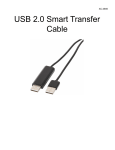
Congratulations on your purchase of the WiFi KM , a USB file transfer cable. Nowadays,
more and more people own more than two computers. Due to space limitations, most
people choose NetBooks or Tablet PCs as their second computer. WiFi KM provides a
simple and easy solution which lets you share the keyboard and mouse usage with
another computer. In addition, WiFi KM also supports clipboard sharing and high-speed
file/data transfer between two computers. You can easily browse, copy and transfer files
and folders between two computers via the USB port.
System Requirements
•
•
•
•
•
PC running Microsoft Windows 2000 SP4 / Win XP / Vista / Win 7/ Win 8(RT excepted)
Intel Pentium II Processor
256MB RAM or higher
Hard disk space requirement of at least 50MB
Built-in USB port 1.1 or 2.0 or 3.0
Features
•
•
•
•
•
No installation CD is required, simply plug-and-play.
Keyboard and mouse sharing.
Single cable solution for files transfer.
Clipboard sharing.
Drag-and-drop user-friendly interface.
Support Language
These products support a total of 11 languages—Simplified Chinese, Traditional Chinese,
English, Korean, Japanese, Portuguese, Spanish, German, French, Russian, and Italian.
The application will display the appropriate language interface according to your operating
system’s language settings.
EN-3
Getting Started
Getting Started
With simple plug-and-play feature, you can easily connect the two computers via the USB
port.
Follow these steps to configure WiFi KM connection and start with its application:
1.
Connect one end of the WiFi KM to a standard USB port on one of the two
computers you are connecting.
2.
Connect the other end of the WiFi KM to a USB port on the second computer.
3.
Wait until Windows has finished installing the device driver software on both
computers.
4.
Windows may ask you to select Autoplay options. Click on the option “Run
SKLoader.exe”.
EN-4
Getting Started
5.
If the “User Account Control” window appears on the screen, click Yes to continue.
6.
You are now ready to operate the WiFi KM application. A pop-up message
appears at the bottom right of the screen.
Troubleshooting:
If the WiFi KM application fails to start automatically, do any of the following:
• Check that each connector on the USB cable is correctly inserted on your two
computers.
• Go to My Computer and double-click the “SmartKMLink” icon to start the application.
EN-5
Getting Started
Select and Enable Wireless Connection
After the Smart KM Link has successfully connected with wire cable, the remote computer’s
network configuration information (such as network address and subnet mask etc.) will be
sent to the local computer through the cable connection. The Wireless Connection Module of
the Smart KM Link will start to evaluate if all the required conditions of wireless connection
between these two computers have been met? Once all the conditions have been met (such
as two computers connect to the same local network through either ETHERNET or Wi-Fi and
there is no firewall to block out the network connection), a balloon tip will pop up to inform
you there is a wireless connection is available, if you want to use wireless connection at that
moment, you can simply click this pop up balloon tip and choose the remote computer to
connect it with the wireless connection.
By using the wireless connection, you will get more freedom to share the keyboard/mouse
and clipboard between two computers without restricted by the length of cable.
Make sure to successfully connect two computers with wire cable before you can choose
and start to use wireless connection, otherwise, you will get the warning message box
below.
EN-6
Changing the Settings
To choose and start the wireless connection, please click the system tray icon (
) at the
right bottom of screen, choose the “Select And Enable Wireless Connection” submenu from
pop up system tray menu, you should see the name of remote computer which connected
with wire cable has been listed in this submenu, simply choose this remote computer to start
connection.
After the wireless connection has successfully been made, a balloon tip will pop up to inform
you to remove the USB connection in one of these two computers; please make sure to
follow the guiding of tip to remove the USB connection and don’t remove the USB
connection if the guiding ask you to keep the connection.
Notes:
1. You should always keep connect the device at the USB port at one of these two wireless
connected computers (by the instruction of guiding), remove this USB connection will cease
the wireless connection immediately.
2. The application has setup to keep the USB connection at the side of USB connector which
directly connects to device box and remove the USB connection at the side of USB
connector attached in the end of extend USB cable.
EN-7
Getting Started
Changing the Settings
To customize the WiFi KM settings, click the WiFi KM icon (
screen. Select Preferences.
) at the bottom right of the
The Preferences Setup screen is displayed.
Keyboard & Mouse Control Switching Settings
This option allows you to switch the control of keyboard and mouse from one computer to
another.
Select one of the following options:
• Turn Off
Disable keyboard and mouse switch.
• Use Mouse Middle Button
Click the middle button of the mouse to switch the keyboard and mouse control from
one computer to another.
EN-8
Changing the Settings
• Use Mouse Move Off the Edge of Screen
Select this option to switch the control of keyboard and mouse from one computer to
another by moving the mouse off the edge of the screen.
Select the desired position. Click on the pull-down menu to see more options.
Tips:
You can also change this setting on the pop-up menu that appears on the screen when
you click the WiFi KM icon ( ). Select The Position of Other PC, and then select
one of the options.
• Hotkey
Press both [Alt+S] buttons on the keyboard to activate the control switching.
Clipboard Share Options
This option allows you to enable or disable the clipboard sharing. With clipboard sharing
feature, you can easily copy or paste clipboard contents between the two computers.
• Turn Off
Disable keyboard and mouse switch.
• Auto Share
Enable the automatic sharing between the two computers.
EN-9
Getting Started
Event Notifications
This option allows you to set the type of notification when receiving/sending clipboard data
or switching the keyboard or mouse control to another computer. You can set either to play
sound or to display a pop-up balloon tip.
Other Settings
You can set the following for three settings:
•
If you check on “Resident This Application”, the program automatically starts up after
you plug in the device.
•
To enable the temporarily disable clipboard sharing and KM (keyboard and mouse)
control functions by double-clicking the WiFi KM icon ( ) at the bottom right of the
screen, check “Double Clicking System Tray Icon (
)to Turn On/Off Sharing
Temporarily”.
• Alternative keys option for the [Ctrl-Alt-Del] command for another computer.
EN-10
Sharing Keyboard and Mouse
Sharing Keyboard and Mouse
After you have configured the settings on the previous section, now you can start using
your computers.
To switch the cursor location to another computer:
The action depends on the prior setting that you have chosen on the “Keyboard & Mouse
Control Switching Settings” on page 6.
If you set Use Mouse Move Off the Edge of Screen > Left Side of this PC, move the
mouse until the edge of the left side screen. The cursor is now at your second computer
and you can start using your second computer with the mouse.
To switch the keyboard usage to another computer:
1.
Move the cursor to your second computer.
2.
Open any editing software such as WORD, EXCEL, Power Point, etc.
3.
Use your first computer keyboard to enter the text on the file.
Note: The Smart KM Link icon varies depending on the function. For example, when
switching the keyboard or mouse control to another computer, the
icon
appears at the bottom right of the screen.
EN-10
Clipboard Sharing
Clipboard Sharing
With the clipboard sharing feature, you can easily edit, copy or paste clipboard contents
between the two computers.
For example, to copy an image file on PPT(Power Point) file to another another PPT file on
the other computer:
1.
Open the “source” file and right-click on the image that you want to copy, and select
Copy.
2.
Move the cursor to the other computer, and open the “destination” file.
3.
Move the cursor to the location that you want to place the picture, and right-click, then
select Paste.
Paste
Copy
Note:
• You can also do the same way as above to copy text or files.
• The WiFi KM icon varies depending on the function. For example
• When receives the clipboard data from master computer, the icon of the client
computer will change to (
time, the icon changes to (
), once the client computer is under controlling at same
) to indicates the double state of current operation.
• If you copy the data from the client computer, the icon will change to (
), no more the
double state appears.
TW-11
File Transferring
File Transferring
With the keyboard and mouse sharing function, it is easy to manage files between the two
computers. Simply drag and drop the file or folder between the two computers to transfer
files.
Besides using the drag and drop method, you can also do the following to transfer files
between the two computers:
• Copy & Paste:
1. Right-click on the file that you want to copy, and select Copy.
2. Move the cursor to the other computer.
3. Move the cursor to the location that you want to place the file, and right-click, then
select Paste.
• Keyboard’s hotkeys:
1. Click on the file that you want to copy, and press the [Ctrl+C] buttons.
2. Move the cursor to the other computer.
3. Move the cursor to the location that you want to place the file, and press the [Ctrl+V]
buttons to paste the copied file to another computer.
TW12
Technical Support
Technical Support
If you need further assistance, please contact our technical support team.
Email: [email protected]
Telephone: +886 (0)3 5537511
EN-13