1
RowFlow Operations (Continued)
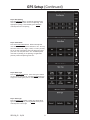
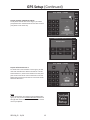
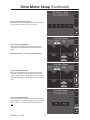
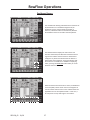
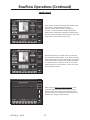
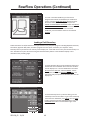
To create a simulated headland, you first need to
designate the width of the headland you would like to
create. Press the HEADLAND WIDTH button and enter
the desired width, in feet. Now, you can press the
CREATE FIELD BOUNDARY HEADLAND and/or the CREATE
INNER BOUNDARY HEADLAND buttons to create a
simulated headlands. To remove the simulated
headlands, press the buttons which are now labeled
REMOVE.
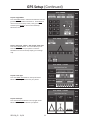
Loading a Field Boundary
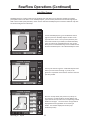
Swath boundaries for 20/20 RowFlow can be generated in many computer programs including MapShots EasiSuite,
FarmWorks, AgLeader SMS, APEX, and other programs that can export a boundary as a shape file. Many
boundary files may be stored in the memory of the Display Unit. Each field can have only one active boundary at a
time. Boundaries may also be created using the Record Boundary feature in the SeedSense display unit as
described in the preceding pages.
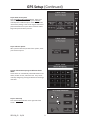
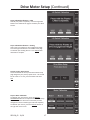
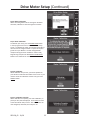
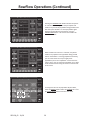
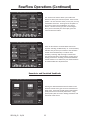
To Import boundary files into the SeedSense display unit,
load the files onto a USB flash drive and insert the drive
into the display unit. From the dashboard screen select
SETUP, then the DATA tab, and then IMPORT. On the
Data Import screen, press PRESCRIP/BOUNDARY. This
will import both prescription and boundary files into the
display unit.
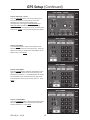
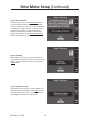
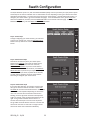
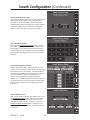
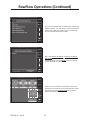
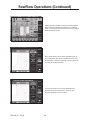
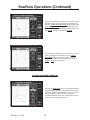
To load a boundary file for a particular field, go to the
Field Setup screen for that field. To get to the Field Setup
screen from the dashboard, press SETUP, then the FIELD
button, and then select the appropriate field. Press the
BOUNDARY FILE button near the bottom right of the
screen.
955128_02 12/10
40