1
ECM User Guide
Records Management Services
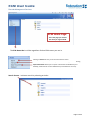
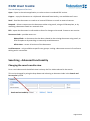
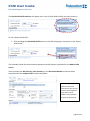
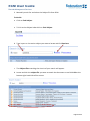
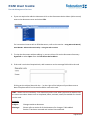
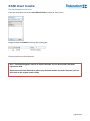
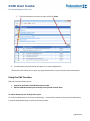
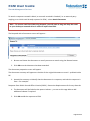
4. Complete the following mandatory fields:
To:
The ECM User the task is to be sent to.
Subject:
The subject of the message
Clicking on the eclipse (box with the …) to the right of the Subject will provide access to
Note Templates which can be used to add a note to the task.
Refer to Section XXC - Note Templates for more information.
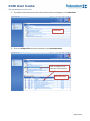
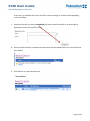
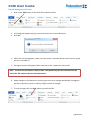
5. Complete the non-mandatory fields (if required)
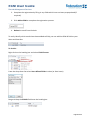
CC: Copy another ECM user into the task. The task will appear as a CC on their
task list.
Message: Provide details of what you require the person to do with the document
you are sending.
Deadline: allows the sender to set a due date for the task.
Overdue Notification: allows the sender to ask for an overdue notification when
the task is not completed by the deadline date.
Completion Notification: allows the sender to ask for a completion notification
when the task has been completed.
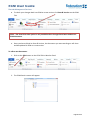
6. Click Send to send the task, or Cancel to cancel sending the task.
Sending an Email to an External Customer
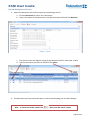
An ECM document can be sent externally using email. The benefit of using the Send As – Email function
rather than simply attaching the document to an email outside ECM is that the email is captured by the
system automatically. You do not need to then register the email back into ECM as a record of what was
sent.
Page 44 of 65