1
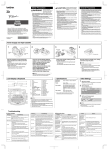
1 MAKING TEXT
2
Setting [Size]
Setting Font
>
image
[Large]
image
Switching Upper Case/Lower Case
ON)
Lower case (
OFF)
>
[Size]
[Medium]
>
Move the cursor to where the second line starts and press
The return mark ( ) appears in the text to indicate the end of
the first line and the beginning of the second.
Use either 9 mm, 12 mm, or 18 mm wide tape for two line text.
+
)
[Small]
.
>
>
Entering Symbols
>
[Normal]
Feeding (Tape Feed)
Group
(
+
)
• To cut off the label, push in the tape cutter lever on the upper-left corner of the
machine.
• To prevent damage to the tape, do not try to cut while the message "Print" or "Feed"
is displayed.
[Vertical]
[Bold]
1
[Shadow]
Symbols
[Outline]
[Italic]
>
[Italic Outl](Italic Outline) [Italic Shadow]
8
3
9
4
10
5
11
6
• To go to the next group, press
• To cancel operations, press
>
.
Entering Accented Characters
>
>
/
/
Accented Characters
A
a
C
c
D
d
E
e
G
g
I
i
K
k
L
l
N
n
O
o
R
r
S
s
T
t
U
u
Y
y
Z
z
To Clear
[Underline]
[Round]
[Candy]
[Callout]
[Banner]
[Wooden]
[Vine]
[Hand]
[Flower]
+
)
>
[Text & Format]
ABC
ABC
(
+
)
>
[Print Option]
[Copies]
>
>
Display
You can also select the number of copies by entering with Num keys.
Label image
ABC
[Numbering]
D
You can print many copies of the same text while increasing a selected
number by 1 after each label is printed.
Tab
Setting [Tab Length](Auto / 0 - 100mm) (
>
[Tab Length]
+
)
)
VHS Spine
MiniDV Spine
Audio Tape
+
.
>
[Numbering]
>
[Print Option]
>
[Mirror]
>
[Print Option]
>
[Mirror]
>[Mirror Print?]
[VHS Spine]
Length
140 mm
42 mm
89 mm
Application
CD Case Spine
File Tab
Divider Tab
Length
113 mm
82 mm
42 mm
>
>
[Save]
>
>
[Print]
>
To Open:
[Open]
>
If you try to store a label when there is already a label stored to that
number, a message "Overwrite?" will appear. Press to save your
new label. Press to cancel.
Function Shortcuts
(
+
)
Key
and the shortcut key shown in the table below. To confirm, press
Function
Key
.
Function
[Size]
[Margin]
[Width]
[Tab Length]
[Style]
[Print Option]
[Underline/Frame]
[Language]
[File]
[Unit]
[Label Length]
[Clear]
For Australia Only:
Support - For technical support of your Brother Product other than what you can
resolve through the User's Guide, please visit our Web Site or Solutions Web Site
(see below) to find an answer to FAQs/Troubleshooting, locating Drivers & Software.
Alternatively, please contact the Product Support Centre for any customer
care/technical support enquiry.
>
Select the highest number you wish to be printed when setting the number.
Setting [Auto Format]
Application
Example: To print copies of a label containing a serial number (0123, 0124 and 0125)
>
• You can also select the length by entering the length with Num keys.
• To return to [Auto], press
.
+
>
You can print up to 9 copies of each label.
>
[File]
To Save:
pressing
(feed & cut)
[Copies]
>
with function shortcuts so you can easily jump to a frequently used function just by
ABC
DEF
ABC
Setting [Tab]
>
In addition to the basic steps to search for a function, the PT-1880 provides you
(feed & cut)
>
)
4mm
<e.g. 2>
ABC
+
You can save your original labels on to your machine. Up to five labels can
be saved and recalled for printing whenever you desire. You can also edit and
overwrite the stored label.
>
: ABC
4mm
12mm
Chain Print
<e.g. 1>
Example: To set a tab between "ABC" and "D"
The cursor should be positioned where you set a tab.
To delete all text & format
You can also go into [Text & Format] / [Text Only] by pressing
ABC
12mm
Using [Print Option]
>
[Text Only]
:
25mm
(
To Print:
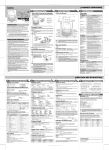
[Chain Print] is for printing more than 1 copy of a label with minimum margin
<e.g. 1>. You can also create a label containing text in various styles; print a
text in one style, and before feeding, enter the second text in another style
<e.g. 2>. FEED THE TAPE BEFORE USING THE CUTTER (see Feeding/
Printing). Otherwise A PART OF THE TEXT MAY BE CUT OFF. Do not try to
pull the tape since this may damage the tape cassette.
You can choose label length from six formats to create labels for various applications.
>
[Full]
• You can also select the length by entering the length with Num keys.
• To return to [Auto], press
.
To delete all text
[Clear]
[Label Length]
>
[Margin]
ABC
)
You can make aligned texts by setting tabs.
To delete a character one by one
>
+
[Underline]
[Off]
>
(
[Clear]
>
[Underline/Frame]
Setting [Label Length](Auto / 30 - 300mm) (
• To cancel operations, press
.
• The order of accented characters differ by the selected LCD language.
>
(
Frames cannot be printed on 3.5 mm tape.
Accented Characters
)
NOTE: Cut along the printed dots (:) with scissors so the text is centered in the label.
Full
Half
Narrow
25mm
.
+
[Full]/[Half]/[Narrow] is for leaving equal margins on both sides of the text.
[Vertical]
Setting [Underline/Frame]
12
(
[Italic Bold]
7
2
USEFUL FUNCTIONS
Memory (File)
Setting [Margin] (Tape Margin)
Symbols
>
Peel the printed label from backing and apply the label.
+
Printing
>
Group
• The LCD shows the whole text and the label length (mm/inch), then returns to the
original text.
• Only the text can be previewed, not the font, style, size, underline/frame or any
additional features.
)
[×1/2]
[Style]
Text Preview
• The machine will feed 25 mm of tape, which may be needed when installing a new
tape cassette or when using the [Chain Print] feature.
Setting [Style] (Vertical)
Label image
+
[×2]
[×2]
[Normal]
COMPLETED LABELS
[MAX]
(
[Width]
4
PRINTING LABELS
You can preview the text before printing.
[Large]
Setting [Width]
Making Two Line Text
Display
(
Automatically adjusts the text size according to the tape width.
Select MAX to print with maximum text size when using 18 mm tape, all texts
are in upper case, the Style setting is [Normal], and the Underline/Frame setting is [Off].
>
Upper case (
3
DESIGNING LABELS
[CREATING LABELS]
Use a clear tape in [Mirror], so the labels can be read correctly from the opposite side when attached on glass, windows or other transparent surfaces.
To contact Brother International (Aust) Pty Ltd for support on a Brother
product please see the details listed below:
Product Support Centre: Australia
Brother International (Aust) Pty Ltd
Phone:
02 8875 6000
Fax:
02 9870 7223
Solutions Site: http://solutions.brother.com
Web Site:
www.brother.com.au
Email:
To submit an e-mail enquiry, visit www.brother.com.au go
to Service and Support area and follow the prompts.
Our Technical Support Consultants are available 5 days a week by phone
during the hours of 8.30am to 5.00pm (EST/EDST) Monday to Friday.