1
Creating Backup Image Files
39
Chapter 6: Creating Backup Image Files
Note: For information about creating a backup image file in Recovery Environment, see the
StorageCraft Recovery Environment User Guide.
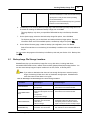
ShadowProtect provides two ways to create backup image files:
One-Time Backup: The Backup Wizard guides you through creating a backup image file
immediately. Consider the following when creating a one-time backup job:
To create a one-time backup job, you must be a member of the Administrator group on the
system where you are creating a backup.
One-time backup jobs do not affect scheduled backup jobs.
ShadowProtect supports one-time backup images from both Windows and Recovery
Environment. For more information about each of these options, see Section 2.1: Features
and Components 8 .
Scheduled Backup: The Backup Wizard guides you through the process of creating a recurring
backup job (see Chapter 6: Creating Backup Image Files 49 ). Consider the following when creating
a scheduled backup job:
A volume can belong to no more than one scheduled backup job that includes Incremental
backups. This limitation does not include one-time backup images or Differential backup
images, as long as they do not disrupt sector tracking for the Incremental backup.
If ShadowProtect is currently running a backup job, or the computer is turned off and
unavailable, ShadowProtect skips any scheduled backup jobs during that time.
ShadowProtect supports scheduled backup images only from Windows (not Recovery
Environment).
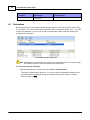
To create a backup image file
1.
Start the ShadowProtect Console (see Section 4.3: Starting ShadowProtect
2.
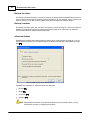
Start the Backup Wizard, then click Next.
21
).
There are several ways to start the Backup Wizard, including:
In the Wizards tab, click Backup.
In the Tasks menu, click Backup.
In the Menu Bar, select Tasks > Backup.
3.
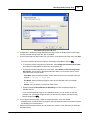
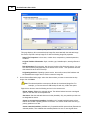
On the Volumes to Back Up page, select the volumes to backup, then click Next.
ShadowProtect creates a separate backup file for each volume.
4.
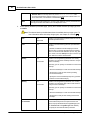
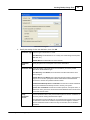
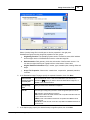
On the Backup Name and Destination page, specify the following information about the backup
image file, then click Next.
Location
You can select either a local drive or network location to store the backup image file:
Local Drive: Click Browse. In the Open Folder dialog box, select the local drive
and folder to store the backup image file.
© 2010 StorageCraft Technology Corporation