1
The macros will then configure the ‘Project Overview’, ‘Inputs’ and ‘Activities’ sheets of the
template. This may take about 30 seconds, after which the ‘Click to set up template’ macro
button will disappear and the two macro buttons ‘Add additional research program’ and
‘Remove research program’ which were originally greyed out and disabled will now be visible
and functional.
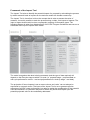
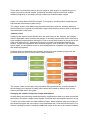
The ‘Project Overview’, ‘Inputs’ and ‘Activities’ sheets of the template are now ready to be
populated with figures and text. More detail on what data/information to enter on these
sheets is provided later in this guide.
Preparing the Impact Tool for Performance Reviews – Additional Instructions for
existing CRCs only
For performance reviews, CRCs are required to revisit the Impact Tool submitted with their
application and set up a new updated template (as described for new applications above)
which includes both actual figures and revised forward projections.
The updated Impact Tool template MUST include the actual inputs received to date, activities
conducted, outputs produced, any usage of outputs and associated costs, any progress
towards achieving an impact and associated benefits delivered up to 30 June in the year
prior to the conduct of the performance review.
Revised projections are required for the year of the review and beyond to the end of the
period forecast in the Impact Tool (i.e. up to the end of the grant period for inputs, activities
and outputs; up to the end of year 12 for usages and year 15 for impacts). The rationale for
any changes from the earlier Impact Tool submission must be included in the relevant text.
Adding and Removing Research Programs
Applicants and CRCs may revise the number of research programs that were created when
the Impact Tool template was set up by selecting either the ‘Add additional research
program’ button or the ‘Remove research program’ button.
To add an additional research program the applicant must select the ‘Add additional research
program’ button. They will then be prompted to enter the name of the additional research
program they wish to add.
To remove a research program simply select the ‘Remove research program’ button and
enter the number of the research program that needs to be removed.
Note that it is not possible to add or remove multiple research programs in a single operation.
The applicant must therefore repeat the operation described in order to add or remove more
than one research program.
Editing the Name of a Research Program
It is also possible to update the name of a research program after the worksheet has been
set up without having to remove the existing research program.
To edit the name simply select the name of the program in the relevant text box under its
‘Key Inputs’ column (columns B through K, immediately beneath the relevant Research
Program number) on the ‘Project Overview’ sheet and re-enter the correct research program
name. The worksheet will automatically update the research program name on subsequent
sheets in the Impact Tool.
7