1
OPTUSnet 4200 Router
User’s Guide
Chapter 7 Monitoring Router Health
Tools
Reboot
You can reboot the Router using the Reboot option, or you can reset the Router to factory defaults using the
Reset option. Reboot should be used when the Router needs to be restarted without losing your current
configuration settings.
Note: This option may not be available on your Router configuration.
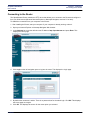
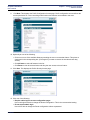
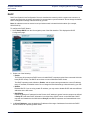
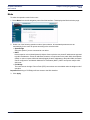
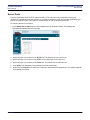
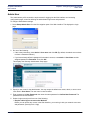
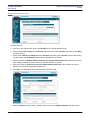
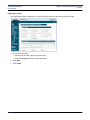
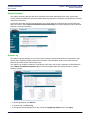
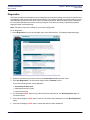
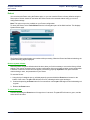
To reboot the Router, select Tools>Reboot from the left navigation pane of the Web interface. This displays
System Reboot page.
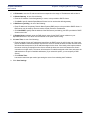
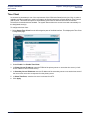
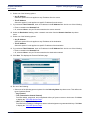
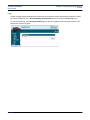
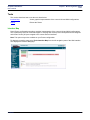
The System Reboot page displays a countdown while processing. When the Router has finished rebooting, the
System Summary page is displayed.
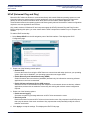
Reset to system defaults:
Reset the Router to system defaults should be done when you find it necessary to recover the factory default
settings. This may be necessary when a custom configuration did not go as planned, when a new configuration
is desired, or when the Router does not appear to be working properly. Important: This option resets all
custom settings, users, and passwords on your Router.
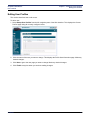
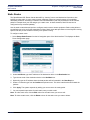
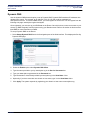
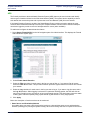
To reset the Router:
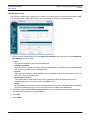
1. Using the tip of a ballpoint pen or unfolded paperclip, press and hold the Reset button located on the
bottom of the router. The pwr LED will blink red once, indicating that the reset has begun.
2. Continue depressing the Reset button for four seconds or until the pwr LED begins to blink alternating redto-green.
3. Release the Reset button.
To cancel the reset:
Continue depressing the Reset button for longer than 10 seconds. The pwr LED will return to green, and the
action will be cancelled.
SIEMENS
58