1
NATMAP Digital Maps - Troubleshooting 2003 Release
Please note: Geoscience Australia no longer supports the 2003 Releases of NATMAP Raster Mosaic or NATMAP
Raster Mapsheets, and we recommend that users upgrade to the latest version of this product, NATMAP Digital
Maps 2008 Release. The 2005 versions - NATMAP Raster Premium 2005 and NATMAP Raster 2005 - are now
subject to limited support only and this support will be withdrawn when NATMAP Digital Maps 2008 has been
available for one year.
Internet Explorer 7 Issues
Windows XP Service Pack 2 Issues
Installing
Starting the Viewer or Configurator
Searching for a map
Using the Viewer
Map Images
Exporting
Printing
Problems with other software
Troubleshooting 2008 Release
Troubleshooting 2005 Release
Microsoft Internet Explorer 7 issues
An issue has been identified with the latest release of Microsoft's Internet Explorer 7. If you have upgraded to
Internet Explorer 7 and are now experiencing difficulties with either NATMAP Raster Mapsheets 2003 or NATMAP
Raster Mosaic 2003, download a patch here (raster2003_fix_ie7.exe [15MB]). Save this file temporarily to your
hard drive, then run.
This patch is only available online. Users unable to download the patch should consider upgrading to the latest
version of this product, NATMAP Digital Maps 2008 Release.
Windows XP Service Pack 2 issues
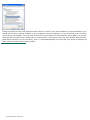
An issue has been identified with changes to the Internet Explorer 6 web browser, introduced by Windows XP
Service Pack 2. More detailed information on the problem and some fixes are available.
Installing
I want to copy all maps to the hard drive and install the Viewer from there. Is there an easy way to do
this?
You can now download a file to copy the maps to your hard drive correctly and then run the Setup program. This
batch file has been thoroughly tested and is virus free. It should work on all Windows platforms (not tested on
Vista).
1. Download the setupHD.bat file and save it to your computer
2. Run the setupHD.bat file. You will be prompted to enter your CD drive letter (in most cases this is D or E)
and to load CD1 into your CD drive
3. Once CD1 has finished copying, insert CD2 and press any key to continue
4. The installation process will begin as soon as the contents of CD2 have been copied to your hard drive.
NATMAP RASTER 2003 USER GUIDE