1
ProTrack v3.5.1
September 2014
4.2 Changing / Updating a Project
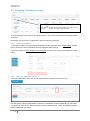
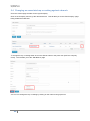
You can click on these headings to change the sorting of the project
list. The
indicates that it is sorting in ascending. Click again to
change to descending, click again to remove the sort.
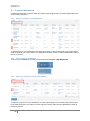
To access a project either click on the project name or click on the pencil on the far right hand side of
the project.
Remember you can use the “Toggle Filter” feature to filter the project list.
4.2.1 Changing the Status
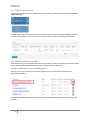
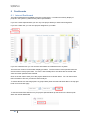
To change the status of a project select the status from the drop down list and click update. Please
refer to section 2.2 of this manual for the rules regarding status change.
It is very important you click update next to the status for this to work correctly and update the status
history.
4.2.2 Adding an additional contact
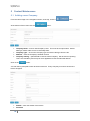
To add an additional contact, click on the relevant button to the left of the screen (e.g.,
).
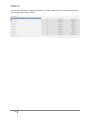
This will display a list of current builder, contractor or wholesaler contacts (depending on the button
you selected). Click on the “add new” button to add an additional one. Enter the additional contact /
branch details and click insert.
13