1
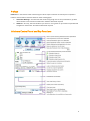
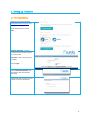
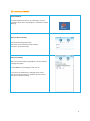
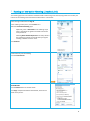
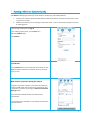
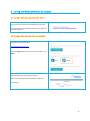
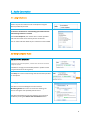
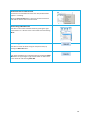
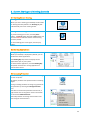
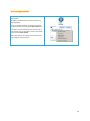
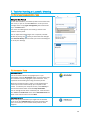
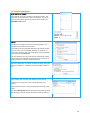
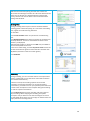
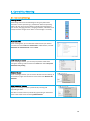
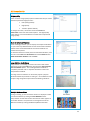
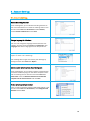
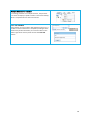
WEB CONFERENCE Using the Infoshare Tool User Manual Table of Contents Table of Contents ................................................................................................................................ 1 Preface .................................................................................................................................................... 3 Infoshare Control Panel and Key Functions ............................................................................................ 3 1. Setting up Infoshare ........................................................................................................................ 4 1.1 Installing Infoshare.................................................................................................................. 4 1.2 Launching Infoshare ................................................................................................................ 5 2. Hosting an Interactive Meeting (Unscheduled) .............................................................................. 6 3. Hosting a Webinar (Unscheduled) .................................................................................................. 7 4. Joining the Web Conference as a Guest ......................................................................................... 8 5. 4.1 Joining a Web Meeting from your email................................................................................. 8 4.2 Joining a Web Meeting from the website ............................................................................... 8 Audio Connection............................................................................................................................ 9 5.1 Using Telephone ..................................................................................................................... 9 5.2 Using Computer Audio .................................................................................................................. 9 Use Computer Audio ........................................................................ Error! Bookmark not defined. Choose Use Mic & Speakers............................................................................................................ 9 Managing Sound Levels .................................................................................................................. 9 Automatic Push-to-Talk function .................................................................................................. 10 Host muting individual lines.......................................................................................................... 10 Host muting all lines ...................................................................................................................... 10 Guest Mute ................................................................................................................................... 10 6. Screen Sharing and Meeting Controls .......................................................................................... 11 6.1 Starting Screen Sharing ......................................................................................................... 11 Sharing your screen ...................................................................................................................... 11 Pausing screen sharing .................................................................................................................. 11 Changing the application shown on screen .................................................................................. 11 7. 6.2 Sharing Applications.............................................................................................................. 11 6.3 Changing Presenter ............................................................................................................... 11 6.4 Changing Controller .............................................................................................................. 12 Tools for Running a Successful Meeting ....................................................................................... 13 7.1 On-Screen Communication Tools ......................................................................................... 13 Using the Chat Feature ................................................................................................................. 13 7.2 Annotation Tools ................................................................................................................... 13 Using Annotation .......................................................................................................................... 13 Using Whiteboard ......................................................................................................................... 13 1 7.3 Tools for Interaction.............................................................................................................. 14 Send Q&A to All Guests................................................................................................................. 14 Polling............................................................................................................................................ 14 Sending Files ................................................................................................................................. 15 Recording ...................................................................................................................................... 15 8. Control Your Meeting ................................................................................................................... 16 8.1 Host Control Settings ............................................................................................................ 16 Floating toolbar ............................................................................................................................. 16 Guest List Hide .............................................................................................................................. 16 Stop Additional Guests.................................................................................................................. 16 Remove Guests ............................................................................................................................. 16 Make a Guest a Panelist ................................................................................................................ 16 8.2 Screen Set Up ........................................................................................................................ 17 Image quality................................................................................................................................. 17 Show all Infoshare Windows ......................................................................................................... 17 Large HD View via Webcam .......................................................................................................... 17 Multiple Webcam Video ............................................................................................................... 17 9. Account Settings ........................................................................................................................... 18 9.1 Accounts Settings .................................................................................................................. 18 Disable Recording Function .......................................................................................................... 18 Change Language for Infoshare .................................................................................................... 18 Report for Each User’s Meetings .................................................................................................. 18 Auto-Uninstall Infoshare from Guest Computers ......................................................................... 18 Enable Infoshare Outlook toolbar ................................................................................................. 18 Multiple Monitors for Presenter ................................................................................................... 19 Push URL to Guests ....................................................................................................................... 19 2 Preface Infoshare is a multi-function web conferencing tool which requires Internet connectivity for its operation. Infoshare has two distinct functions based on these meeting types: 1. 2. Interactive Meetings – Conventional web conferencing usage such as sales presentations, product demonstrations and interactive collaboration. Software download required. Webinars – Are easy, fast and reliable-to-join seminars. Your guests can join without any downloads straight from the browser. No software download required. Infoshare Control Panel and Key Functions 3 1. Setting up Infoshare 1.1 Installing Infoshare Navigate to the Eureka website www.teleconference.com.au and select the Portal page. Under Web Conference select Host. Customer Portal No: Type the Customer Portal number supplied to you by Eureka. Host Code: Type in the Host code provided. Click on Login Click on Download Software and the software will automatically download. If download does not begin you can choose to manually download. 4 1.2 Launching Infoshare Access Infoshare Click the Infoshare shortcut on your desktop or via your computer’s Start menu All Programs Infoshare Start Meeting. Sign in to Host a meeting Provide the following information Username (Insert Customer Portal Number) Password (Insert Host Code) Start your meeting After you have entered the login details a list of scheduled meetings will appear Click on Start for the meeting you wish to host If you have not scheduled any meetings, there will be nothing listed in this window. Therefore you will need to start an unscheduled meeting. 5 2. Hosting an Interactive Meeting (Unscheduled) This meeting type is the conventional method of web conferencing. Each Guest (using either a PC or Mac) can interact in the meeting and can become the Presenter or a Controller. Enter the login credentials and Sign In. In the meeting control panel, click the Host icon. Select the Interactive Meeting type Optionally, enter a Password for the meeting. If you enter a password, the guests also need to enter the same password. Selecting Guest Emails Required forces every Guest in this meeting to specify an email id when joining the meeting in addition to their name. Click Continue Invite Guests to join the meeting. Click the Invite button Invite Guests Click the Email button to send the invite. Click Copy and paste the details into Outlook, Gmail or the email client you use. 6 3. Hosting a Webinar (Unscheduled) The Webinar meeting type allows you (as the Host) to conduct easy and reliable webinars. Guests join the webinar without downloading the Infoshare software and view the presenter’s screen using view only mode. Additional presenters join the meeting in interactive mode. They can show their computer screens to all meeting guests. Enter the login credentials and Sign In In the meeting control panel, click the Host icon Select the Webinar type Click Continue Invite Guests Click the Email button to email the steps to the Guest or Click Copy and paste the details into Outlook, Gmail or the email client you use. Make a Guest a presenter during the webinar If a guest has joined the webinar in the view only mode, (by clicking the URL rather than via the email instructions), they can become a presenter by clicking the Switch to Interactive Meeting button. This will initiate the download for the Infoshare tool automatically. If you already have it installed on your desktop, this will open the Infoshare tool. 7 4. Joining the Web Conference as a Guest 4.1 Joining a Web Meeting from your email Click on the link received in the invitation from the Host. The software will download automatically and you will join the web conference. 4.2 Joining a Web Meeting from the website Navigate to the Eureka website www.teleconference.com.au Go to the Portal page and select to enter the webinar as a Guest. Enter the Meeting ID provided by the Host. Enter the password provided by the Host if applicable. Join Meeting. 8 5. Audio Connection 5.1 Using Telephone Guests can join the conference call via telephone using the details provided by the Host. Conference call details are automatically generated when the web meeting invitation is created. Choose Use Telephone, then call the dial in number provided and enter the Guest access code to join the conference. You can add or edit the details of your conference call if needed. 5.2 Using Computer Audio Choose Use Mic & Speakers Instead of using the telephone, a Guest can choose to use their computer audio. A headset is strongly recommended (as built-in speaker sound can generate echo for other guests). The Setup link can be used to change the volume of the speakers or microphone. Managing Sound Levels The Host can minimise background noise and echo Minimising Echoes: If an echo is heard in the meeting, the person causing the echo probably will not hear it The Host should advise this person that they can fix the echo problem by clicking their Refine Echo Cancellation button. 9 Automatic Push-to-Talk function This function is activated when more than five possible talkers appear in a meeting. When the Push-to-talk button is present, the Guest must click and hold the Push-to-talk icon to be heard. Host muting individual lines The Host can also mute individual Guests by pushing the right mouse button on a Guest’s name in the Guests list and choosing Mute. Host muting all lines The Host can mute all Guests using the computer audio, by clicking the Mute All button. Guest Mute Each Guest (and Host) can mute themselves by clicking the Mute Me button or by pushing the right mouse button on their name in the Guest list and choosing Mute Me. 10 6. Screen Sharing and Meeting Controls 6.1 Starting Screen Sharing Sharing your screen When you start a meeting your desktop will be shown to meeting Guests by default. The Showing my text indicates that your screen is being shown. Pausing screen sharing To pause showing your screen, click the pause button. The pause button becomes a play button and the word Paused indicates that the screen sharing has been paused. To start showing your screen again, click the play button. 6.2 Sharing Applications Changing the application shown on screen Whilst your desktop is displayed by default, you can show Guests other applications. The Showing My drop-down list displays all the applications open in your system. To show another application, click the Showing My drop-down and choose a running application or monitor from the list. 6.3 Changing Presenter Pass controls to a guest so they can show something on their computer. By default, the Host is the presenter when a meeting begins. During a meeting the Host can assign any guest to be the presenter by choosing the Change Presenter icon. The Host can choose the presenter from the list, or right mouse click on the guest’s name in the Guests list and choose Make Presenter. The new presenter can change control back to the Host using the same functions. 11 6.4 Changing Controller Assign controls to a guest and let them control your presentation. By default, the Host will be the presenter when a meeting begins. During a meeting the Host can assign any guest to be the controller by choosing the Give Control icon. The Host can choose the presenter from the list, or right mouse click on the guest’s name in the Guests list and choose Give control. The new presenter can change control back to the Host using the same functions. 12 7. Tools for Running a Successful Meeting 7.1 On-Screen Communication Tools Using the Chat Feature To chat with individuals, click the drop-down arrow and choose their name, or you can chat with All Guests. Enter your chat message where it says [type message here] then hit the Enter key or the Send button. Your entire chat dialogue for this meeting is shown in the Infoshare control panel. You can expand the Chat dialogue into a separate, resizable window by clicking the button just above the Chat dialogue The View chat history feature shows your entire chat dialogues for all of your meetings 7.2 Annotation Tools Using Annotation Use the Annotation feature to highlight topics in your presentation. Click the Annotation button and choose the type of annotation from Pen, Highlighter, Spot and Arrow. Then, emphasise the interesting area using the mouse pointer. When the annotation option is active, normal keyboard and mouse input ceases and essentially your computer screen freezes. To unfreeze your computer screen, hit the Esc key or click the Annotation button and select Stop Annotation. You can change the size of the annotation pen. Click the menu item Tools then Preferences. Then choose Annotation Pen and select a new size and colour and click Save. Using Whiteboard While making the presentation you might have to illustrate some points. Click Whiteboard and the Paint application will open. From here you can illustrate certain points or draw diagrams. 13 7.3 Tools for Interaction Send Q&A to All Guests The presenter can send a question to all of their Guests. The Guests will see the question in their chat window. The circular button on the bottom right of the control panel contains the Send Q&A to All feature. Polling The Host of a meeting can create a poll with questions and multiple-choice answers for the Guests. Poll questions can be created ahead of time by clicking the Poll link in the user’s list of scheduled meetings. Or the Host can create a poll question during the meeting by clicking the Tools menu item then the Poll option. Each poll question can have up to five pre-determined answers. The poll can limit the Guests to voting for just one response or allow the Guests to vote for multiple responses. After the poll question is created, the Host can begin polling the Guests for responses. The Guests will see a window similar to this: The poll stays open until the Host decides to close polling. Once the poll is closed, the results are tabulated for each answer. The poll is blind: there is no way to determine how each Guest voted. The Host’s Manage Poll window provides a Close Polling link. (A Start Polling link initially appears where Close Polling appears). 14 After the Host closes the polling, the Host sees a Share link where the Close Polling link used to be. When the Host clicks the Share link, the Guests see a window with the polling results. Finally, the Host can click the Share link to close each Guest’s Polling result window. Sending Files During a meeting there may be a need to send files between meeting guests. Instead of opening an e-mail client and sending files, a guest can send files using Infoshare. To send files: Click the File Transfer button to open the File Transfer dialog box. Click Add Files/Folders then select a particular file or folder from the drop-down list. The file or all the folders and files in that directory are displayed. Select the files, folders, or both and click OK. They are added to the list of files/folders to be sent. In the File Transfer dialog, click the drop down arrow next to the To label and select the guests to whom the files should be sent. (By default, the files are sent to all other guests.) Click Send Files. Recording During a meeting, you can record the actions on the presenter’s screen. If VoIP audio is used, the voices of all Infoshare Guests are recorded automatically. If VoIP is not used, the recording captures sound via the computer’s microphone; therefore, to record the meeting conversation, you need to turn on your speaker phone and move it close to the microphone on the computer doing the recording in order to capture conversations. Click the Record button to start recording and click it again to stop recording. When stopping the recording, the system prompts to ask you where to save the recording file. The file is an executable which means you can simply run the file and it will replay the entire recording session. 15 8. Control Your Meeting 8.1 Host Control Settings Floating toolbar The floating toolbar has the advantage of using very little of the presenter’s screen space during a presentation while still providing buttons for the most common features including pausing/showing your screen, changing presenter, changing controller, annotation, and chat (this button changes colour when a chat message is received). Guest List Hide As the meeting Host, you can hide the Guest list from your Guests. Click the menu item Tools then Preferences. Under General, uncheck attendees can view Guest list and click Save. Stop Additional Guests As the meeting presenter, you can stop any further Guests from joining the meeting. Click the menu item Tools then select Stop new attendees from joining. Remove Guests As the meeting presenter you can remove Guests from the meeting. In the Guests list, right click the Guest’s name and choose Remove this attendee. Make a Guest a Panelist A guest in a meeting can aid the presenter by receiving and responding to chats. The Host can make a Guest a panelist by right clicking on the Guest’s name in the Guests list and choosing Make Panelist. 16 8.2 Screen Set Up Image quality There are three image quality options available that let you choose between speed and image precision: Low Quality (fastest) High Quality Truecolor (24-bit slowest) To change the colour, choose the menu item Tools then Preferences and choose the relevant option. The High Quality colour setting is recommended for its combination of speed and image quality. Show all Infoshare Windows As the meeting presenter you can display all transparent windows on your screen. By default Guests cannot see the Host’s Infoshare toolbar and its associated windows since these windows are treated as transparent. To show the Infoshare control panel and associated windows, click the menu item Tools then Preferences and under General check Show all Infoshare windows and click Save. Large HD View via Webcam The presenter in a meeting can start a full-screen view of their webcam by clicking the Tools menu item then the Start Large HD view via webcam option. The resulting Webcam window is completely resizable and is a separate window from the multiparty Webcam window. This large view of a webcam can be used to project a physical white board that the presenter is writing on. Or the webcam could project a large image of the presenter while Hosting a webinar. Multiple Webcam Video During a meeting, up to 15 Infoshare Guests can display the video from their webcams by clicking the Start Webcam button. The presenter controls the location of where the video appears in the viewer window. The presenter can change the size of the Webcam window by clicking the Maximise/Minimise button. 17 9. Account Settings 9.1 Accounts Settings Disable Recording Function As the meeting Host, you can disable recording functions so that none of the Guests can record the meeting session. Click the menu item Tools then Preferences. Under General, uncheck Guests can Record and click Save. Change Language for Infoshare Each user can change the language of their Infoshare user interface. Click the menu item Tools then Preferences. Click Languages and select a language from the drop-down list. Report for Each User’s Meetings Each meeting Host can get a list of their past meetings by clicking the menu item Tools then Report. Auto-Uninstall Infoshare from Guest Computers As the meeting Host, you can tell the system to automatically uninstall the Infoshare plugin on the Guest computers at the end of a meeting session. Click the menu item Tools then Preferences and check Remove Infoshare from attendee computers at the end of sessions and click Save. Enable Infoshare Outlook toolbar Users can add an Infoshare toolbar to Microsoft Outlook. Click the menu item Tools then Preferences, check Integrate with Outlook and click Save. 18 Multiple Monitors for Presenter If a meeting presenter has multiple monitors, the presenter can choose to display a specific monitor or the entire desktop, which is composed of more than one monitor. Push URL to Guests The presenter can push a URL or web page that opens up in a browser on each of the Guests’ computers providing that the Guests have joined interactively. The circular button on the bottom right of the control panel contains the Push URL feature. 19