1
Guided Component Test Operations
Vehicle Identification
7.1.1 Menu Options, Guided Component Test
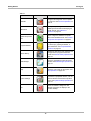
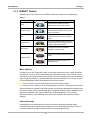
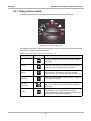
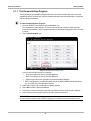
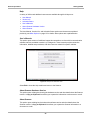
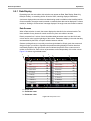
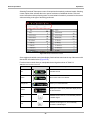
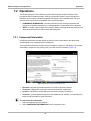
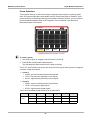
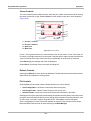
Selecting the Toolbar Menu icon at the base of the screen offers the following options:
•
•
•
•
Safety Information—opens the Important Safety Instructions document.
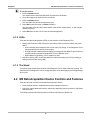
File—allows you to print or save the data being viewed.
Top Level Menus—allows you to access supplemental information and training programs.
Help—allows you to view supporting documentation.
File
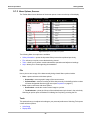
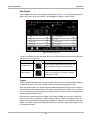
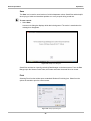
Selecting File opens a menu of print options:
• Print Article—selecting has one of two results:
– If a printer is connected, the file is sent to the printer.
– If a printer is not connected, the article is saved as a (.xps) file, which can be retrieved,
moved, or copied and printed at a later time.
• Print Preview—opens a representation of what the printed file will look like.
• Page Setup—allows you to adjust margins and paper orientation.
Top Level Menus
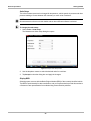
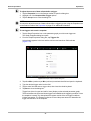
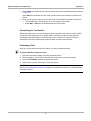
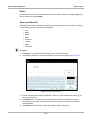
Selecting Top Level Menus opens a list of the following options:
•
•
•
•
Power User Tests
How To
Features and Benefits
Index
Features and Benefits
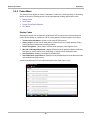
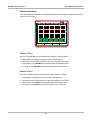
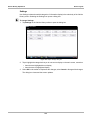
Selecting Features and Benefits opens a menu page that includes:
• Features and Benefits—provides descriptions and a brief overview of meter functions.
• Accessories—opens a menu of optional equipment available.
• Product Description—provides descriptions and a brief overview of meter operations.
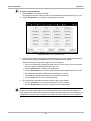
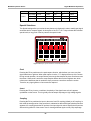
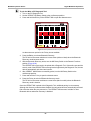
Power User Tests
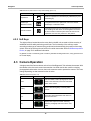
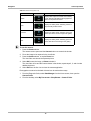
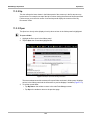
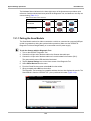
The Power User Tests option gives you quick access to a pre-configured meter for conducting a
number of control system tests. Tests are available with or without on-screen help. Help typically
provides a description of the test along with expected results and a link to the pre-set meter.
64


























































![VERUS PRO User Manual [3980kb PDF File] - Snap](http://vs1.manualzilla.com/store/data/005690474_1-9ff68923f14d7698ce72469cabae3990-150x150.png)