1
Troubleshooting
Troubleshooting
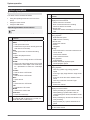
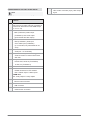
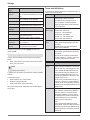
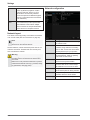
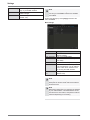
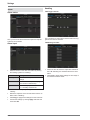
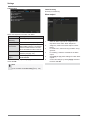
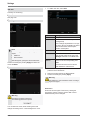
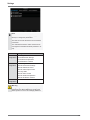
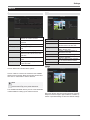
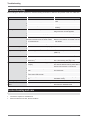
Before calling the Service department, read the following information to determine the possible cause of a malfunction.
Malfunction
Cause
Solution
No power
Mains cable not connected
Connect the mains cable securely to the
socket
Power switch set to OFF
Turn the power switch to ON
No current in the power socket
Use another device on the socket, where
necessary
Screen not set for reception
Set the correct video input mode until an
image from the recorder appears
Video cable not connected properly
Connect the video cable securely
Connected modem is switched off
Switch on the monitor
Audio cables not connected properly
Connect the audio cables securely
Devices connected over the audio cables
are not switched on
Switch on the devices connected over the
audio cables
Audio connection cable is damaged
Replace the cable
Connection cables not connected properly
Connect the cables securely
HDD defective or not system-compatible
Replace with a recommended HDD
Device not supported
Connect a compatible USB medium
(USB 2.0)
USB hub is in use
Connect the USB medium directly
No image
No sound
HDD is not working
USB port not working
Network access not possible Network cable connections are loose
Network settings are incorrect (DHCP, IP
address etc.)
Connect the network cable
Check the network configuration and correct it, ifnecessary (see page 119).
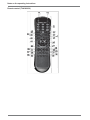
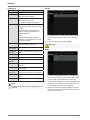
Remote control is not working Batteries inserted with the wrong polarity or Replace the batteries. To control the deare empty
vice with the remote control, point it at the
remote control sensor on the device
Recording not possible
Sudden deactivation of the
device
Remote control too far away from the recorder
Use the remote controller within 7 metres
from the device
Signal blocked by obstruction between the
remote control and recorder
Remove the obstruction
Lighting too bright or fluorescent tubes in
use?
Switch off strong fluorescent lighting in the
immediate vicinity
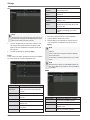
No HDD or HDD is not initialised
Temperature inside the device is too high
Install and initialise the HDD
Clean the device and remove any obstructions from the ventilation area
Device cleaning and care
Note
x
Your device requires no maintenance.
x
Protect the device from dust, dirt and moisture.
145