1
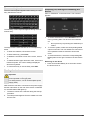
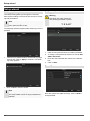
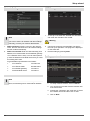
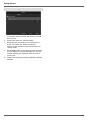
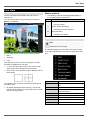
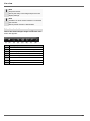
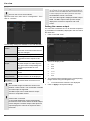
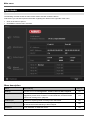
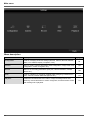
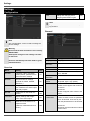
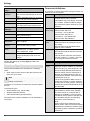
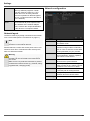
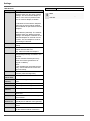
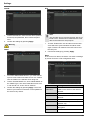
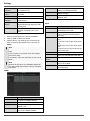
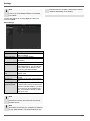
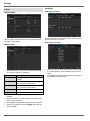
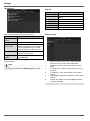
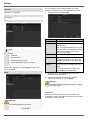
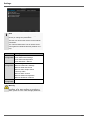
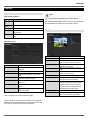
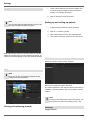
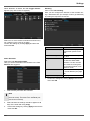
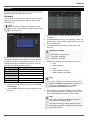
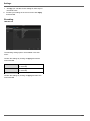
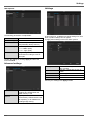
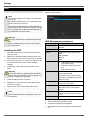
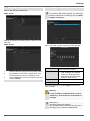
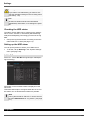
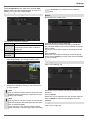
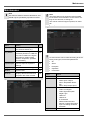
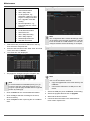
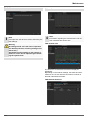
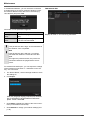
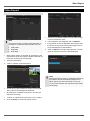
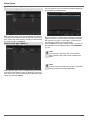
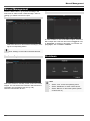
Live view Settings If during the boot process of the DVR the HDMI/ VGA cable is not connected, the main video signal is displayed at BNC output MAIN. Connect the HDMI/VGA cable and reboot the DVR in order to display the main video signal at the VGA output. Note The live view can be set as follows. No HDMI/VGA monitor connected: The main video signal is displayed at BNC output MAIN. The BNC output Video Spot Out output displays the cameras in sequence and in full screen. Open the main menu, then click on “Configuration”. Then click on “Liveview”: Setting the camera output You can have a maximum of 8 or 16 cameras respectively (TVVR60011/TVVR60021) displayed in the live cast at the same time. 1. Click on the TAB “View”. 2. Select the display mode. The following settings are available in the TAB “General”: Video Output Interface VGA/HDMI, Main CVBS, Spot monitor Select the connection where the settings are changed Live View Mode Different camera layouts Switching time between the individuDwell Time al cameras and the sequence display Activate/deactivate audio output of Enable Audio the video output The audio signal is Output only given if the corresponding camera input is presented as a full screen. Allocate monitor for the output of Event Output events Full Screen Moni- in seconds, where the event on the allocated monitor will be displayed. toring Duration in seconds, the duration of the PopPost Event Disup window when an event occurs. play Time Note The recorder image can either be shown on an HDMI or a VGA monitor. The combination of HDMI and VGA output is supported. The BNC output can be used either for a spot monitor or a separate monitor. Note VGA monitor connected: A connected HDMI/VGA monitor automatically becomes the main monitor where the audio output is also assigned. The BNC output Video Spot Out output displays the cameras in sequence and in full screen. 89 3. 1x1 2x2 3x3 1+5 1+7 4x4 The camera signal is assigned to the corresponding image section using the navigation keys. 4. “X” means that this camera is not displayed. Click on Apply to accept the settings.