1
Using the features
BSupported equipment:
❖❖Time
While in normal TV mode only, pressing the button
will display the teletext time in the top right hand
corner for a few seconds.
Support the equipment that supports Mass Storage
Protocol and whose file system is FAT32, such
as some USB disks, mobile harddisks, and MP3
player. If USB equipment could not be identified
due to unsupported file system, please format the
equipment to the above-mentioned file system.
CTo achieve smooth playing, ensure the following:
❖❖Fast text coloured buttons
Fast text automatically displays the four most
commonly used pages that the broadcaster thinks
that you may want to choose next. Press the same
coloured button on the remote control as the
coloured link at the bottom of the teletext page to go
directly to that page.
❖❖Subcode
Pressing the button by entering its 4-digit number
to enter a secondary page.
• The file code rate should be lower than 300KB/S;
• Due to the limitation of USB signal transmission
distance, it is recommended not to use USB patch
cord, in case of using the cord, make sure that its
length is not over 1m;
• Use high-speed USB equipment in conformity
with USB2.0 full speed Interface Standard; If USB
equipment in conformity with USB1.1 full speed
Interface Standard is used, the playing may be
unsmooth.
When connecting/removing the USB
device
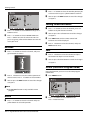
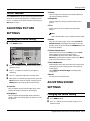
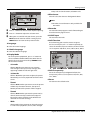
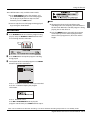
APress “SOURCE” on the remote control unit to select
USB option.
USB MODE
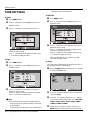
BInsert USB equipment into corresponding USB
interface 2s after starting the system.
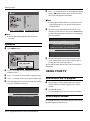
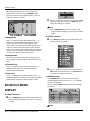
CAfter entering the system menu, press “3/4“ on the
Note
❏❏ The diagrams in the following section are
schematic and only for your reference. Please see
the actual product if necessary.
❏❏ The OSD of the USB function may be somewhat
different from your product because it is just
example to help the instruction.
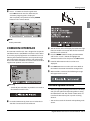
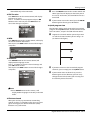
DPress “5/6“ on the remote control unit to select the
required file, press “OK” button to enter the selected file.
ETo exit the streaming media playing system and
watch a TV program, you must press “BACK” button
to return to the streaming media main menu at first
(to protect equipment), and then press “SOURCE” to
select “TV” to return to the TV mode.
TO USE THE USB DEVICE
ASupported file formats:
•
•
•
•
remote control unit to select the require USB files,
press “OK” button to confirm the selection and enter
the file list relative to the selection.
Photo: *.jpg;
Music: *.mp3 files;
Movie: *.avi files;
TEXT: *.txt (Only on some models)
Note
❑❑ Under source of USB, when press button MENU,
screen goes black, except when images or movies
are being played.
Note
❏❏ Due to the particularity of file recording, some files
may be unable to be read.
❑❑ While playing the USB, press “BACK” button
repeatly, the screen picture will return to USB
main interface, and only at this time you can
switch corresponding signal sources by pressing
“SOURCE” again.
Digital LED LCD Television Instruction Manual EN-24