1
The normal Windows start menu shortcuts will be created, and DIVE can be run using Programs menu
accessed via the Start menu button.
3.2. Mac OSX
DIVE will be installed by default into the /Applications/DIVE.app directory.
Run DIVE from the Applications folder, or via the Dock’s Applications shortcut.
3.3. Linux
DIVE will be installed into your home directory, for example /home/fred/DIVE.
Run DIVE by using the script ~/DIVE/bin/dive.
4.
Dive Contacts
Gary Carroll, CSIRO Oceans and Atmosphere - Hobart, [email protected] (03) 6232 5488
Uwe Rosebrock, CSIRO Oceans and Atmosphere – Hobart, [email protected] (03) 6232 5181
5.
Overview of DIVE
The DIVE application consists of a dataset selection component and a data visualisation component.
The Data Selection dialog allows you to select the variables of interest. These variables can be selected
from multiple datasets. Once the variables of interest are selected and submitted, they are plotted on the
data visualisation window.
5.1. Dataset Selection
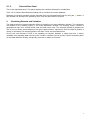
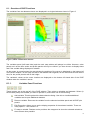
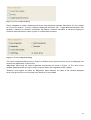
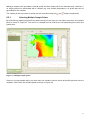
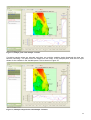
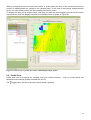
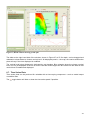
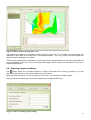
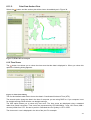
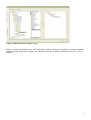
When DIVE is first run you are presented with a window for selecting datasets. This is known as the
Data Selection dialog which is shown in Figure 1.
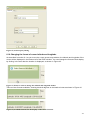
Figure 1, Dataset Selection Dialog using File Explorer
On the left hand side you will see a tab “File Explorer” for directly opening files from your computer.
Depending on how DIVE is configured, you may also have access to a data repository and there will be
“Repository Explorer” tab for this purpose.
3