1
CinePlus2K
User Manual
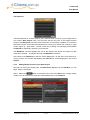
Step 4: Now press the
2.5
button in the lower left corner.
Getting to your Player via the Web
Via a Web browser, the full operations of the player can be access for monitoring and
management purposes. During playback operation, this allows a user to check the
equipments operational state (current playing item, volume levels, etc.), without having to
travel all the way to the players location.
It is important to aware that this function requires network connectivity to the player. That
connectivity can be wire or wireless, but the setting up of the network, security settings, etc.
are the responsibility of the organization Information Technology manager/advisor.
2.5.1
Finding the Player’s IP Address
Thou you can simply access the player from any web browser connected to the same network
as a player, you must first identify the IP address of the player to connect to it. The player’s
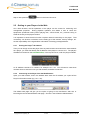
IP address is located on the Information Bar, in the top left corner, under the player’s NAME.
An IP Address consists of 4 numbers, for example 10.1.1.30. You will need to note those
numbers down to enter them into you web browser, and allow connection.
2.5.2
Connecting to the Player from the Web Browser
Open your web browser, and in the address area enter the IP Address you copied off the
Player’s information screen (eg. 10.1.1.30).
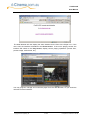
The default web page will give you the option of going to the manufactor’s web site, or
launching the remote administration web page. Choose “Launch Remote Administration”.
Copyright © 2007 digitAll pty ltd
2-14
Last printed 7/12/2007 5:07:00 PM