1
Partial Returns
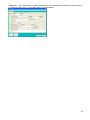
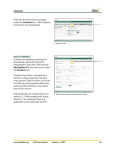
When you complete returns for multi-hire items (items where the Quantity For
Hire in Setup is greater than 1) you are prompted with a second returns screen
after you locate the customer and invoice via the normal Returns screen. The
second screen makes it easier to process partial returns.
How to complete a partial return
1. The Actual Date/Time defaults to the current date/time. Verify and alter the
Act Date/Time Returned if required.
2. Click the green tick button for all items that are returned in full.
3. For items that are partially returned, enter the quantity returned in the Qty
Returned box.
The amount still on hire is calculated.
4. Enter the Estimated Date/Time To that you expect the items still on hire to be
returned.
5. Click OK to complete the return.
21