1
PowerLogic ION Enterprise User Guide
Linking ION Modules Using the ION Tree
Using the ION tree is faster than opening a node diagram. It is useful if you want to link to a register on a node whose diagram has not yet been opened. It is also useful if you want to link to a register, but you are not acquainted with the configuration of the node in which it resides. You can go straight to the register without having to navigate through an unfamiliar node diagram. Also, since a diagram can only be accessed by one user at a time, you can use the ION tree to link to a register on another node where the diagram is already open.
Linking Modules Using the ION Tree
1.
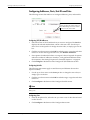
Click the input symbol of the module icon. A list of the moduleʹs inputs is displayed.
2.
In the list of inputs, select the input you want to link.
3.
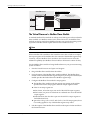
Click the button in the toolbar. (To link a moduleʹs setup register, hold the CTRL key while clicking this button.)
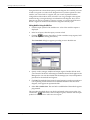
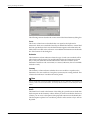
The Create Link dialog box appears, providing access to the ION tree.
4.
Specify a node, manager, module and output register: Double‐click the node you want in the Nodes box. All managers within the selected node appear in the Managers box. You can then double‐click the manager you want, and repeat this procedure for the modules and registers.
5.
Click OK. The module whose inputs changed appears grayed‐out to indicate it is now pending. If both modules are in the same window of the same node diagram, a line appears to represent the link.
6.
Select File > Send & Save. The new link is established and the module appears programmed.
The procedure described above can also be performed in the reverse order. You can click the
button first, select an output register, and then click the input symbol of a module icon to select one of its inputs.
© 2009 Schneider Electric. All rights reserved.
Page 221