1
IPSec Router + Print Server User’s Guide
Firmware Upgrade
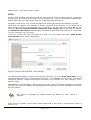
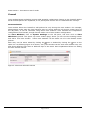
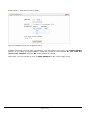
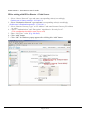
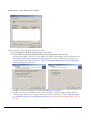
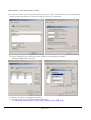
To upgrade firmware on your Gateway, click on Administration in the left pane, and then click
on Upgrade Firmware hyperlink to show the configuration as in figure 5-20.
You may like to take a backup of the current firmware binary image onto your PC, so that in case
of upgrade failure, you can download the current image again on to the Gateway.
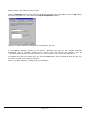
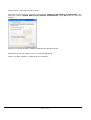
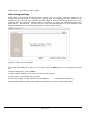
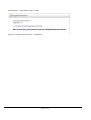
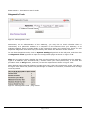
Figure 5-20 Upgrade firmware
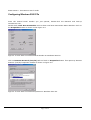
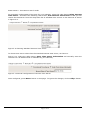
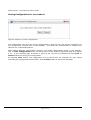
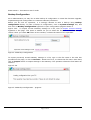
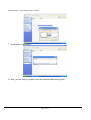
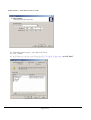
Click on Browse... button, select the downloaded image and click on Upgrade button. You would
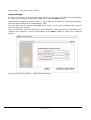
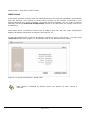
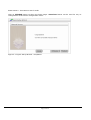
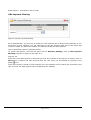
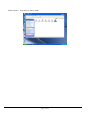
observe the progress of the firmware upgrade as shown in the following Figure 5-21. Please note
that the operation takes few minutes.
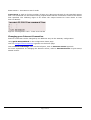
Figure 5-21 Upgrading firmware - progress
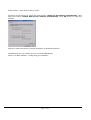
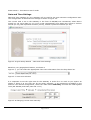
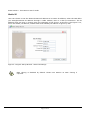
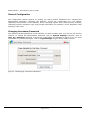
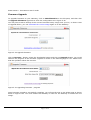
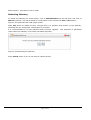
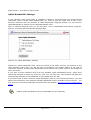
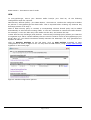
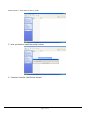
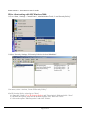
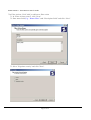
Once firmware upgrade is successfully complete, you will see the text on the HTML page as shown
below in Figure 5-22. You must reboot the Gateway in order for the Gateway to reflect the new
image.
Page 31 of 97