1
Microsoft Exchange Plug-in 7.2 User Guide
Exchange MAPI Setup
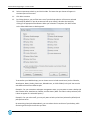
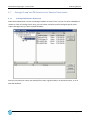
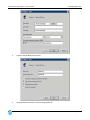
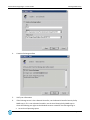
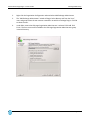
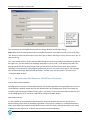
This information must be updated every time you change Windows or Exchange settings.
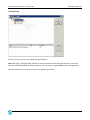
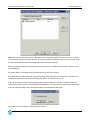
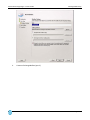
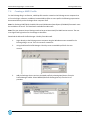
Note: When you have entered the account and profile information in the Options screen, you must click the
“OK” button to retain that information. Then, when you are back in the Plug-in screen, you must click “Set” to
save everything.
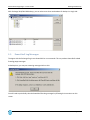
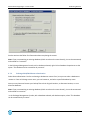
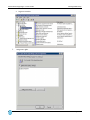
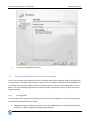
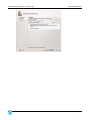
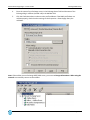
The “Test” button checks to ensure that the MAPI backup can access all the folders and mailboxes to which it
has rights. First, you are shown if the Exchange information is correct (“OK”), if the profile exists and if the
backup account has the correct privileges. Then you may select a verification test; either short (random
sampling), or full (complete). If this program produces any errors as it monitors the progress, you should go
back and check Exchange, MAPI, and the parameters, and then retry. See the section in this manual on
“Testing the MAPI Account”.
7.8
Administrator Mailboxes in Child/Parent Domains
Unique Name Scenario (Default)
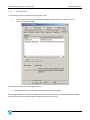
Exchange Servers may exist in parent/child domains. The simplest approach to using multiple users here is to
create separate, uniquely named users for each domain where an Exchange Server exists. Then assign the
necessary rights (Exchange Full Administrator rights – see Section 2.2 for more information) to the user, and
create a MAPI profile for it. Use these credentials to configure the MAPI Plug-in.
Same Name Scenario
It is also possible to have multiple mailboxes with the same (non unique) alias name in several sites or
Administration groups within an Exchange organization. There may be a situation in a child/parent domain
where each domain has an Administrator. Both have the same user name, and have their own (same name)
mailboxes on their own server. Problems may arise with the name duplication.
Page 65