1
Microsoft Exchange Plug-in 7.2 User Guide
4.2
Performing Restores
Recovering from a Worst Case Disaster
Reconfigure hardware that is similar to the original hardware.
1.
Create a logical drive that matches the original configuration. Although hardware does not
always need to be identical, be aware that some drivers that are listed in the backup set
may be incompatible with hardware on the new systems, and may require you to manually
remove or install drivers in Safe mode. Test the system state recovery on replacement
hardware before you actually need to perform a system state recovery.
2.
Reinstall the operating system. Install the same version of Windows Server as a stand-alone
server to the same drives and paths to which Windows Server was previously installed. Use
the same server names as those used before.
3.
Restore full-drive backups. The full backup consists of your ‘System State backup’ and the
‘full drive or system backup’. By restoring the system state, you have restored Active
Directory, the IIS metabase, and other components. See the Exchange documentation for
further details.
4.
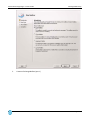
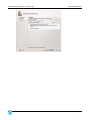
Reinstall Exchange using disaster recovery mode if you do not have a full-drive backup
available for restore, and Active Directory is installed on a separate machine. The disaster
recovery mode in Setup reads the Active Directory, and restores as many settings as
possible. For example, database paths are stored in Active Directory, and they are set
correctly whether or not you install Exchange program files to the previous locations.
Note: If you restore full-drive backups and System State information, you do not need to run in
disaster recovery mode. The local Exchange installation may be completely functional already.
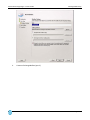
When you use disaster recovery mode, you must manually select all of the components that were
previously installed on the server.
Setup uses Disaster Recovery (DR) switches when it enters disaster recovery mode.
For Exchange 2003, the DR syntax is: /disasterrecovery
For Exchange 2007/2010/2013, the DR syntax is: /mode:recoverserver
5.
4.3
4.3.1
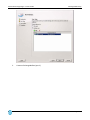
Restore the Exchange databases.
Restoring the Exchange Data
DR Restores
If you have used DR to back up an Exchange database, you can choose to restore the database to its original
location, an alternate location, or to an alternate Exchange database.
If you are overwriting an existing database (which must be on the same domain), it must be unmounted and
marked for “overwrite” in the Exchange Management Console.
Page 22