1
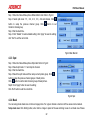
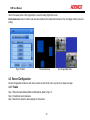
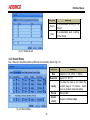
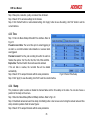
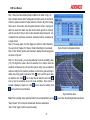
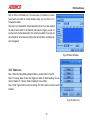
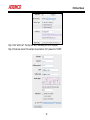
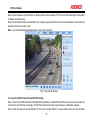
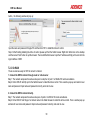
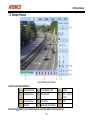
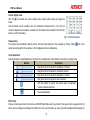
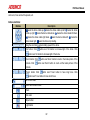
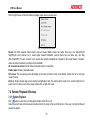
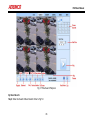
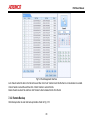
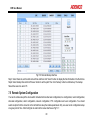
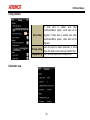
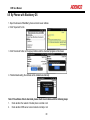
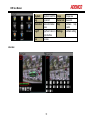
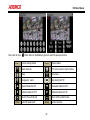
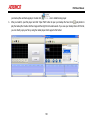
DVR User Manual Fig 4-38 P.T.Z Configuration-Advanced Fig 4-39 Advanced-Preset Step 3: In the preset setting tab, while clicking Setting button, a dialog will pop-up as Fig 4-40: User can control the dome by rotating up, down, left, right and adjust the rotating speed zoom, focus and iris of the dome; Select the serial number of the preset point. Click button to enable the PTZ wiper and click light. button to enable the PTZ Fig 4-40 Preset Setting Note: PTZ must support wiper and light, these two functional buttons can take effect. At the same time these two buttons are just available when selecting PELCOP or PELCOD. Click Save button to save the settings, click icon to hide the tool bar, right click to view the toolbar again; click icon to exit the current interface. In the preset interface, click OK button to save the setting; click Exit button to exit the current interface. Step4: In the Advanced tab, while clicking cruise “Setting” button, a dialog box will pop-up as Fig 4-41: 42