1
Software-On-Board User Manual
10-18
C-MAP Charts
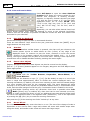
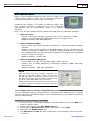
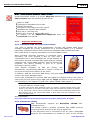
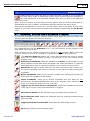
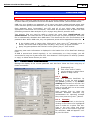
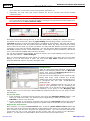
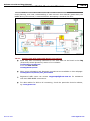
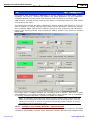
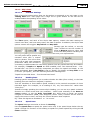
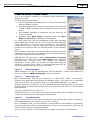
10.6.3 Chart Symbols Display Buttons
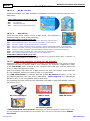
10.6.3.1
Text Labels
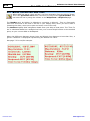
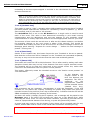
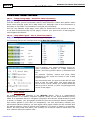
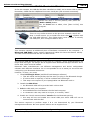
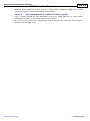
Toggle the display of all text labels on the chart.
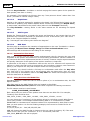
10.6.3.2
Roads
Toggle display of Roads (where present in the cartography).
10.6.3.3
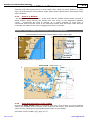
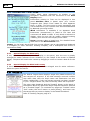
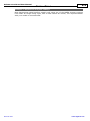
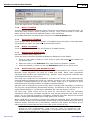
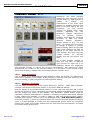
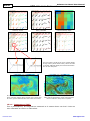
Animate Lights [Ctrl-A]
Toggle light animation mode – page 10-26.
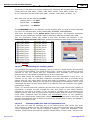
10.6.3.4
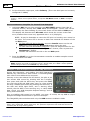
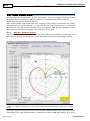
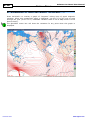
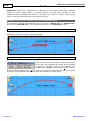
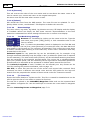
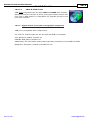
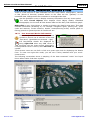
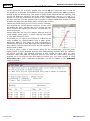
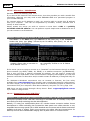
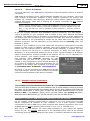
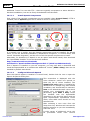
Land & Sea Shading [F4]
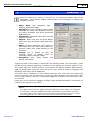
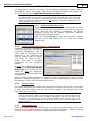
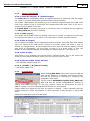
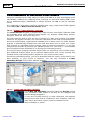
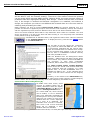
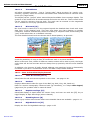
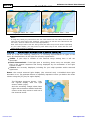
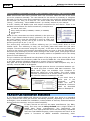
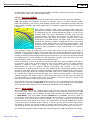
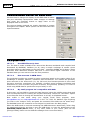
Show/hide extended colour shading of the land elevations and water depths, and change
the function of the Depth Area Highlighting, page 10-24.
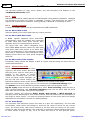
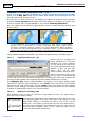
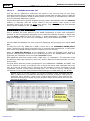
The C-Map MAX charts include far more detail about depths and land heights than
previous chart formats and shows this with extra shades of colour.
For most purposes this enhances the chart display. However SOB's drawing tools are
best shown on a white background, and certain colours can be reversed or disappear
completely if drawn on a coloured background. When navigating, and particularly when
displaying Wind Tools or AIS/ARPA Targets, you should disable the Shading using the
button on the [F3] toolbar, or directly with the [F4].
10.6.3.5
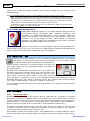
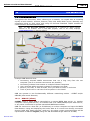
Perspective View
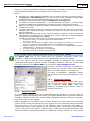
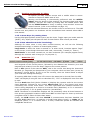
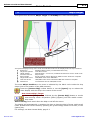
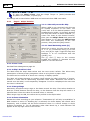
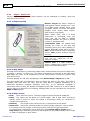
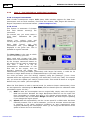
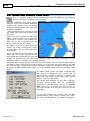
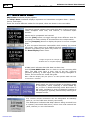
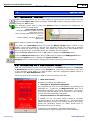
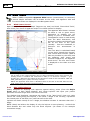
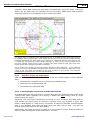
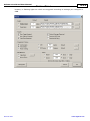
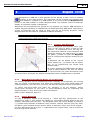
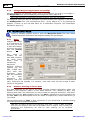
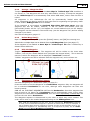
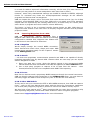
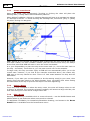
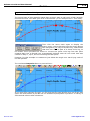
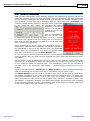
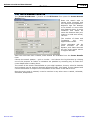
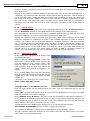
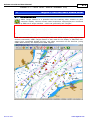
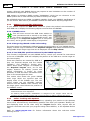
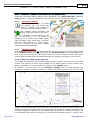
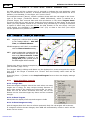
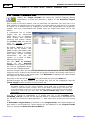
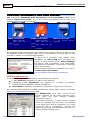
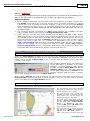
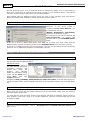
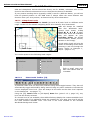
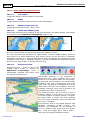
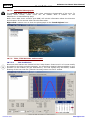
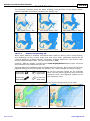
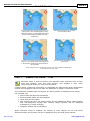
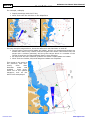
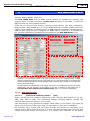
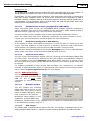
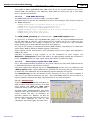
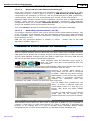
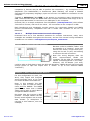
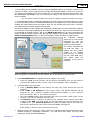
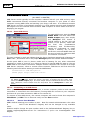
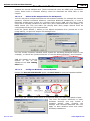
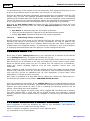
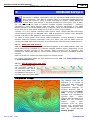
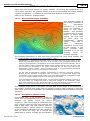
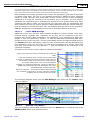
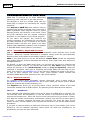
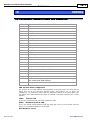
Perspective View ... [F12] or [3] or [F3]
toolbar toggle button or tickbox on
ShipsForm>>CustomPage
gives
a
configurable elevated view rather than
the typical overhead view.
Over/Under zooming is not permitted in
perspective view. Only available chart levels
shown at their digitised scales will be allowed,
so MixLevels and OverZoom are automatically
disabled in this view. Consequently a lot more
"grey area" may appear in Perspective View. All
usual chart functions and navigation tools are
available, although some may be found to be
unsuitable with some configurations.
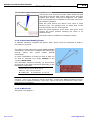
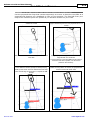
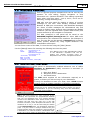
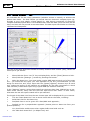
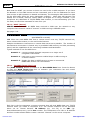
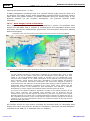
The viewing position can be moved to give a
different "shape" to your chart. You may want
to hide the display of certain objects, or choose
de-clutter mode to speed the chart drawing
time (on slower machines) and/or to make the
view more "readable".
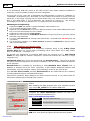
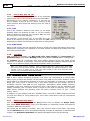
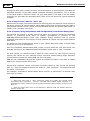
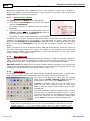
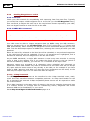
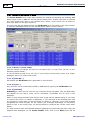
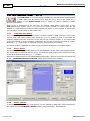
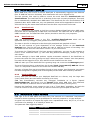
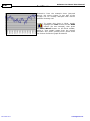
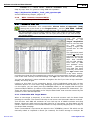
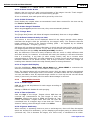
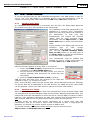
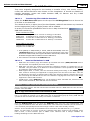
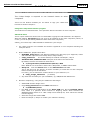
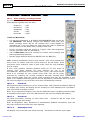
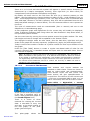
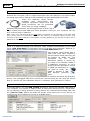
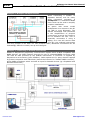
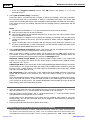
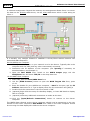
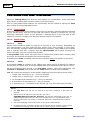
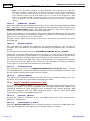
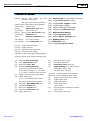
In Perspective View a new toolbar appears with
Up/Down Left/Right On/Off controls. The
Up/Down and Left/Right can be changed to
move in small or large steps with the {Shift}
key - used as a toggle (don't hold it down –
each press will toggle small/large steps).
Rel 4:Jan 2011
www.digiboat.com